Overview
If the TeamTrace app closes by itself, freezes, or stops responding, the cause is usually an old version, a computer that doesn't meet the requirements, another program getting in the way, or a damaged installation. This article takes you through the checks in order, from the quickest to the ones that need support, so you can get TeamTrace running again and, if you need help, give support what it needs.
Before You Begin
- Note what happens: does the app close suddenly, freeze, show an error message, or fail to open at all?
- Note when it happens: at startup, after you log in, when you start the timer, or at a particular time of day.
- Note which app crashes: the desktop tracker or the mobile app. The steps below are written for the desktop tracker, and the mobile app is covered where it differs.
- Save any open work in other programs before you start, because some steps need a restart.
- Updating or reinstalling the tracker may need an administrator, for example if your company installs the tracker for you.
Quick Checklist
| Step | What to do | Fixes |
| 1 | Update the software | Known bugs that are already fixed. |
| 2 | Check system requirements | Computers that are too old or too busy to run the app. |
| 3 | Disable conflicting programs | Other software that interferes with TeamTrace. |
| 4 | Reinstall the software | Damaged or incomplete installations. |
| 5 | Contact support with crash logs | Problems that remain after the steps above. |
Step 1: Update the Software
Make sure you are using the latest version of TeamTrace. Updates often fix crashes.
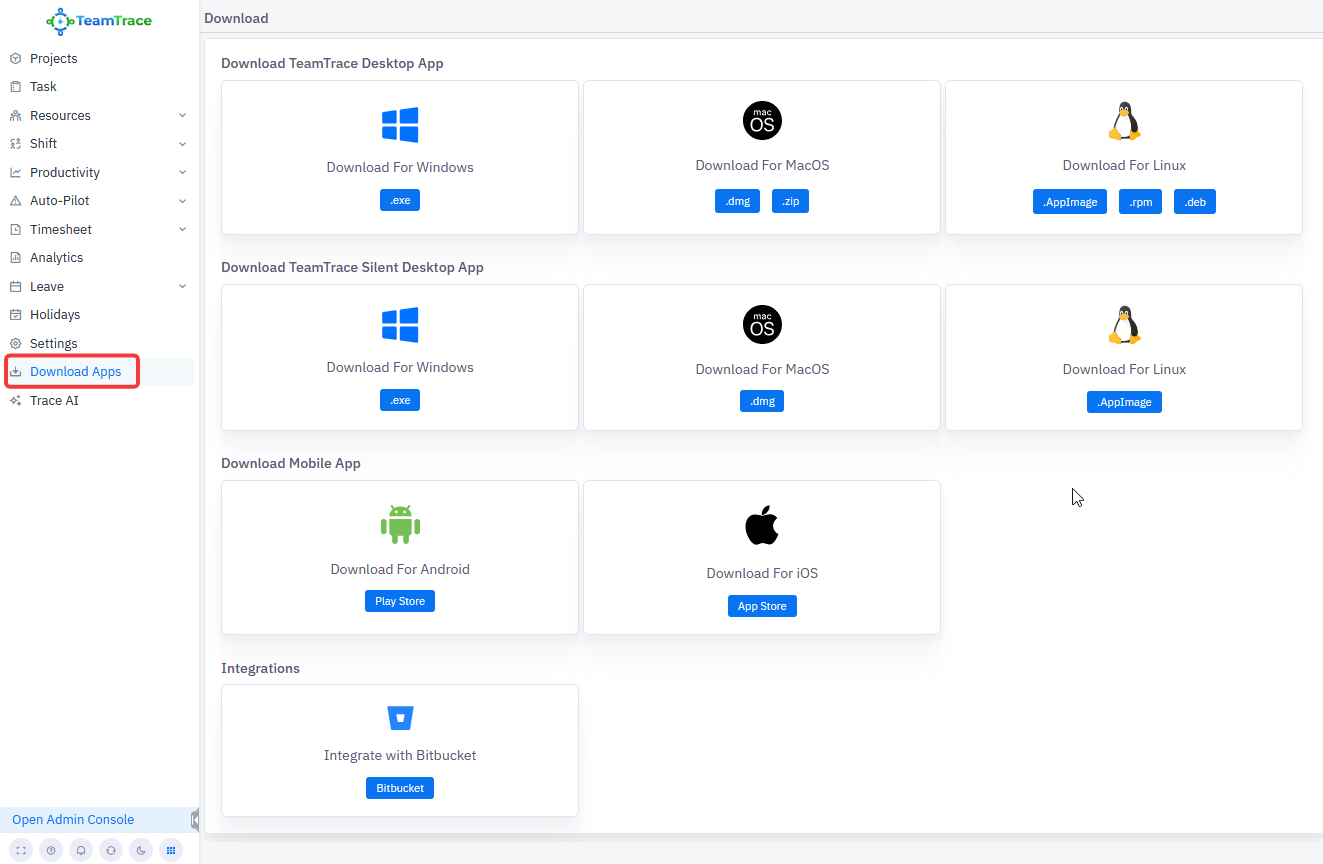
- Find your version. Open the TeamTrace app and look for the version number. On the download page you will find the latest version.
- Compare it with the latest version. On the download page you will find the latest version.
- Update. If a newer version is available, install it.
- Restart the app, and restart your computer if the update asks you to.
Also update your computer. An out-of-date operating system can cause crashes. On Windows, open Settings, then Windows Update, and install any waiting updates.
Mobile app. Open the App Store or Google Play, find TeamTrace and tap Update if it is offered.
Step 2: Check System Requirements
Check that your computer meets the minimum requirements for TeamTrace. If it doesn't, the app may crash or run very slowly.
| Requirement | Minimum |
| Operating system | Windows 10+, macOS 12+, Ubuntu 20.04+ |
| Processor | Standard |
| Memory (RAM) | 4 GB (minimum) |
| Free disk space | 500 MB free (for the agent and local data cache) |
| Internet connection | Stable Internet Connection is needed. |
| Network | Outbound HTTPS (TCP 443) access to *.teamtrace.app |
To check your computer on Windows:
- Open Settings, then System, then About. You see the Windows version, the processor and the installed memory.
- Open File Explorer and check the free space on your main drive. A drive that is almost full can cause crashes.
- Press Ctrl + Shift + Esc to open Task Manager, and look at the Performance tab. If memory or the processor is always close to full, your computer is overloaded.
If your computer is below the minimum, free up space, close programs you don't need, or ask your administrator about a different device.
Step 3: Disable Conflicting Programs
Close other applications that might be conflicting with TeamTrace. Programs that watch or change what your computer does can interfere with the tracker.
- Close what you don't need. Press Ctrl + Shift + Esc to open Task Manager, and close programs you don't use.
- Look for likely culprits. These include other time trackers or monitoring tools, screen recorders and screen-capture tools, remote desktop and screen-sharing tools, security or antivirus software, and system-cleaning or optimizer tools.
- Test one at a time. Turn off a suspect program, then start TeamTrace and see if it still crashes.
- Allow TeamTrace in your security software. If your antivirus or firewall blocks the tracker, add TeamTrace to its allowed list. [Add: the name of the TeamTrace program and the web addresses to allow.]
- Try a clean start. Restart your computer, open only TeamTrace, and see if it runs. If it does, one of your other programs is the cause. Open them again one by one until the crash returns.
Note: VPN and Anti-virus may conflict with the smooth running of the tracker.
If your company manages your computer, don't turn off security software yourself. Ask your IT team to allow TeamTrace instead.
Step 4: Reinstall the Software
If the app still crashes, a file may be damaged. Uninstalling and installing it again gives you a clean copy.
- Get what you need first. Have your login details ready, and download the latest installer.
- Ask your administrator for the keys if needed. TeamTrace shows an Installation Key and an Uninstallation Key under Settings, Productivity, Global Settings.
- Close TeamTrace completely. Check Task Manager to make sure it is no longer running.
- Uninstall it. On Windows, open Settings, then Apps, then Installed apps, find TeamTrace and choose Uninstall.
- Restart your computer.
- Install the latest version. Run the new installer and follow the steps. See How to Install the TeamTrace Tracker on Windows.
- Log in and test. Open TeamTrace and use it as you normally do.
Mobile app. Close app and restart it. If it doesn't work then delete the app, restart your phone and install TeamTrace again from the App Store or Google Play.
Step 5: Contact Support with Crash Logs
If the app still crashes, contact the TeamTrace support team. A crash log tells support what the app was doing when it failed, so it is the most useful thing you can send.
Send support these details:
- Crash logs. See below.
- The app and its version, and whether it is the desktop tracker or the mobile app.
- Your device: the operating system and version, the processor, the memory and the free disk space.
- What happened: what you were doing when it crashed, and the exact error message, if there was one.
- When it happens: the date and time, and how often.
- What you already tried, from Steps 1 to 4.
- Your username or registered email address and your company name.
Tips
- Change one thing at a time. If you change several things at once, you won't know which one fixed it.
- Write down when it crashes. A pattern, such as always after you start the timer, helps support find the cause.
- Restart your computer now and then. A computer that has run for weeks can slow down and cause crashes.
- Keep your computer and TeamTrace up to date so known problems are already fixed.
- Keep free space on your drive. Very little free space is a common cause of crashes.
- Administrators: if many people have the same crash, check the version they use and what changed recently, then tell support.
Notes
- The steps are written for the desktop tracker on Windows. Mobile steps are given where they differ.
- If the app opens but you can't log in, see Cannot Log In to TeamTrace.
- Your administrator manages how the tracker is installed in your company, so ask them before you reinstall.
Troubleshooting
| Problem | What to check |
| The app closes by itself right after I open it | Update the app and your computer, then restart. If it continues, reinstall it. See Steps 1 and 4. |
| The app freezes or runs very slowly | Check free memory and disk space, and close other programs. See Steps 2 and 3. |
| It started crashing after I installed a new program or an update | The new program may conflict with TeamTrace. Turn it off and test. See Step 3. |
| It crashes when I start the timer or take a screenshot | Check for screen-capture or recording tools that could conflict, and send the crash log to support. See Steps 3 and 5. |
| It crashes at startup after my computer restarts | Another program that starts with Windows may be the cause. Try a clean start. See Step 3. |
| An error message appears before it closes | Take a screenshot of the message and send it to support. See Step 5. |
| The crash continues after I reinstall | Contact support with the crash logs and your device details. See Step 5. |
| I can't uninstall the app | Close TeamTrace fully, and ask your administrator for the Uninstallation Key or help. [Add: the steps for a locked or silent installation.] |
| The mobile app crashes | Update the app, restart your phone, free up space, and reinstall the app if needed. |
| Everyone in the company has the same crash | Ask your administrator to contact support, and note the app version everyone uses. |
Related Articles
Was this article helpful?
That’s Great!
Thank you for your feedback
Sorry! We couldn't be helpful
Thank you for your feedback
Feedback sent
We appreciate your effort and will try to fix the article