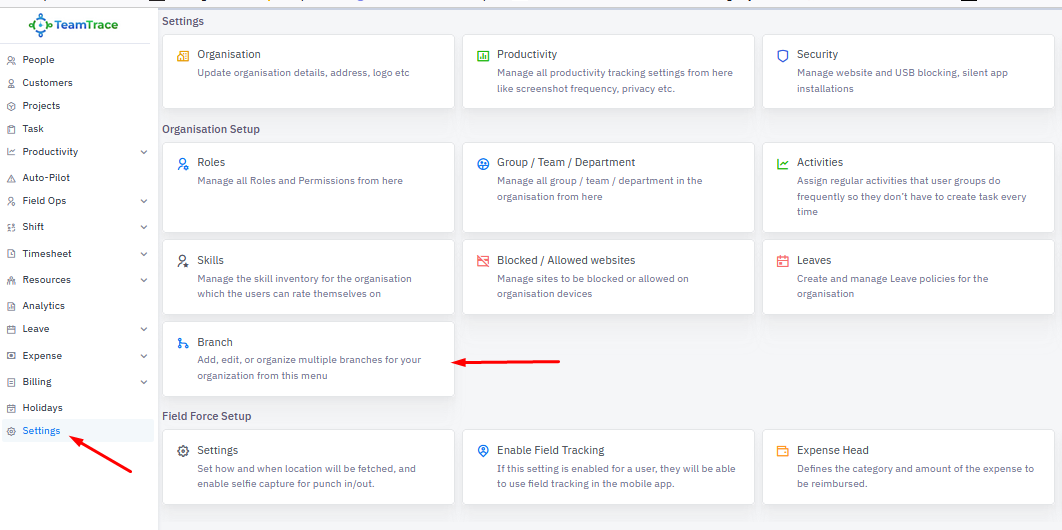
Under Settings, click on the Branch module.
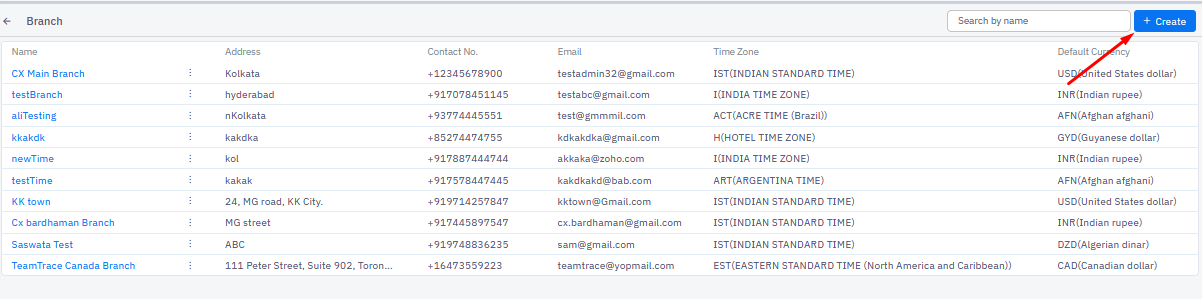
 Click on Create button on the top right of the page to create a new Branch.
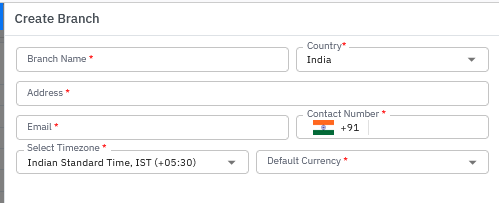
Fill in the following details to add a branch:
|  |
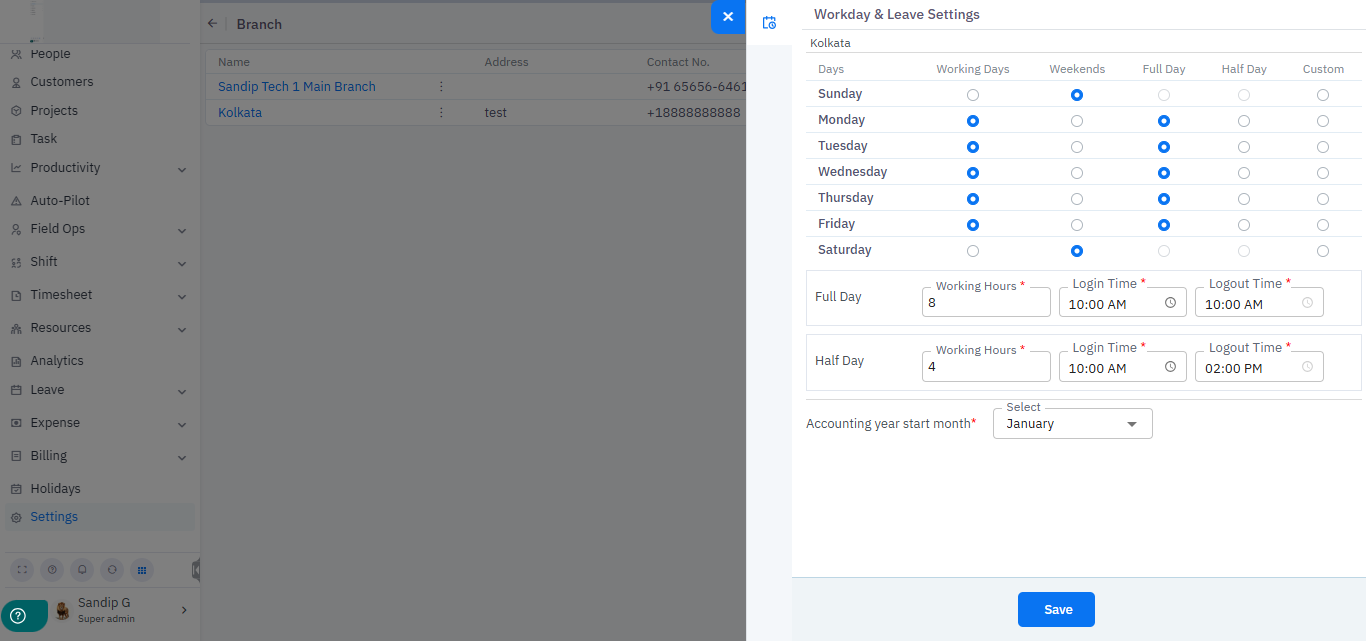
Once the Branch is created, click on the Branch Name to configure the Workday & Leave settings.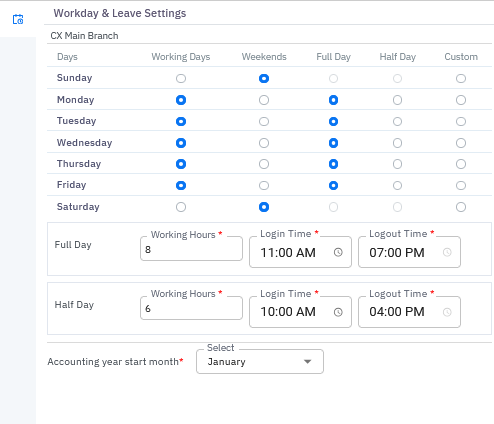
On the Branch settings page, you can define working days, weekends, full days, and half days.
Custom column.
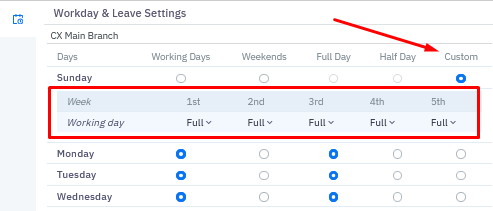
When the Custom column is selected for any day, it shows 5 weeks, and each week has the following options:
Full Day
Half Day
Off
What is custom settings?
Each branch can set its own schedule—for example, some may treat Saturday as a holiday, others as a half day, and some as a full working day. With TeamTrace, organizations have the flexibility to customize work schedules to match their unique work culture.
After creating a Branch, if the user clicks on the Branch's name, then the custom option appears.
Additional configuration options:
Option to define minimum working hours for a full day
Option to define minimum hours required to consider a half day
Option to set login and logout times for full and half days
Option to select the accounting year’s start month
Settings
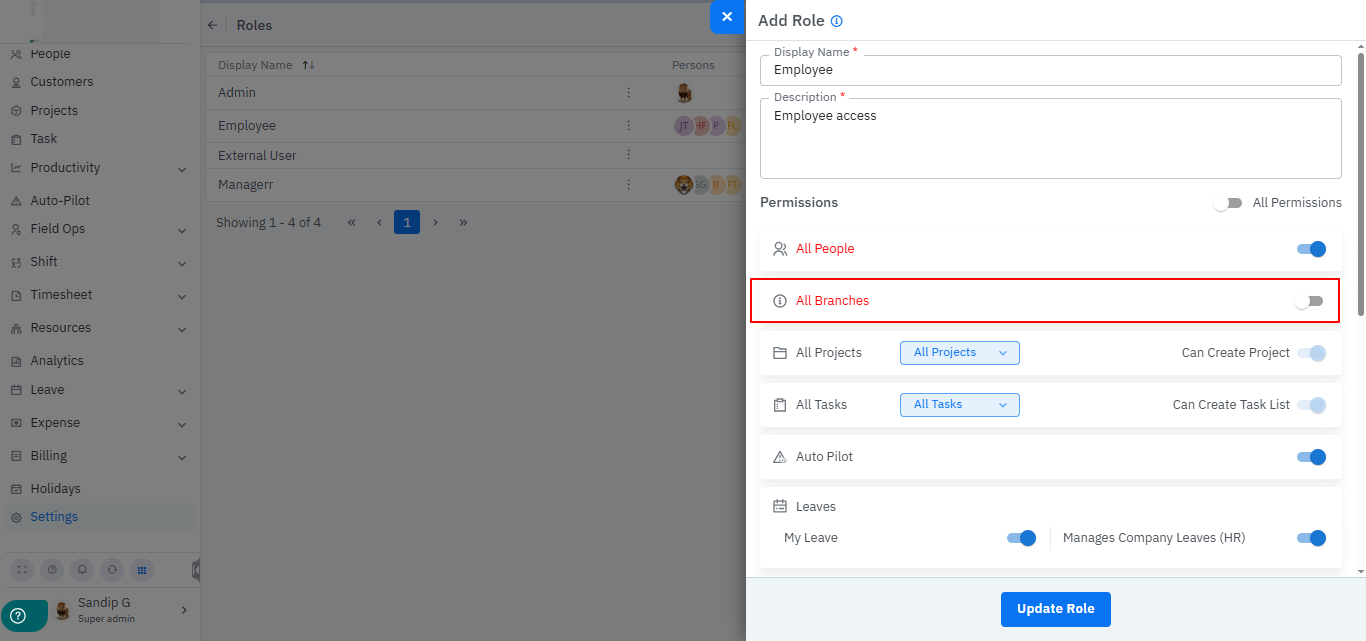
Role: In the Roles section of the Settings module, the Branch Settings option lets you control access—decide which roles can manage all branches and which roles are limited to their own branch.
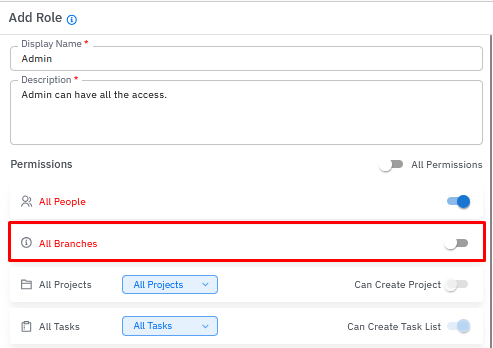
Importance of the Role: If an admin has access to all branches, they can manage employees across every branch in all modules—such as People, Project, Task, Productivity and all over the platform. If their access is limited to a single branch, they can only manage the users within their own branch.
Leave
When creating a leave type, you must select a branch. Only users linked to that branch will see the leave type. If 'All Branches' is selected, the leave type becomes visible across every branch. However, the 'All Branches' option is available only to users with access to all branches.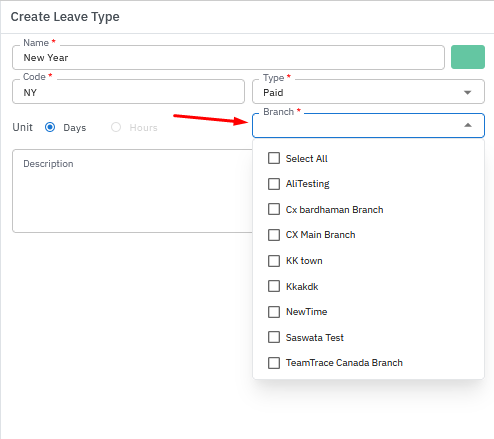
Holidays
The same logic as Leaves should be applicable for Holidays as well. If a user has access for all branches then the user can create Holidays for all branches else for his own branch only.
- People
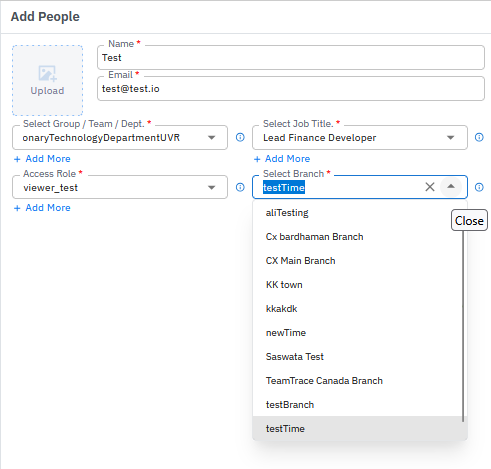
While adding people(s) we have to select a Branch mandatorily.
Customers
While adding Customer(s) we have to select Branch mandatorily.
Project & Task
If the Project/Task creator has access to other branches, then the user can Add/Edit/Assign any branch's employee for project. Else he can add/edit/assign only his Branch's users for that Project or
Task.
Productivity
Based on their role, a user can either view details of people across all branches or be restricted to viewing only their own branch’s details.
Filed Ops
Real Time People and People's log: Based on their role, a user can either view details of field people across all branches or be restricted to viewing only their own branch’s field people.
Sites: When creating a site, selecting a branch is mandatory. The user dropdown will only show employees linked to that branch. Role permissions also apply—if the site creator has access to all branches, they can view every branch. Otherwise, they will only see their own branch in the dropdown.
Analytics
In the Analytics section, all data and user filters are Branch‑specific. Users can filter data by branch, and only employees linked to that branch will appear. Branch selection is restricted for users without access to all branches—those with full access can view every branch.
Leaves
While applying for leave in both Company Leave and My Leave the user can only see those leave that belongs to his own branch.
Holidays
A user can only view holidays assigned to their own branch.
Was this article helpful?
That’s Great!
Thank you for your feedback
Sorry! We couldn't be helpful
Thank you for your feedback
Feedback sent
We appreciate your effort and will try to fix the article