Overview
In TeamTrace, attendance is calculated from tracker logins. A user's attendance is recorded when they log in to the tracker, whether they use the TeamTrace tracker or the FieldTrace tracker. This article explains how attendance is calculated and where to view it.
How Attendance Is Calculated
Attendance is based on login activity in the tracker:
- When a user logs in to the TeamTrace tracker, their attendance is recorded.
- When a user logs in to the FieldTrace tracker, their attendance is recorded.
The same rule applies to both trackers, so employees working in the office and in the field are counted in the same way.
| Tracker | Attendance recorded when |
| TeamTrace | The user logs in to the tracker |
| FieldTrace | The user logs in to the tracker |
Where to View Attendance
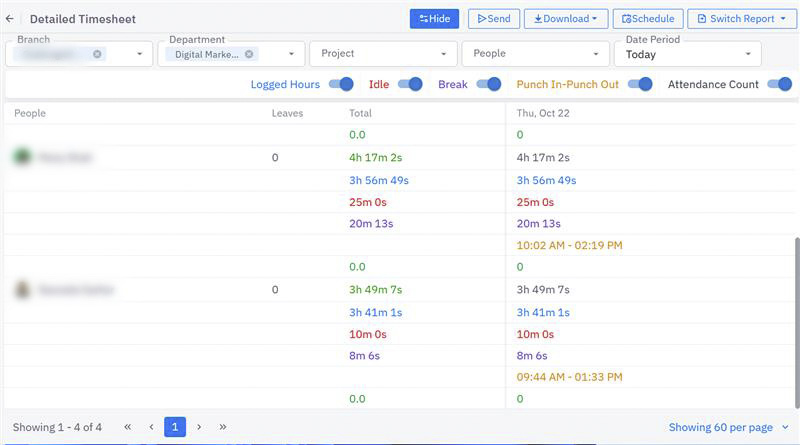
You can view attendance in the Detailed Timesheet report in the Analytics section. This report gives a day-by-day breakdown of the hours each user has logged, and it includes an attendance count option.
Before you begin: your role needs the Analytics permission to see the Analytics tab. If you don't see it, contact your administrator.
Steps to view attendance
- Log in to the TeamTrace portal and open the Analytics section.
- Open the Detailed Timesheet report.
- Turn on the Attendance Count toggle. The report then shows the attendance count for the day, or across the full date range selected in the filter.
- Use the filters to narrow the results (see below).
If you don't need the attendance count in a particular view or export, turn the toggle off.
What the report shows
Each row shows a user's name, with their time data in color-coded columns:
| Color | What it represents |
| Blue | Logged hours, the total time recorded in the timer |
| Red | Idle time, periods when the system detected inactivity |
| Purple | Break time, scheduled or recorded breaks taken during the day |
| Yellow | Punch-in and punch-out times, when the user started and ended their working day |
Filters
| Filter | What it does |
| Branch | Shows all users in the selected branch with their timesheet data. |
| Department | Shows all users in the selected department with their timesheet details. |
| Project | Shows all users added to the selected project with their timesheet data. |
| People | Shows the timesheet of a single selected user. |
| Date Period | Sets the date range. The report refreshes to show data for that period. |
You can hide or unhide the filter panel at the top of the screen.
Share or download the report
- Send from TeamTrace: click Send and fill in the form: the recipient's email address, a subject line, the file type and the report type. The message is optional and every other field is mandatory.
- Download: save the report to your device as a PDF or Excel file in a detailed format.
Schedule the report
To have the report emailed automatically on a regular schedule:
- Enter a report name.
- Choose the recipients from the drop-down.
- Set the report parameters: the project, department and people the report should cover.
- Use the toggles for Active Hours, Break Time, Attendance Count, Idle Time and Punch In/Punch Out. A toggle that is on is included in the emailed report, and one that is off is excluded.
- Select the schedule period, then pick a specific date. On that date, the report is emailed to all selected recipients.
Scheduled reports appear in the List tab, which shows each report's name and schedule period. From there you can update or delete a scheduled report.
To move between reports in the Analytics section, use the master switcher at the top of the report section.
Notes
- Attendance depends on users logging in to the tracker. If a user doesn't log in, no attendance is recorded for that period.
- The attendance count follows the date range selected in the filter.
- [Add: how attendance is handled if a user logs in to both trackers on the same day.]
- [Add: how the day cut-off and time zone are determined.]
- [Add: whether attendance can be corrected manually, and by whom.]
Troubleshooting
| Problem | What to check |
| A user shows no attendance for a day | Check that the user logged in to the TeamTrace or FieldTrace tracker that day. |
| The attendance count isn't shown in the report | Check that the Attendance Count toggle is turned on. |
| The Analytics tab isn't visible | Check that the Analytics permission is enabled on your role. |
| A user is missing from the report | Check the Branch, Department, Project, People and Date Period filters. |
| A user says they worked but attendance is missing | Confirm the tracker was installed and the user was logged in, and contact support if the issue continues. |
Related Articles
- TeamTrace Roles and Permission Matrix
- How to Install the TeamTrace Desktop Application on Windows
- How to Install the TeamTrace Silent App on Windows
- How to Track Employee Movement in TeamTrace (People Movement)
Was this article helpful?
That’s Great!
Thank you for your feedback
Sorry! We couldn't be helpful
Thank you for your feedback
Feedback sent
We appreciate your effort and will try to fix the article