Overview
The Analytics section in TeamTrace brings together all of your reports in one place. There are 25 reports, grouped into four sections: Time and Attendance, Productivity, Work and Others. This article lists every report with a short description, so you can find the right one quickly.
How to Open Reports
- Log in to the TeamTrace portal.
- Click Analytics in the left panel. The reports page opens, with the reports grouped under their section headings.
- Click a report's card to open it.
Your role needs the Analytics permission to see this section. If you don't see it, contact your administrator. See TeamTrace Roles and Permission Matrix.
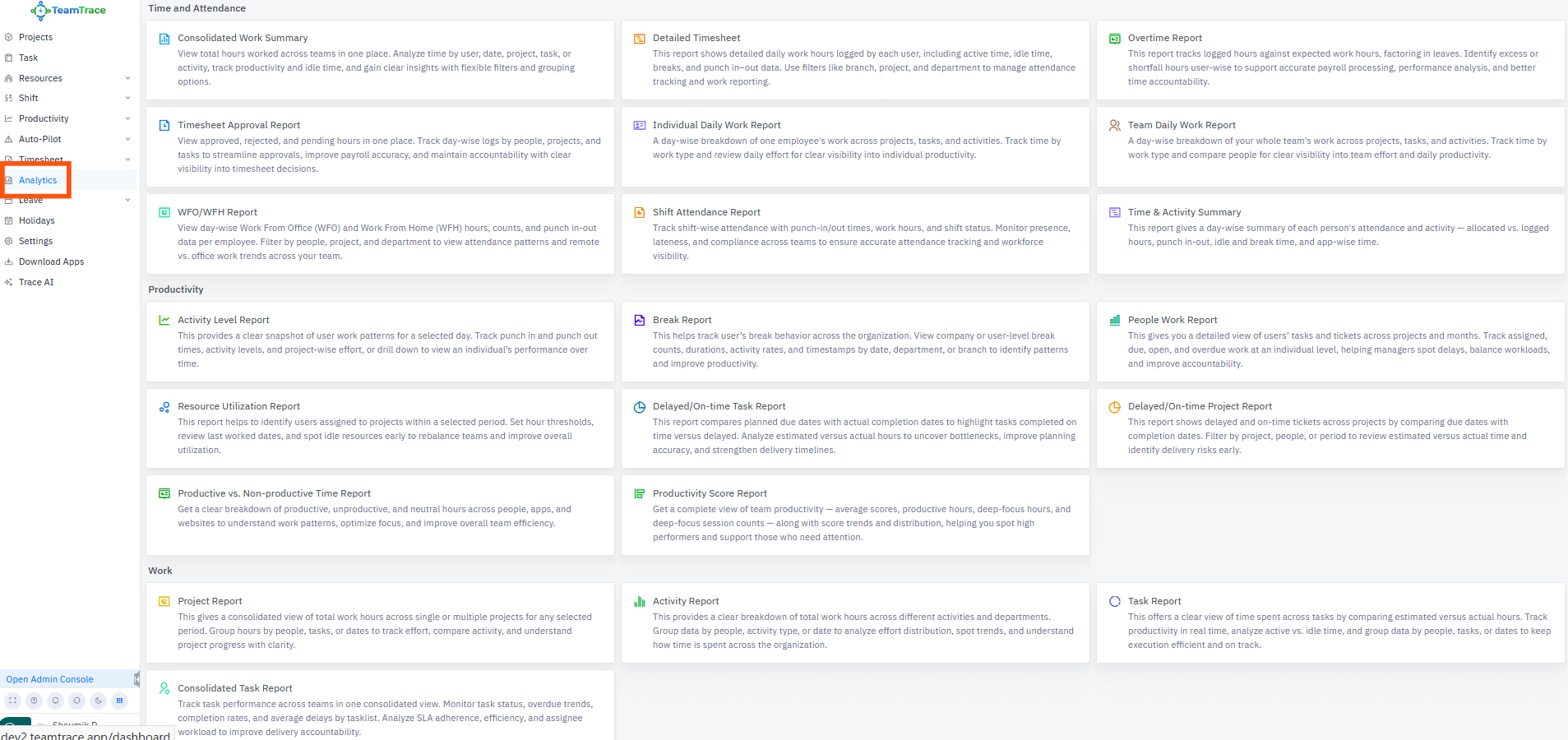
Reports at a Glance
| Section | Number of reports | Use it to |
| Time and Attendance | 9 | Track hours worked, attendance, overtime, timesheets and shifts. |
| Productivity | 8 | Understand work patterns, activity, breaks, utilization and delivery. |
| Work | 4 | See how time and effort are spent across projects, activities and tasks. |
| Others | 4 | Manage downloads and scheduled reports, and check app versions. |
1. Time and Attendance Reports
| Report | What it shows |
| Consolidated Work Summary | Total hours worked across teams in one place. Analyze time by user, date, project, task or activity, and track productivity and idle time, with flexible filters and grouping. |
| Detailed Timesheet | Detailed daily work hours for each user, including active time, idle time, breaks and punch in and out data. Filter by branch, project and department. |
| Overtime Report | Logged hours against expected work hours, taking leaves into account. Shows each user's excess or shortfall hours, to support payroll and time accountability. |
| Timesheet Approval Report | Approved, rejected and pending hours in one place, with day-wise logs by people, projects and tasks, to streamline timesheet approvals. |
| Individual Daily Work Report | A day-wise breakdown of one employee's work across projects, tasks and activities, with time by work type. |
| Team Daily Work Report | A day-wise breakdown of your whole team's work across projects, tasks and activities, so you can compare people and see daily team effort. |
| WFO/WFH Report | Day-wise Work From Office and Work From Home hours, counts and punch in and out data for each employee. Shows attendance patterns and remote versus office trends. |
| Shift Attendance Report | Shift-wise attendance with punch-in and punch-out times, work hours and shift status. Helps you monitor presence, lateness and compliance. |
| Time & Activity Summary | A day-wise summary of each person's attendance and activity: allocated versus logged hours, punch in and out, idle and break time, and app-wise time. |
2. Productivity Reports
| Report | What it shows |
| Activity Level Report | A snapshot of users' work patterns for a selected day: punch in and out times, activity levels and project-wise effort. You can drill down to an individual's performance over time. See How Activity Level Is Calculated in TeamTrace. |
| Break Report | Break behavior across the organization: break counts, durations, activity rates and timestamps, by date, department or branch. |
| People Work Report | A detailed view of each user's tasks and tickets across projects and months: assigned, due, open and overdue work. Helps managers spot delays and balance workloads. |
| Resource Utilization Report | Users assigned to projects within a selected period. Set hour thresholds, review last-worked dates and spot idle resources early. |
| Delayed/On-time Task Report | Compares planned due dates with actual completion dates to show tasks completed on time and tasks that were late. Compares estimated and actual hours to find bottlenecks. |
| Delayed/On-time Project Report | Delayed and on-time tickets across projects, comparing due dates with completion dates. Filter by project, people or period to spot delivery risks early. |
| Productive vs. Non-productive Time Report | A breakdown of productive, unproductive and neutral hours across people, apps and websites, to understand work patterns and focus. |
| Productivity Score Report | Team productivity at a glance: average scores, productive hours, deep-focus hours and deep-focus session counts, with score trends and distribution. Helps you spot high performers and people who need support. |
3. Work Reports
| Report | What it shows |
| Project Report | Total work hours across one or more projects for a selected period. Group hours by people, tasks or dates to track effort and project progress. |
| Activity Report | Total work hours across different activities and departments. Group by people, activity type or date to see how time is spent across the organization. |
| Task Report | Time spent across tasks, comparing estimated and actual hours. Track productivity in real time and compare active with idle time, grouped by people, tasks or dates. |
| Consolidated Task Report | Task performance across teams in one view: task status, overdue trends, completion rates and average delays by task list. Also covers SLA adherence and assignee workload. |
4. Other Reports
| Report | What it shows |
| Download Manager | All the reports you have generated, in one place. View file names, download dates, expiry timelines and direct links, so you can re-download files and manage shared data. |
| Schedule Manager | All scheduled reports in one place. View report names, types, senders, recipients and delivery frequency, to manage automations and make sure reports are delivered on time. |
| Consolidated Timesheet | Active hours and punch in and out times for your office and field teams in one report. It combines TeamTrace and FieldTrace, so you can track each person's daily totals, leaves and punch records. |
| App Version | The app versions your teams are using. View each user's department, app version, device platform and report date. |
Which Report Should I Use?
| I want to know... | Use |
| How many hours people worked, including idle and break time | Detailed Timesheet, Consolidated Work Summary |
| Who worked extra or fell short of expected hours | Overtime Report |
| Which timesheets are approved, rejected or pending | Timesheet Approval Report |
| Who is working from the office and who from home | WFO/WFH Report |
| Who arrived late or missed a shift | Shift Attendance Report |
| Attendance for both office and field teams | Consolidated Timesheet |
| How active people were, and how productive their time was | Activity Level Report, Productive vs. Non-productive Time Report, Productivity Score Report |
| Whether people take too many breaks | Break Report |
| Which people are idle or overloaded | Resource Utilization Report, People Work Report |
| Whether tasks and projects are delivered on time | Delayed/On-time Task Report, Delayed/On-time Project Report, Consolidated Task Report |
| How much time went into each project, activity or task | Project Report, Activity Report, Task Report |
| Where to find a report I already generated or scheduled | Download Manager, Schedule Manager |
| Which app versions people are running | App Version |
Working with Reports
The reports share common ways to filter, share and schedule. As described for the Detailed Timesheet report:
- Filters: narrow the results by Branch, Department, Project, People and Date Period. You can hide or show the filter panel.
- Send: email a report from inside TeamTrace. Enter the recipient's email address, a subject, the file type and the report type. The message is optional.
- Download: save a report to your device as a PDF or Excel file.
- Schedule: set a report to be emailed automatically on a chosen date. Scheduled reports are listed in the Schedule Manager.
- Download history: generated reports are listed in the Download Manager.
- Master switcher: use it at the top of a report to jump to another report without going back to the main page.
Notes
- You need the Analytics permission to open this section.
- Some reports use data that depends on your setup, such as shifts, leaves, productivity categories and the FieldTrace app.
- Project-level reports for sprints, such as burndown and burnup charts, are separate and are found in the project's own Reports tab. See Sprint Management in TeamTrace.
- [Add: whether any reports depend on a plan, a role or an installed tracker.]
Troubleshooting
| Problem | What to check |
| I can't see Analytics | Check that your role has the Analytics permission, and contact your administrator. |
| A report shows no data | Widen the date period and check your filters. A report is empty if no time was tracked for what you selected. |
| I can't find a report I generated before | Open Download Manager, and check the expiry date. Files may expire after a set time. |
| A scheduled report didn't arrive | Open Schedule Manager and check the recipients and the delivery frequency. |
| The Overtime or Shift report looks wrong | These depend on expected hours, shifts and leaves, so check that they are set up for the people involved. |
Related Articles
- How TeamTrace Attendance Is Calculated
- How Activity Level Is Calculated in TeamTrace
- How TeamTrace Calculates Working Hours
- Sprint Management in TeamTrace
- TeamTrace Roles and Permission Matrix
Was this article helpful?
That’s Great!
Thank you for your feedback
Sorry! We couldn't be helpful
Thank you for your feedback
Feedback sent
We appreciate your effort and will try to fix the article