Overview
TeamTrace records working hours from the time users track in the tracker, and shows them in timesheet reports. This article explains what makes up a user's working hours, what can change them, and where to view them.
What Makes Up Working Hours
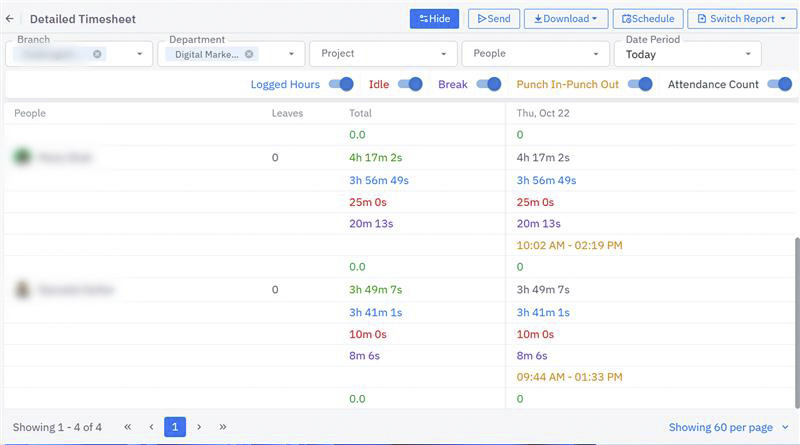
The Detailed Timesheet report in the Analytics section breaks each day into these types of time:
| Type of time | What it represents |
| Logged hours | The total time recorded in the timer |
| Idle time | Periods when the system detected inactivity |
| Break time | Scheduled or recorded breaks taken during the day |
| Punch in and punch out | When the user started and ended their working day |
What Can Change Working Hours
Idle time
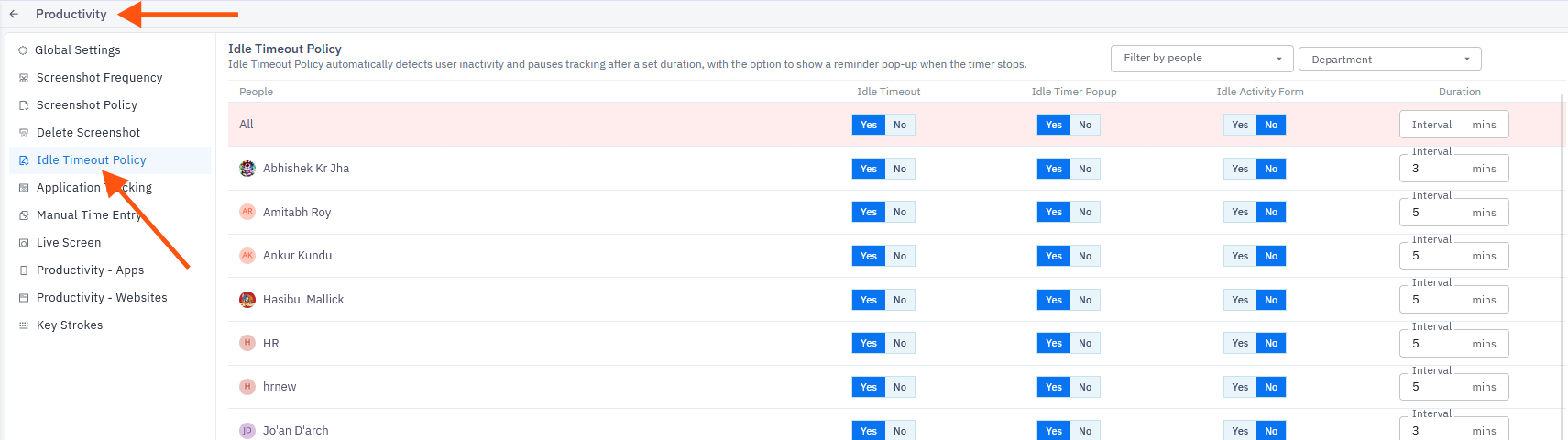
TeamTrace detects inactivity and records it as idle time. Idle-timeout behavior is configured under Settings > Productivity.
Manual time
- Users with the Own Manual Time Add permission can log their own time manually when there is a discrepancy.
- Users with the Concerned People Manual Time Add permission can add time on behalf of other users when a discrepancy arises.
Deleted screenshots
Users with the Concerned People Screenshot Delete permission can delete screenshots that belong to other users. Deleting a screenshot also removes the associated time from that user's timesheet, which reduces their total working hours.
Attendance
Attendance is recorded when a user logs in to the tracker, in either TeamTrace or FieldTrace. See How TeamTrace Attendance Is Calculated.
Where to View Working Hours
- Log in to the TeamTrace portal and open the Analytics section.
- Open the Detailed Timesheet report.
- Use the Branch, Department, Project, People and Date Period filters to narrow the results.
- Review each user's daily time in the color-coded columns.
You can send the report by email, download it as a PDF or Excel file, or schedule it to be emailed on a regular basis. Your role needs the Analytics permission to see this section.
Notes
- Working hours depend on users tracking time in the tracker.
- Deleting screenshots changes working hours, so grant that permission carefully.
Troubleshooting
| Problem | What to check |
| Working hours are lower than expected | Check the report for idle time, and check whether screenshots were deleted. |
| Time is missing for part of a day | Confirm the tracker was running and the user was logged in. If needed, add the time using manual time. |
| A user can't add manual time | Check that Own Manual Time Add is enabled on their role. |
| A manager can't add time for a team member | Check that Concerned People Manual Time Add is enabled on their role. |
Related Articles
Was this article helpful?
That’s Great!
Thank you for your feedback
Sorry! We couldn't be helpful
Thank you for your feedback
Feedback sent
We appreciate your effort and will try to fix the article