Overview
Scrum is a popular way of managing work in short, repeating cycles. TeamTrace supports Scrum by combining the standard Scrum ceremonies and artifacts with automated time tracking, workforce monitoring and resource capacity analytics. This guide explains the basic ideas in plain language, then shows you how to set up and run your first sprint in TeamTrace.
What Is Scrum?
In Scrum, a team breaks a big project into small pieces and delivers them step by step, instead of building everything at once. Work is done in sprints, which are short, fixed periods of time. At the end of each sprint, the team aims to have something valuable and usable ready. Then the team reviews how it went, adjusts, and starts the next sprint.
Scrum suits projects where requirements change over time, because the team can adjust its plan at the start of every sprint.
Scrum Terms for Beginners
| Term | What it means |
| Sprint | A short, time-boxed period during which the team completes a defined set of work. Sprints usually last 1 to 4 weeks, and 2 weeks is the most common. |
| Sprint goal | A short statement of what the team wants to achieve in the sprint. The goal of a sprint is to deliver a potentially shippable product increment, something valuable and usable. |
| Product backlog | The prioritized list of all the work that may need to be done, which hasn't started yet. |
| Sprint backlog | The priority items chosen from the product backlog for the current sprint. |
| Task | A single piece of work, such as a card on the board. |
| Epic | A large body of related work that is broken down into smaller tasks. |
| Milestone | An important checkpoint or major deliverable in the project. |
| Board | A visual view where tasks move through stages such as To Do, In Progress and Done. |
| Velocity | How much work a team reliably completes in one sprint. |
How Scrum Works in TeamTrace
In TeamTrace, sprints are part of the Scrum project template. To use sprints, you first create a project that uses the Scrum template. The main building blocks are:
- Online Scrum boards: show sprint planning, backlog management, and tasks moving through their status stages.
- Sprint planning and backlog: teams break a project into time-boxed sprints and choose priority items from the product backlog to form the sprint backlog.
- Integrated time tracking and monitoring: TeamTrace automatically captures work hours, logs task-level time, tracks active productivity, and manages billable and non-billable hours that are tied to sprint tasks.
- Milestones and epics: track high-level project phases and major deliverables alongside the detailed sprint cards.
Getting Started: Your First Sprint
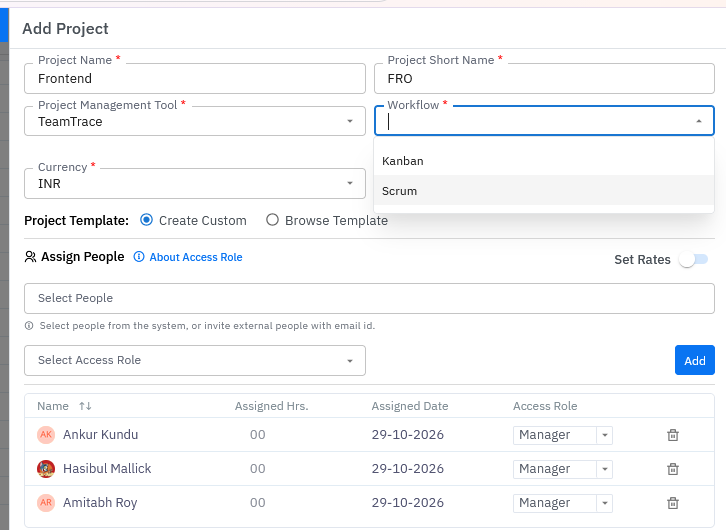
Step 1: Create a Scrum project
- Click Projects in the left menu.
- Click Add Project.
- Fill in the required project details, such as the name and description.
- Select Scrum as the Project Template.
- Click Add Project at the bottom of the form.
For more on creating projects and adding people, see How to Create a Project in TeamTrace.
Step 2: Open the project dashboard
After the project is created, click the project name to open its Project Dashboard.
Step 3: Build your backlog
- Open the Backlog tab.
- List the work needed to reach your project goals. Create a task for each piece of work, with a description and a priority.
- Order the items by importance, so the most valuable work is at the top.
See How to Create a Task in TeamTrace. For large pieces of work, you can also create an epic with the + Epic button and break it into tasks.
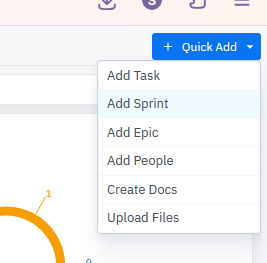
Step 4: Add a sprint
- On the top right of the dashboard, click the Quick Add button.
- Select Add Sprint from the drop-down menu.
- In the Add Sprint window, enter the sprint details: the name, goal, duration and dates.
- Click Save.
The new sprint appears under the Backlog section.
Step 5: Plan the sprint
- Review the highest-priority items in the backlog.
- Estimate the effort each item needs.
- Check your team's availability and capacity, so you don't commit to more than the team can do.
- Choose work that can reasonably be finished in the sprint. These items form your sprint backlog.
- Make sure the sprint has a clear goal.
To add a task to a sprint, click the three-dot menu (ellipsis) next to the sprint name and choose Add a Task.
Step 6: Start the sprint
When the plan is ready, click the three-dot menu (ellipsis) next to the sprint name and choose Start the Sprint. The three-dot menu also lets you Edit the sprint details.
Step 7: Work through the sprint
- Assign tasks to team members. See How to Assign a Task in TeamTrace.
- Use the Board view to follow the work. Move cards across the status columns as work progresses, by dragging and dropping them.
- Team members record time against their tasks. TeamTrace captures work hours and task-level time automatically.
- Resolve blockers quickly, and check progress against the sprint goal.
Step 8: Review the sprint
- Identify which tasks were completed and which weren't.
- Review the sprint summary and charts, and compare planned work with completed work.
- Move unfinished items back to the backlog or into a future sprint.
- Note what went well and what to improve, then plan the next sprint.
Built-in Reports and Metrics
TeamTrace provides automated analytics to measure sprint health and team performance:
| Report | What it tells you |
| Burndown chart | Tracks pending tasks and the remaining progress towards the release. |
| Velocity chart | Measures the amount of work the team reliably completes per sprint. |
| Cumulative Flow Diagram (CFD) | Shows where work builds up across stages, so you can spot bottlenecks. |
| Sprint report | Reviews what happened in a sprint. |
| Lead time and cycle time reports | Show how fast and how efficiently work is delivered. |
| Capacity planning | Monitors team bandwidth in real time, to prevent burnout or overload when you commit to a sprint. |
Open the Reports tab in the project to view them.
Tips for Beginners
- Start with a short sprint. Two weeks is the most common length, and you can adjust it later.
- Keep the sprint goal simple. One clear goal is easier to achieve than several.
- Don't overload the sprint. Check capacity before you commit, and leave some room for surprises.
- Keep the board up to date. Move cards as soon as the status changes, so everyone sees the true picture.
- Break big tasks down. Use subtasks and epics so each piece can be finished within a sprint.
- Review after every sprint. Use the reports to learn what to improve next time.
Troubleshooting
| Problem | What to check |
| I can't find Add Sprint | Sprints are part of the Scrum template. Check that the project was created with Scrum as its template, and look under Quick Add on the project dashboard. |
| I can't find my new sprint | Open the Backlog tab. New sprints appear there. |
| I can't start the sprint | Use the three-dot menu next to the sprint name, and check your access role in the project. |
| Reports show no data | A new sprint has no data until tasks are added and work is tracked. |
Related Articles
Was this article helpful?
That’s Great!
Thank you for your feedback
Sorry! We couldn't be helpful
Thank you for your feedback
Feedback sent
We appreciate your effort and will try to fix the article