Overview
A task's status shows where it is in your workflow. TeamTrace comes with default statuses, and you can edit them or add new ones to match how your team works. This article explains the default statuses, how to manage them in a project, and how they compare with Jira project statuses.
Default Statuses
By default, TeamTrace has three statuses:
| Status | Meaning |
| To Do | The task has been created but work hasn't started. |
| In Progress | Someone is actively working on the task. |
| Completed | The work is finished. |
Your organization may have changed these, so the statuses you see in a project can differ.
How to Manage Statuses in a Project
Important: Editing statuses is available only in Projects.
- Click Projects in the left panel and open the project.
- Open the Task tab.
- Click the Status button in the toolbar. The Project Status Column window opens and lists the project's statuses.
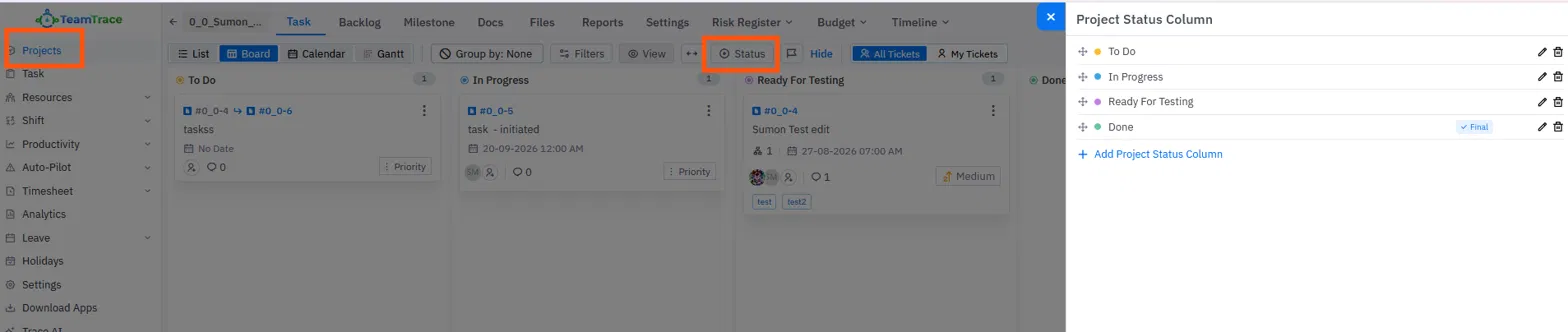
What you can do in the Project Status Column window
| Action | How |
| Edit a status | Click the pencil icon next to the status. |
| Delete a status | Click the trash icon next to the status. |
| Create a new status | Click + Add Project Status Column. |
| Reorder statuses | Drag a status using the handle on the left of its name. |
Understanding the Status Options
- Custom statuses: you can create statuses that match your team's workflow. For example, a project may add Ready For Testing between In Progress and Done.
- Role-based statuses: a status can be assigned to a specific role, so only users with that role can apply it to a task. This gives you control over how work moves through your pipeline.
- Final status: a status marked Final shows a "Final" label in the list. When a task moves to a final status, it shifts automatically to the end of the board in the board view, which keeps active tasks at the front.
Using Statuses on the Board
- In the Board view, each status is a column and tasks are cards.
- Drag and drop a card to another column to change its status.
- You can also open a task and change its status from the top right corner of the task detail panel.
- If a task is linked to another with a dependency, moving it to a new status may be restricted. See Task Dependencies Explained in TeamTrace.
Default Status categories
Every Jira status belongs to one of three fixed categories. Jira doesn't let you create new categories.
| Category | Meaning |
| To Do | Work hasn't started. The issue is waiting to be picked up. |
| In Progress | Work has started but isn't finished. |
| Done | No more work is needed on the issue. |
Common statuses
| Status | Typical meaning | Category |
| To Do | The issue is created and waiting to be started. | To Do |
| Open | The issue is open and ready for the assignee to start. Often the same as To Do. | To Do |
| Selected for Development | The issue has been chosen for the team to work on next. Common in software projects. | To Do |
| In Progress | The assignee is actively working on the issue. | In Progress |
| In Review | The work is finished and is being checked. Common in software projects. | In Progress |
| Reopened | A finished issue has been opened again for more work. | To Do |
| Resolved | The work has been completed and is awaiting confirmation. Used in older default workflows. | Done |
| Done | The work has been completed. | Done |
| Closed | The issue is finished and closed. Used in older default workflows. | Done |
Notes
- Editing statuses is available only in Projects.
- Deleting a status affects the tasks that use it, so check carefully before you delete one.
Troubleshooting
| Problem | What to check |
| I can't see the Status button | Open the project's Task tab. Editing statuses works only in Projects, and may depend on your access role. |
| I can't apply a particular status to a task | The status may be assigned to a specific role. Check that you have that role. |
| A task won't move to In Progress or Done | The task may be blocked by a linked task. Check its dependencies. |
| The statuses differ from another project | Statuses are set per project, so each project can have its own. |
Related Articles
Was this article helpful?
That’s Great!
Thank you for your feedback
Sorry! We couldn't be helpful
Thank you for your feedback
Feedback sent
We appreciate your effort and will try to fix the article