Overview
You can assign a task to one or more team members so they know the work is theirs. You can do this while creating the task, directly from the task list, or by updating an existing task. This article explains all three methods.
Before You Begin
- Sign in to the TeamTrace portal.
- The person you want to assign must already be a member of the task list. Only members of the task list appear in the assignee list. To add people to a task list, see Tasks Overview in TeamTrace.
Method 1: Assign a Task While Creating It
- On the Dashboard, click Task in the left panel, then open the task list.
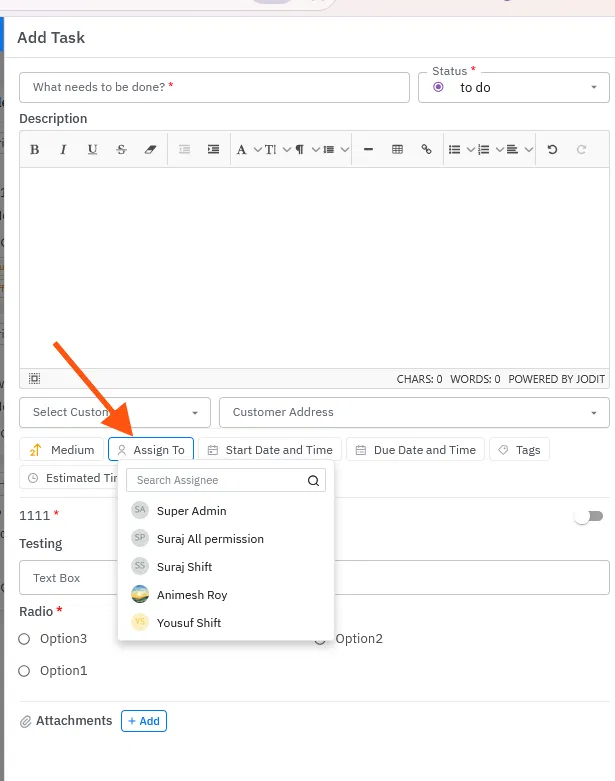
- Click the + Task button in the top right corner. The Add Task form opens.
- Enter the task name in What needs to be done? and choose a Status. Both are mandatory.
- Below the description and customer fields, click Assign To. A drop-down list of people opens.
- Select the person to assign. You can type a name in Search Assignee to find them quickly.
- Fill in any other details, then click Save.
Method 2: Assign a Task from the Task List
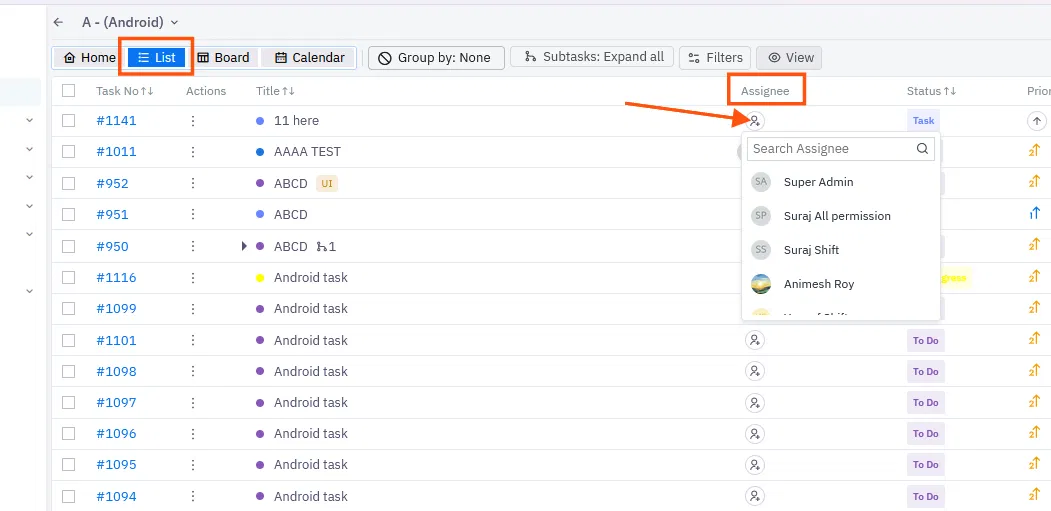
- Open the task list and make sure the List view is selected.
- Find the task you want to assign. In the Assignee column, click the assignee icon in the task's row.
- From the drop-down list, select the user to assign. You can use Search Assignee to find a name.
Method 3: Assign a Task by Updating It
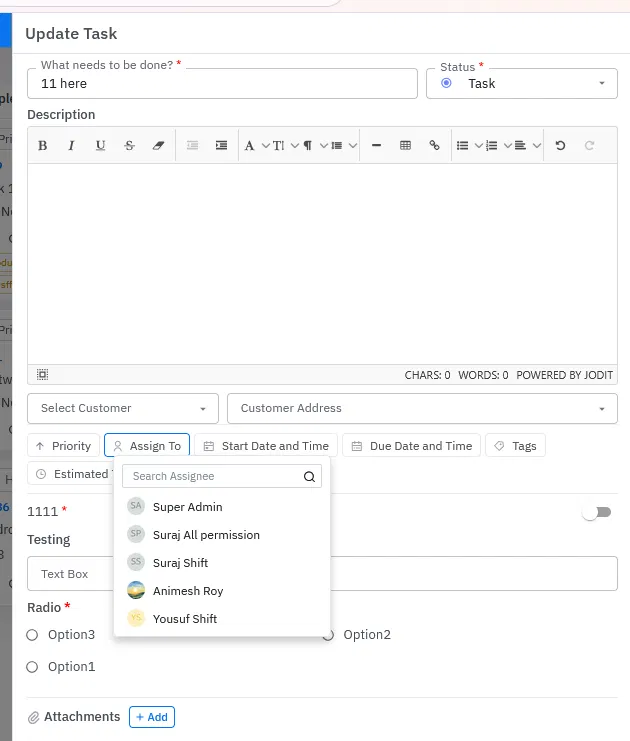
- Open the task list, click the three-dot menu on the task, and choose Edit (list view) or Update (board view). The Update Task form opens.
- Click Assign To.
- Select the person from the drop-down list.
- Save your changes.
Which Method Should I Use?
| Method | Use it when |
| While creating the task | You already know who will do the work. |
| From the task list (Assignee column) | You want to assign a task quickly without opening it. |
| By updating the task | You are already editing other details, or you want to change the assignee. |
Notes
- You can only assign a task to people who have been added to the task list.
- Assigning a task is optional. Only the task name and status are mandatory.
- If someone is missing from the assignee list, add them to the task list first with Manage People.
Troubleshooting
| Problem | What to check |
| The person isn't in the assignee list | Check that they have been added to the task list. Add them with Manage People. |
| The assignee icon or Assign To button isn't available | Check your access role in the task list. |
| The assignee didn't change | If you used the Update Task form, confirm you saved your changes, then refresh the page. |
Related Articles
Was this article helpful?
That’s Great!
Thank you for your feedback
Sorry! We couldn't be helpful
Thank you for your feedback
Feedback sent
We appreciate your effort and will try to fix the article