Overview
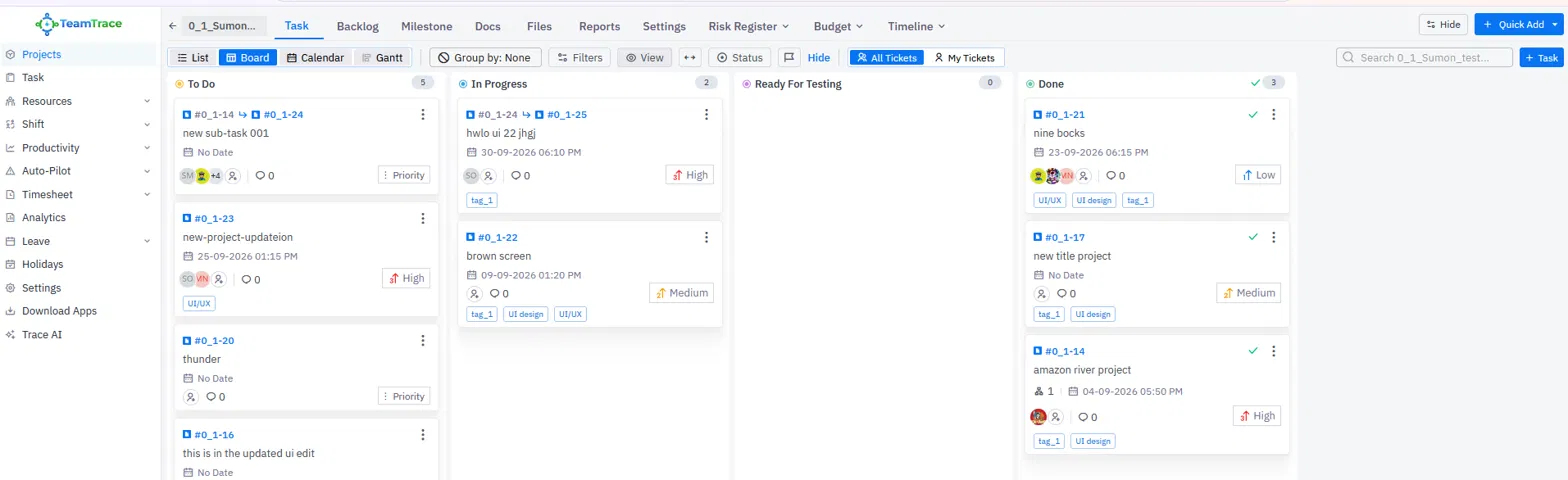
The Scrum board is where your team follows the work of a sprint day by day. Each task is a card, and each column is a status. As work progresses, cards move from left to right until they reach the final column. This article is a tour of the board: what each part shows, and how to use it during a sprint.
Open the Scrum Board
- Click Projects in the left menu and open your Scrum project.
- Open the Task tab.
- Select the Board view. The other views beside it are List, Calendar and Gantt.
How the Board Fits into a Sprint
- Tasks are created and prioritized in the Backlog. In a new project, all tasks go to the backlog unless a sprint has been started.
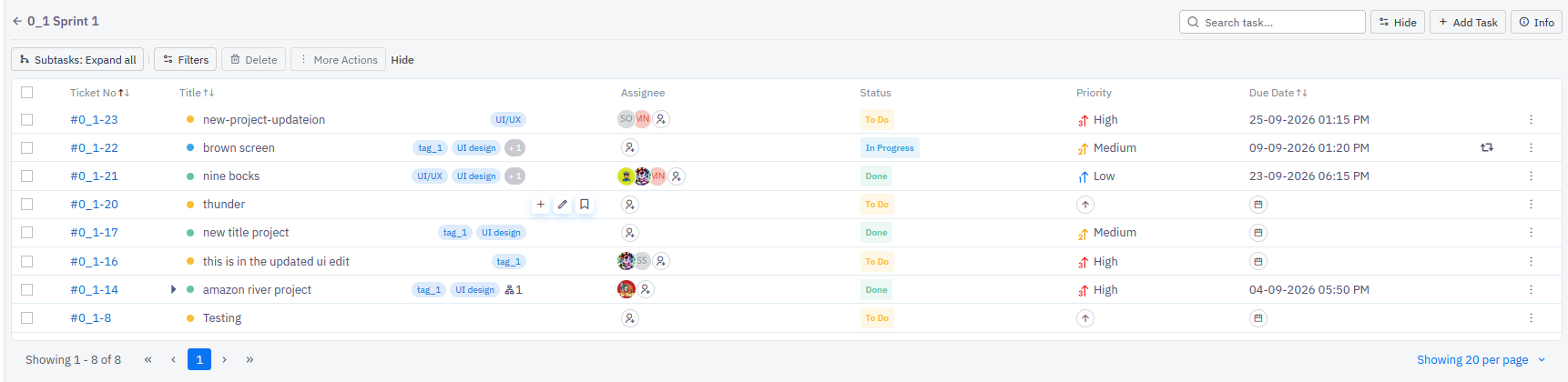
- You create a sprint, add tasks to it and start it. See How to Start and Complete a Sprint in TeamTrace.
- The team works the tasks on the board, moving cards through the columns.
- When the sprint ends, you complete it and review the results with the sprint reports. See Sprint Management in TeamTrace.
The Parts of the Board
| Area | Where it is | What it does |
| Project tabs | Top of the page | Move between Task, Backlog, Milestone, Docs, Files, Reports, Settings, Risk Register, Budget and Timeline. |
| View switcher | Top left of the board | Switch between List, Board, Calendar and Gantt views of the same project. |
| Toolbar | Above the columns | Group, filter, change the view and manage statuses. See below. |
| Top right controls | Top right | Search for tasks, add a task, use Quick Add, and hide or show parts of the screen. |
| Columns | Main area | One column for each status, with the number of cards in it. |
| Cards | Inside the columns | One card for each task. |
Columns
Each column is a status. The board in the example has To Do, In Progress, Ready For Testing and Done. The number in the top right of a column shows how many cards it holds. A column with no cards shows 0.
- The final column, Done, shows a green check mark beside its name and on each of its cards, which shows the work is finished.
- Your project's columns come from its statuses. To add, edit, delete or reorder them, click the Status button in the toolbar. See Task Statuses Explained in TeamTrace.
Cards
| Card element | What it shows |
| Task number | The task's ID, for example #0_1-21. Click it to open the task. |
| Task type icon | A small blue icon beside the task number. |
| Linked task ID | When a task is linked to another, a second ID appears after an arrow, for example #0_1-14 ↳ #0_1-24. See Task Dependencies Explained in TeamTrace. |
| Title | The task name. |
| Date and time | The task's date and time, or No Date if none is set. |
| Subtask count | A small icon with a number, such as 1, when the task has subtasks. |
| Assignees | The people the task is assigned to, shown as avatars. When there are more than will fit, a count such as +4 shows the rest. |
| Comment count | The number of comments on the task. |
| Priority | The priority, such as High, Medium or Low. A task with no priority shows a Priority placeholder. |
| Tags | The tags added to the task, such as UI/UX or UI design. |
| Three-dot menu | Update, Delete, Clone or Move Task. See How to Edit a Task in TeamTrace. |
The Toolbar
| Control | What it does |
| Group by | Groups the cards on the board. It shows None by default. |
| Filters | Shows only the tasks that match your criteria. |
| View | Changes how the board is displayed. |
| Status | Opens the Project Status Column window, where you manage the columns. |
| All Tickets / My Tickets | Switches between every task in the project and only your own. |
The Top Right Controls
- Search: type in the search box to find a task in the project.
- + Task: adds a new task. See How to Create a Task in TeamTrace.
- Quick Add: adds items quickly, such as a sprint.
- Hide: hides or shows part of the screen.
Working on the Board During a Sprint
- Move a card: drag and drop it into another column to change its status. You can also open the task and change its status from the top right corner of the detail panel.
- Open a task: click the card to see its details, comments, history, work log, screenshots and subtasks.
- Assign work: assign a task to a person from the task. See How to Assign a Task in TeamTrace.
- See only your work: click My Tickets.
- Find a task: use the search box or a filter.
- Track time: time logged against tasks feeds the sprint's time reports.
Scrum Board or Kanban Board?
Both boards look similar, with the same columns and cards. The difference is how work is organized. A Scrum board is used with a sprint, so the work has a fixed period, a goal and a review at the end. A Kanban board is an ongoing flow with no fixed end, and it uses WIP limits. See Scrum vs Kanban: Which Should You Use?
Tips for Using the Scrum Board
- Use the board in daily standups. Go through the columns from right to left, so the team looks at finishing work before starting more.
- Keep cards up to date. Move a card as soon as its status changes, so the reports are right.
- Watch the columns. If one column keeps filling up, work may be getting stuck.
- Don't overload In Progress. Finish current tasks before pulling in more.
- Check the end of the sprint. Before completing it, see what is left outside the Done column.
Notes
- The columns, priorities and tags on your board depend on your project's setup, so they may differ from the example.
- The Screenshots tab on a task is visible only to company admins or managers with the required permission.
Troubleshooting
| Problem | What to check |
| I can't see the Board view | Open the project's Task tab, and select Board next to List, Calendar and Gantt. |
| The board is empty | Check that tasks exist and, in a Scrum project, that a sprint has been started and has tasks. Also check that your filters aren't hiding them. |
| I can only see some tasks | Check that All Tickets is selected rather than My Tickets. |
| A card won't move to another column | The task may be blocked by a linked task, or the status may be limited to a specific role. |
| I can't edit the columns | Editing statuses is available only in Projects, and may depend on your access role. |
Related Articles
Was this article helpful?
That’s Great!
Thank you for your feedback
Sorry! We couldn't be helpful
Thank you for your feedback
Feedback sent
We appreciate your effort and will try to fix the article