Overview
A sprint is a short, fixed period in which your team works through a chosen set of tasks. After you create a sprint, you start it to begin the work, and you complete it when the period is over. This article explains how to do both from the project's Backlog tab.
How Tasks and Sprints Relate
When a new project is created, all the tasks (tickets) you create go under the Backlog, unless a sprint has been started. Starting a sprint gives your team an active period to work in. Sprints are part of projects that use the Scrum template. See How to Create a Project in TeamTrace and Scrum in TeamTrace: A Beginner's Guide.
Before You Begin
- Sign in to the TeamTrace portal with an account that has permission to manage the project.
- The project must use the Scrum template.
- A sprint must already exist. See How to Create a Sprint.
- Add the tasks you want in the sprint before you start it.
The Backlog Page
Open the project and click the Backlog tab. The page lists the backlog and each sprint in a table:
| Column | What it shows |
| Name | The backlog and the name of each sprint |
| Duration | The length of the sprint, with its start and end dates |
| Bugs, Tasks and Issues | How many items of each type are in the backlog or sprint |
| Sprint Status | The state of the sprint: Upcoming Sprint before it starts and Ongoing Sprint while it is running |
| Actions | The + Add Task button and the three-dot menu |

How to Start a Sprint
- Open the project and click the Backlog tab.
- Find the sprint you want to start. Its status shows as Upcoming Sprint.
- In the Actions column, click the three dots next to the sprint.
- From the drop-down, click Start Sprint.
The sprint's status changes to Ongoing Sprint.
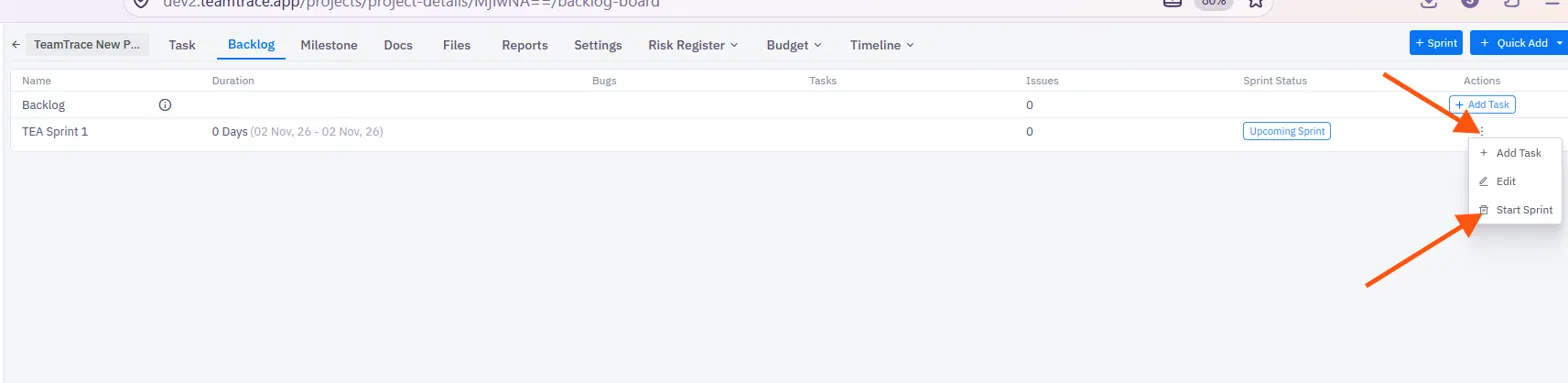
The three-dot menu for an upcoming sprint
| Option | What it does |
| Add Task | Adds a task to the sprint. |
| Edit | Edits the sprint details. |
| Start Sprint | Starts the sprint. |
How to Complete a Sprint
- Open the project and click the Backlog tab.
- Find the sprint you want to close. Its status shows as Ongoing Sprint.
- In the Actions column, click the three dots next to the sprint.
- From the drop-down, click Complete Sprint.
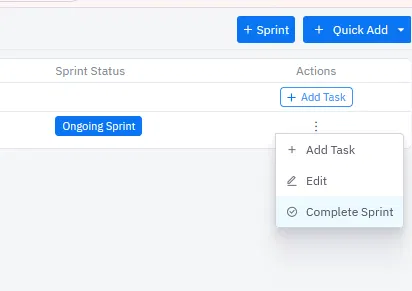
The three-dot menu for an ongoing sprint
| Option | What it does |
| Add Task | Adds a task to the sprint. |
| Edit | Edits the sprint details. |
| Complete Sprint | Closes the sprint. |
Before You Complete a Sprint
- Check which tasks are finished and which aren't.
- Review the sprint results and reports. See Scrum in TeamTrace: A Beginner's Guide.
- Decide what to do with unfinished work. A common approach is to move it back to the backlog or into a future sprint.
- Note what went well and what to improve in the next sprint.
Notes
- Tasks created before a sprint is started stay in the Backlog.
- The sprint status tells you where a sprint is: Upcoming Sprint before it starts and Ongoing Sprint while it runs.
- [Add: whether more than one sprint can be ongoing at the same time, and whether a completed sprint can be reopened.]
Troubleshooting
| Problem | What to check |
| I can't find the Backlog tab or sprints | Sprints are part of the Scrum template. Check that the project was created with Scrum, and open the project's Backlog tab. |
| I don't see Start Sprint | The option appears for a sprint that hasn't started. If the status says Ongoing Sprint, the menu shows Complete Sprint instead. |
| My tasks are still in the backlog | Tasks stay in the backlog unless they are added to a sprint, and a sprint has to be started. |
| The three-dot menu isn't available | Check your access role in the project with your administrator or the project owner. |
| I can't find a completed sprint | [Add: where completed sprints are shown, for example in reports or the Backlog list.] |
Related Articles
Was this article helpful?
That’s Great!
Thank you for your feedback
Sorry! We couldn't be helpful
Thank you for your feedback
Feedback sent
We appreciate your effort and will try to fix the article