Overview
Tasks are the individual pieces of work in TeamTrace. You create each task inside a task list. This article explains how to open a task list, add a task, and what each field in the task form does.
Before You Begin
- Sign in to the TeamTrace portal.
- A task list must already exist, because you can't add tasks until one is created. See Tasks Overview in TeamTrace for how to create one.
- To assign a task to someone, they must already be a member of the task list.
Steps to Create a Task
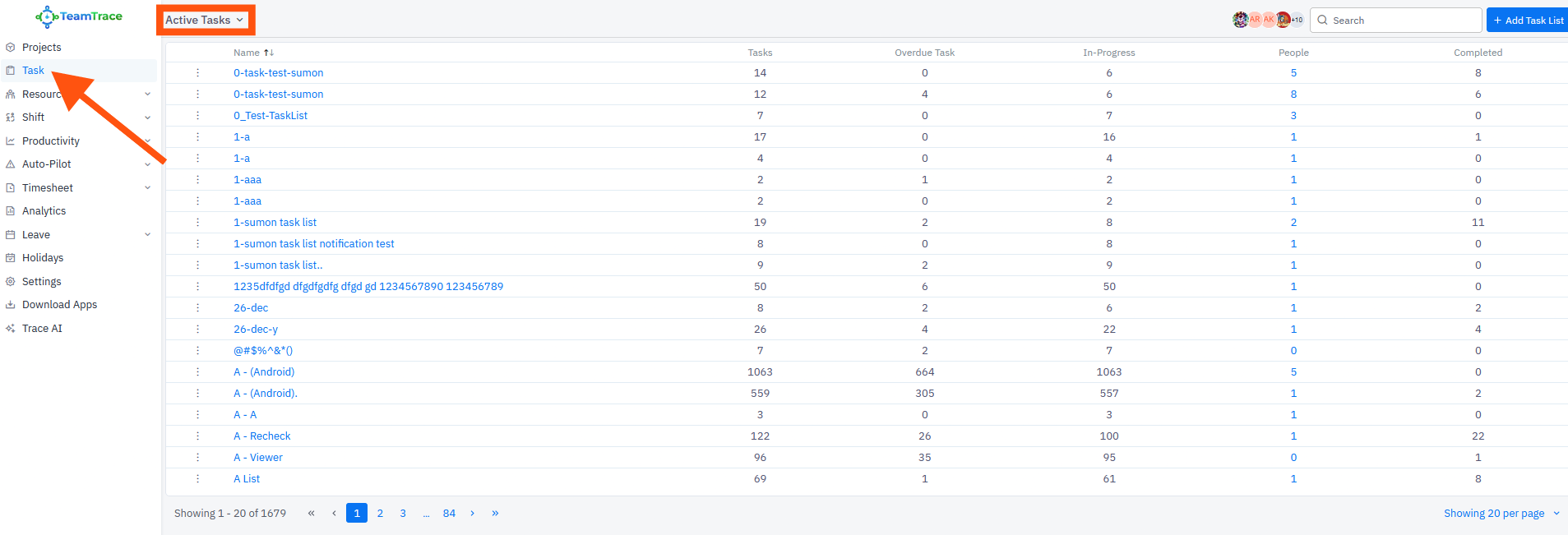
- On the Dashboard, click Task in the left panel.
- From the list of task lists, click the task list you want to create the task in.
- Click the + Task button in the top right corner of the page. The task form opens.
- Fill in the details (see the table below).
- Click Save to add the task.
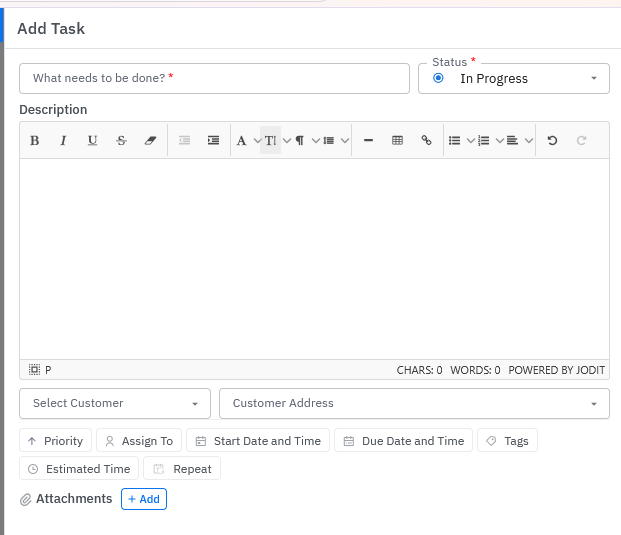
Task Form Fields
| Field | Notes |
| Task name | Mandatory. Enter a name for the task. |
| Status | Mandatory. Set the task's status. |
| Description | Optional. Add a description if needed. |
| Customer and address | Optional. Select a customer and their address if applicable. If you select a customer, the customer address becomes mandatory. To set a specific location, click the maps icon and drag to select a custom location on the map. |
| Priority | Optional. Set the priority level. |
| Assignees | Optional. Pick from the members already added to the task list. |
| Start and end date and time | Optional. Select the start and end dates and times. |
| Tags | Optional. Add any relevant tags. |
| Estimated time | Optional. Set an estimated time for the task. |
| Repeat interval | Optional. Choose a repeat interval if the task is recurring. |
| Attachments | Optional. Attach any files you want to include. |
Apart from the task name and status, fill in only what is relevant to your workflow. If your organization uses custom fields, they also appear in the form, and any marked as required must be filled in.
After You Save the Task
- Open the list view to see the new task in the list.
- Click the task to open a side panel on the right with all its details.
- Use the panel's tabs (Comments, History, Work Log, Screenshots and Subtasks) to work with the task. See Tasks Overview in TeamTrace.
To break a task into smaller pieces, add a subtask. See How to Add Sub-Task under a Task.
Notes
- You can only assign a task to members who have been added to the task list.
- To duplicate an existing task instead of creating a new one, use Clone from the three-dot menu.
- Selecting a customer makes the customer address mandatory.
Troubleshooting
| Problem | What to check |
| The + Task button isn't visible | Make sure you have opened a task list, and check your access role in that task list. |
| The task can't be saved | Check that the task name and status are filled in, and any required custom fields. |
| The task can't be saved after selecting a customer | The customer address is mandatory once a customer is selected. |
| I can't find a person to assign the task to | Check that the person has been added to the task list. You can add them with Manage People. |
| I can't select a particular status | That status may be assigned to a specific role. Check that you have that role. |
Related Articles
Was this article helpful?
That’s Great!
Thank you for your feedback
Sorry! We couldn't be helpful
Thank you for your feedback
Feedback sent
We appreciate your effort and will try to fix the article