Task
Assign, monitor, and track tasks efficiently with TeamTrace’s task management tool, designed to meet rigorous workflow demands. To learn how to add Task in a Project please check the article How to Add Task in Project
Backlog
The process is the same as that of adding a Task. Please refer to that for further reference. A backlog is a centralized list of pending tasks or requirements in a project that are yet to be started.
- Sprint Creation
Allows you to define a new sprint via the Quick Add option.
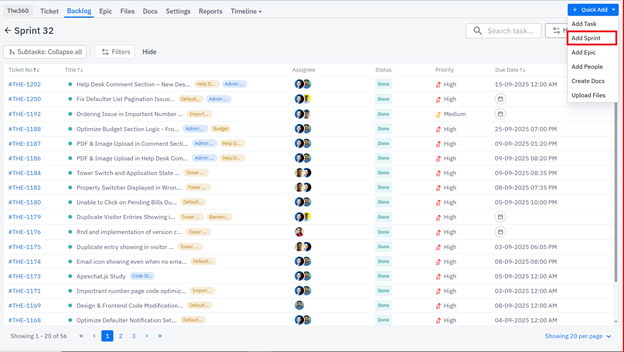
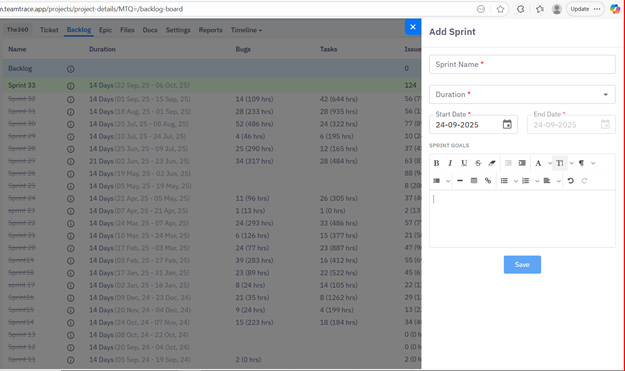
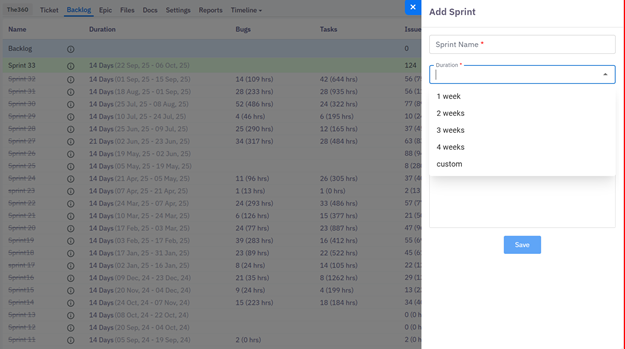
Once created, you can Add Tasks to the sprint, Edit sprint details, or Start Sprint to initiate the workflow.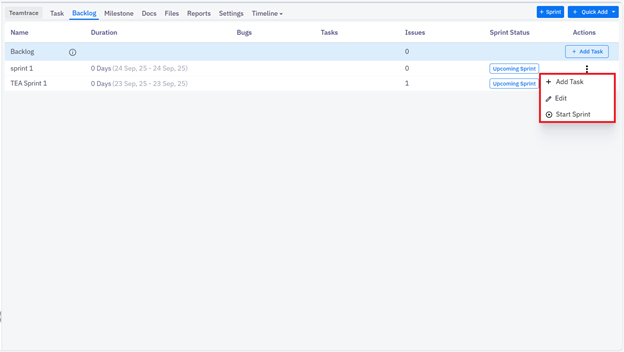
Milestone
This section shows the % of a task completed.
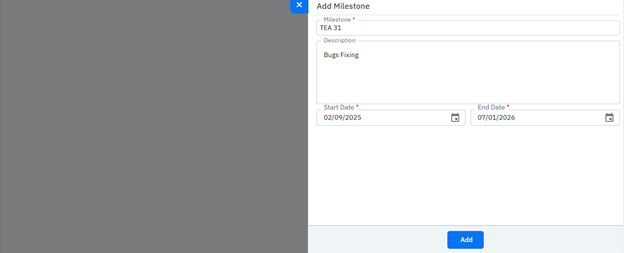
- Click on +Milestone to add a new milestone for the selected project.
- Enter the mandatory details such as Milestone Name, Start Date, and End Date. Once done, click on Add.
Docs
Here you can update any documents related to the specific project. This section poses as a “Wiki” section for the project.
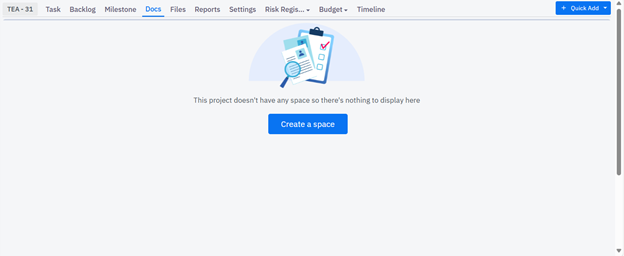
- Click on Create a Space.
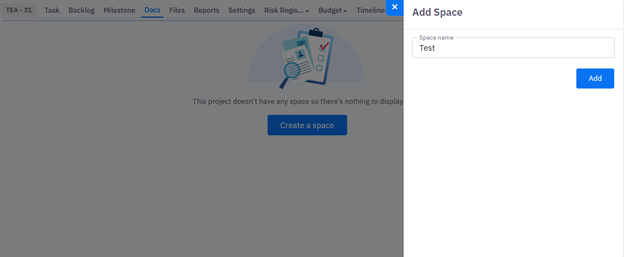
- Enter the Space Name and click on Add.
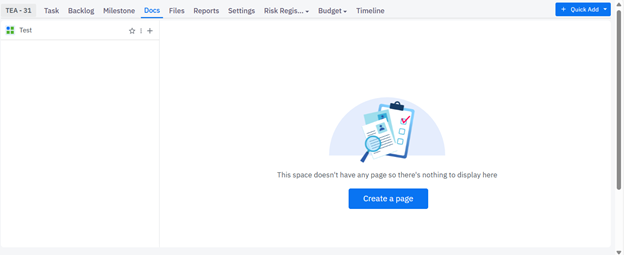
- Once the workspace is created, click on Create a Page.
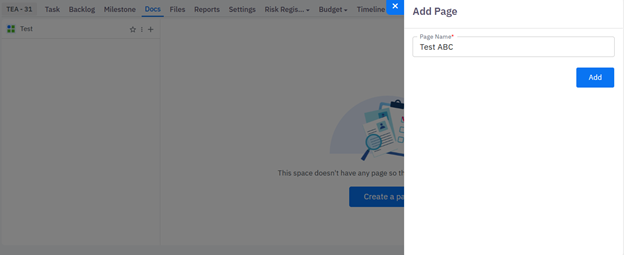
- Enter the Page Name and click on Add.
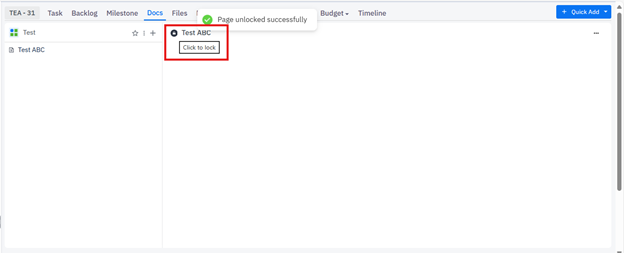
- Now, click unlock the document from the option highlighted.
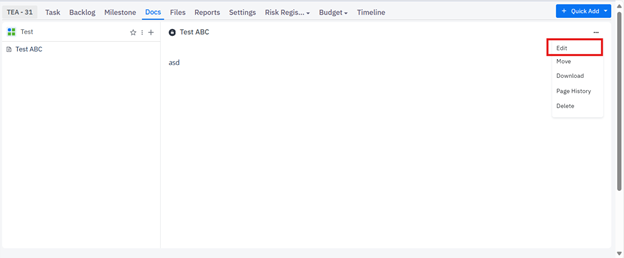
- You will get the option to Edit the page.
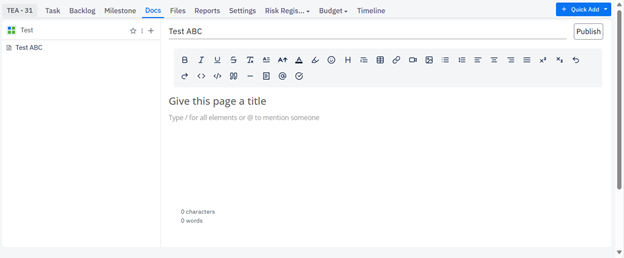
- Once done, Publish it, if it meets your requirements.
Files
- You can now upload any File related to the project.
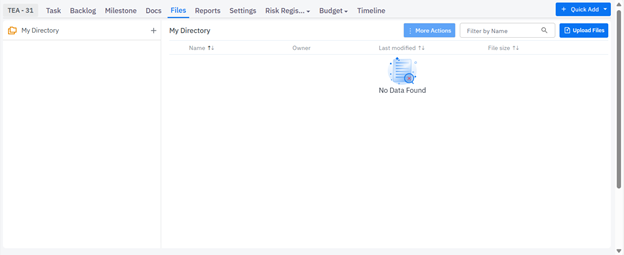
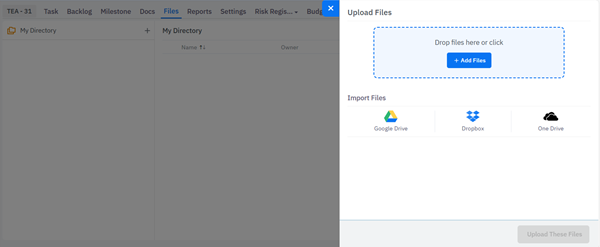
- You can either upload the file from your local system or import the same from Google Drive, Dropbox, or One Drive, as per your preference.
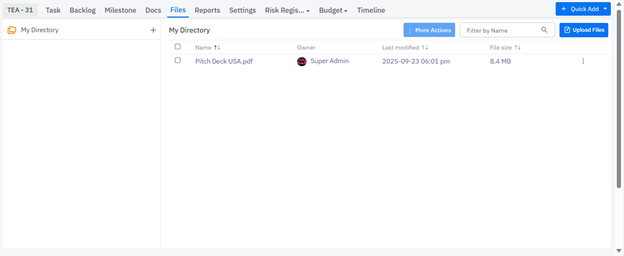
- Once done, it can be viewed in the directory.
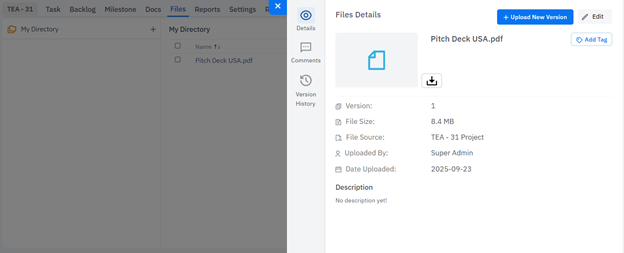
- Additionally, you get the option to view the details of the uploaded file, download the same, drop a comment, or view the version history.
- Download – Retrieve a copy of the uploaded file to your local system.
- Drop a Comment – Add contextual notes or feedback directly linked to the uploaded file.
- Version History – View and access previous iterations of the file along with modification details.
Was this article helpful?
That’s Great!
Thank you for your feedback
Sorry! We couldn't be helpful
Thank you for your feedback
Feedback sent
We appreciate your effort and will try to fix the article