Overview
A task list is where you organize and manage tasks in TeamTrace. You must create a task list before you can add any tasks. This article explains how to create a task list, add people to it with access roles, and find it afterwards.
Before You Begin
- Sign in to the TeamTrace portal.
- The people you want to add must already be added to TeamTrace.
Steps to Create a Task List
Step 1: Open the Add Task List form
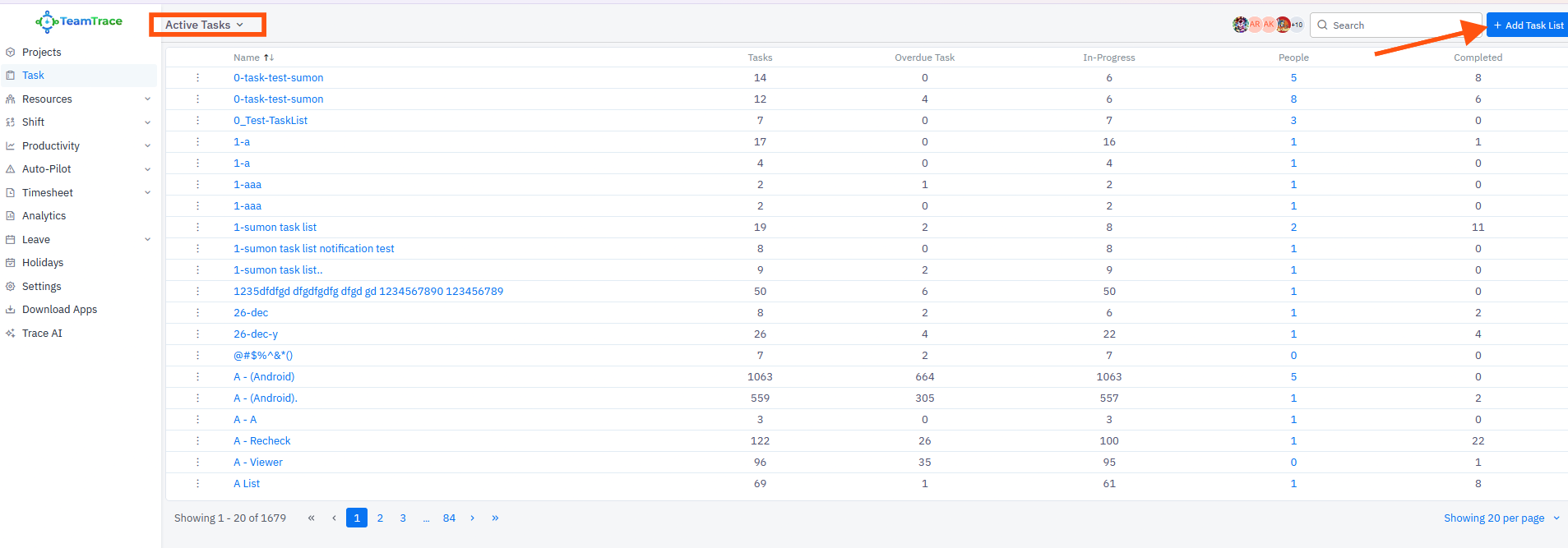
- Click Task in the left panel. The Active Tasks page opens with your task lists.
- Click + Add Task List in the top right corner. The Add Task List form opens.
Step 2: Name the task list and select people
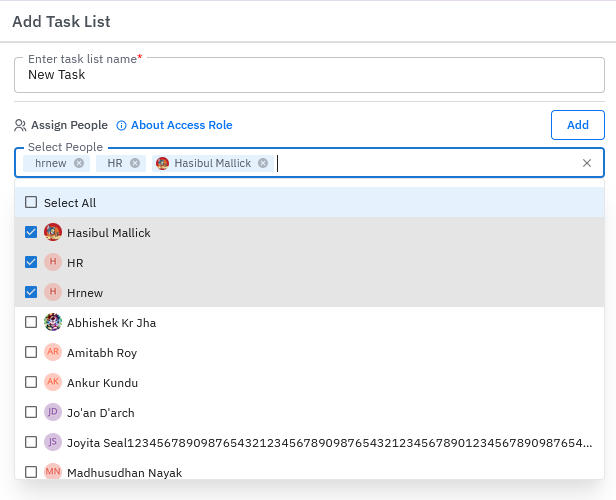
- Enter a name in Enter task list name. This field is mandatory.
- Under Assign People, open the Select People drop-down.
- Select the people you want. Tick individual names, or tick Select All to choose everyone. Selected people appear as tags in the field.
Step 3: Choose access roles
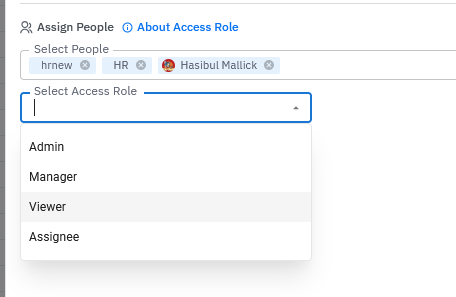
- Open the Select Access Role drop-down and choose a role for the people you selected. The roles are Admin, Manager, Viewer and Assignee.
- Click Add. The people appear in a table with their name and access role.
- To change a person's role, use the drop-down in the Access Role column. To remove a person from the list, click the trash icon next to them.
- To add more people with a different role, repeat these steps.
Step 4: Save the task list
- When you have added all the details, click Save at the bottom of the form.
Understand Access Roles
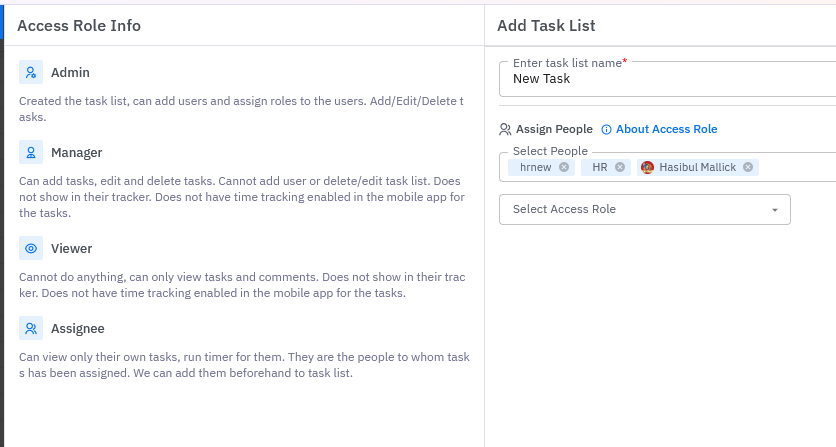
To see how each role works, click About Access Role next to Assign People. An Access Role Info panel opens beside the form.
| Role | What they can do |
| Admin | Created the task list. Can add users and assign roles to them. Can add, edit and delete tasks. |
| Manager | Can add tasks, and edit and delete tasks. Cannot add users or edit or delete the task list. The task list does not show in their tracker, and time tracking is not enabled for the tasks in the mobile app. |
| Viewer | Can only view tasks and comments. The task list does not show in their tracker, and time tracking is not enabled for the tasks in the mobile app. |
| Assignee | Can view only their own tasks and run the timer for them. Assignees are the people tasks are assigned to. You can add them to the task list beforehand. |
Find Your Task List
After you save, the task list appears under Active Tasks. The list page shows each task list's name, with columns for tasks, overdue tasks, in-progress tasks, people and completed tasks. It shows 20 task lists per page, and you can use the page numbers at the bottom to move through them. You can also use Search at the top right to find a task list.
To see closed task lists, click the Active Tasks drop-down at the top and select Closed Tasks. Select Active Tasks to go back.
What to Do Next
- Click the task list to open it and add tasks. See How to Create a Task in TeamTrace.
- Add more people later using Manage People, or open the three-dot menu next to the task list. See How to Edit a Task in TeamTrace.
Notes
- Only the task list name is mandatory. You can add people and roles now or later.
- People must be members of the task list before you can assign tasks to them.
- The default role for newly added people appears to be Viewer, so check each person's role before you save.
Troubleshooting
| Problem | What to check |
| The task list can't be saved | Make sure the task list name is filled in. |
| A person isn't in the Select People list | Check that the person has been added to TeamTrace and is active. |
| I can't find the new task list | Check the Active Tasks page and use Search. If the task list was closed, look under Closed Tasks. |
| A person can't see the task list in their tracker | Managers and Viewers don't see the task list in their tracker. Use the Assignee role if they need to run the timer. |
| The Add Task List button isn't visible | Check with your administrator that you have permission to create task lists. |
Related Articles
Was this article helpful?
That’s Great!
Thank you for your feedback
Sorry! We couldn't be helpful
Thank you for your feedback
Feedback sent
We appreciate your effort and will try to fix the article