Overview
You can edit a task after it has been created to update its details. This article explains how to edit a task from the list view and the board view. It also explains how to edit a task list, and what the other options in each menu do.
Before You Begin
- Sign in to the TeamTrace portal.
- You need access to the task list that contains the task, with a role that allows editing.
Option 1: Edit a Task from the List View
- On the Dashboard, click Task in the left panel.
- Open the task list that contains the task.
- Make sure the List view is selected.
- In the Actions column, click the three-dot menu next to the task.
- Click Edit.
- Update the task details.
- Save your changes.
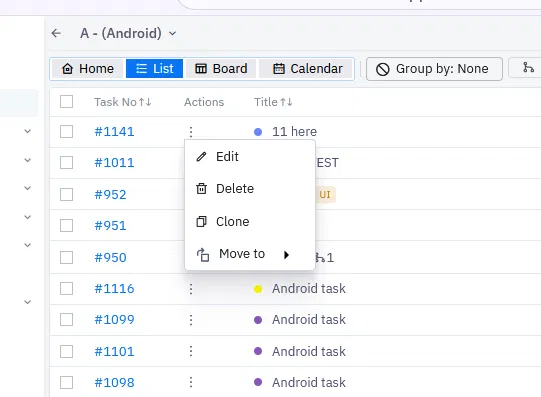
Options in the list view menu
| Option | What it does |
| Edit | Updates the task details. |
| Delete | Removes the task. |
| Clone | Duplicates the task. |
| Move to | Moves a subtask to another parent task, or moves the task to a different task list. |
Option 2: Edit a Task from the Board View
- Open the task list and select the Board view. Tasks are shown as cards organized by status.
- Click the three-dot menu on the task card.
- Click Update.
- Update the task details.
- Save your changes.
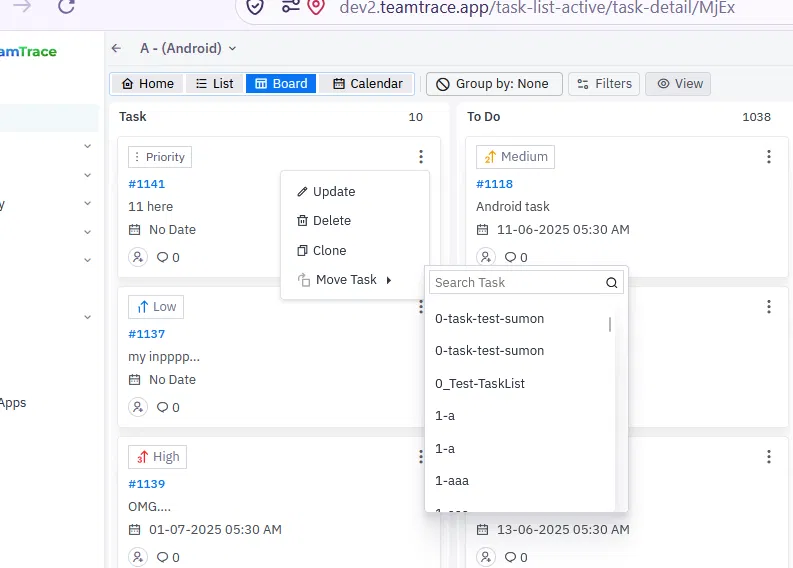
Options in the board view menu
| Option | What it does |
| Update | Updates the task details. |
| Delete | Removes the task. |
| Clone | Duplicates the task. |
| Move Task | Opens a searchable list of task lists. Select one to move the task there. |
Quick Ways to Change a Task's Status
If you only need to change the status, you don't have to open the edit form:
- In the board view, drag and drop the task card to another status column.
- Click a task card to open its details, then change the status from the top right corner of the task detail panel.
Edit a Task List
The task list page, titled Active Tasks, shows all your task lists. Each task list has its own three-dot menu.
- On the Dashboard, click Task in the left panel to open the list of task lists.
- Click the three-dot menu next to the task list you want to change.
- Choose an option from the menu.
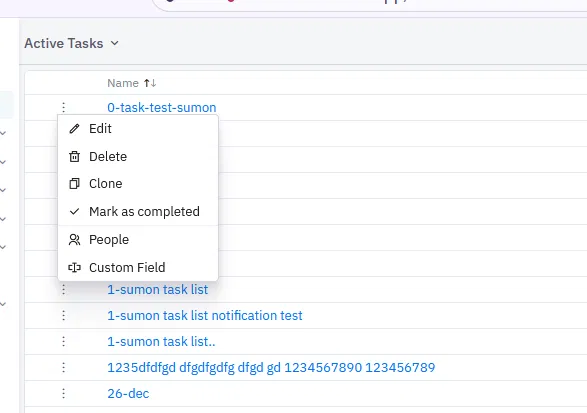
| Option | What it does |
| Edit | Updates the task list details. |
| Delete | Removes the task list. |
| Clone | Duplicates the task list. |
| Mark as completed | Marks the task list as completed. |
| People | Manages the people in the task list. |
| Custom Field | Manages custom fields for the task list. |
Notes
- The list view calls the options Edit and Move to, and the board view calls them Update and Move Task. They do the same things.
- Only the user who originally created a task can move it. Other members can't, even if they have access to the task.
- Deleting a task removes it, so check carefully before you choose Delete. To make a copy instead, use Clone.
Troubleshooting
| Problem | What to check |
| The three-dot menu or Edit option isn't visible | Check your access role in the task list with your administrator or the task list owner. |
| I can't move the task | Only the user who created the task can move it. |
| I can't apply a particular status | That status may be assigned to a specific role. Check that you have that role. |
| My changes aren't showing | Confirm you saved the changes, then refresh the page. |
Related Articles
Was this article helpful?
That’s Great!
Thank you for your feedback
Sorry! We couldn't be helpful
Thank you for your feedback
Feedback sent
We appreciate your effort and will try to fix the article