Overview
A subtask is a smaller piece of work under a main task. Use subtasks to break a larger task into steps that can be tracked on their own. This article explains how to add a subtask, how to recognize tasks that have subtasks, and how to edit them.
Before You Begin
- Sign in to the TeamTrace portal.
- The main task must already exist in a task list. See How to Create a Task in TeamTrace.
Method 1: Add a Subtask from the Task List
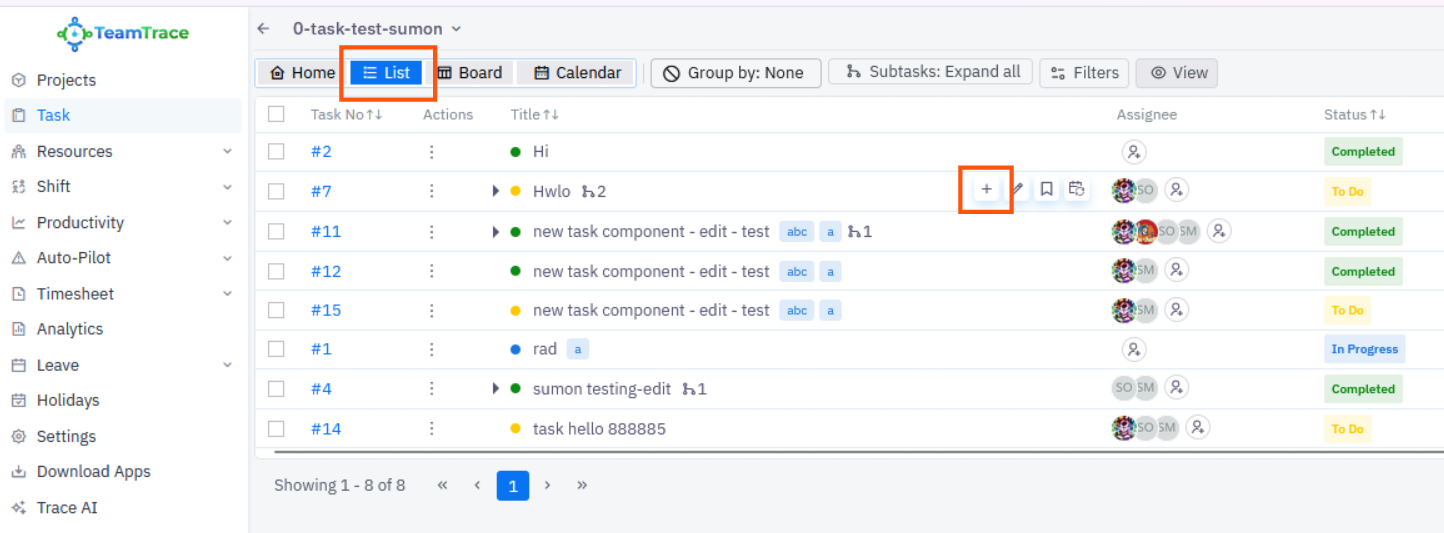
- On the Dashboard, click Task in the left panel, then open the task list.
- Select the task from the Task list and open the List View, hover the mouse over the task you want to add a subtask to.
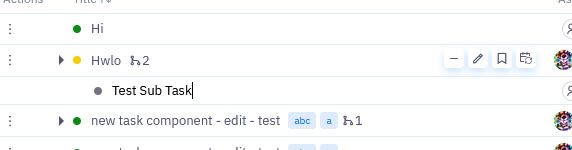
- Click the + button. A drop-down space opens under the task.
- Type the subtask name and press Enter.
Method 2: Add a Subtask from the Task Side Panel
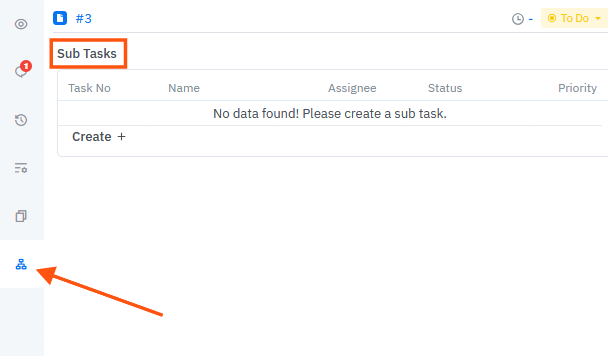
- Open the task list and click the task to open its side panel on the right.
- Open the Subtasks tab. It lists all child tasks of the main task.
- Add a new subtask from this tab.
How to Recognize a Task with Subtasks
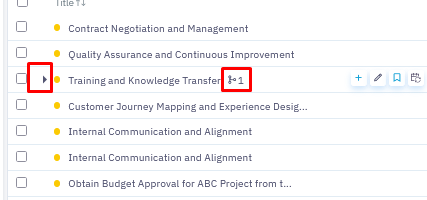
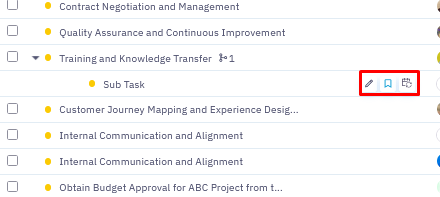
Once a subtask is created, an arrow appears in front of the task name, and a +1 sign appears after the name. The number shows how many subtasks the task has. Click the arrow to expand the task and see its subtasks. In the list view you can also use Subtasks: Expand all to show the subtasks of every task at once.
Edit a Subtask
- Click the subtask name, or click the pencil icon next to it. The subtask pop-up window opens.
- Fill in the required details.
- Close the window.
Other Subtask Actions
Click the three-dot menu on a subtask to see its options:
| Option | What it does |
| Edit | Updates the subtask details. |
| Delete | Removes the subtask. |
| Clone | Duplicates the subtask. |
| Move to | Moves the subtask to another parent task. |
Notes
- A subtask belongs to one main task, and its count (+1, +2 and so on) appears next to the main task's name.
- Only the user who created a task or subtask can move it. Other members can't, even if they have access.
Troubleshooting
| Problem | What to check |
| I don't see the + button | Hover the mouse over the task row. The button appears on hover. Also check your access role in the task list. |
| The subtask wasn't created | Make sure you pressed Enter after typing the subtask name. |
| I can't see the subtasks | Click the arrow in front of the task name, or use Subtasks: Expand all. |
| I can't move a subtask | Only the user who created it can move it. |
Related Articles
Was this article helpful?
That’s Great!
Thank you for your feedback
Sorry! We couldn't be helpful
Thank you for your feedback
Feedback sent
We appreciate your effort and will try to fix the article