Overview
TeamTrace can notify your team when something happens to a task, such as a new task, a changed due date or a new comment. You choose which notifications are sent and on which channels: Web, Mobile, Email and WhatsApp. This article explains where to find these settings and what each task notification means.
Where to Find Notification Settings
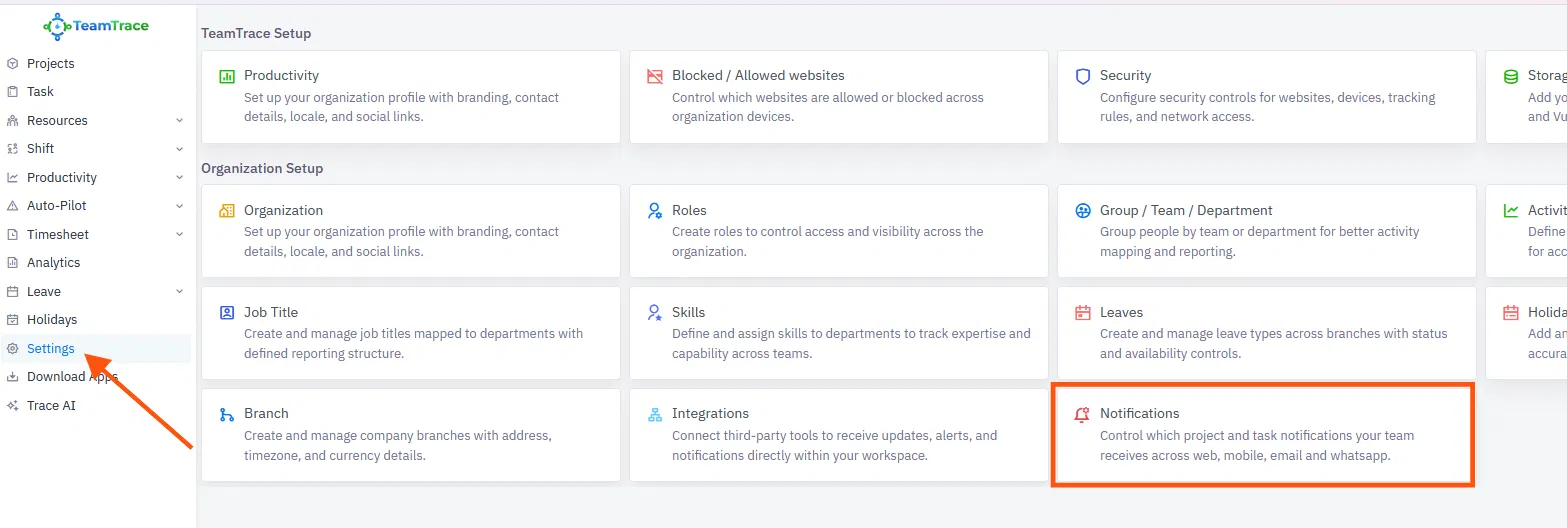
- Click Settings in the left panel.
- Under Organization Setup, click Notifications. The card says it controls which project and task notifications your team receives across web, mobile, email and WhatsApp.
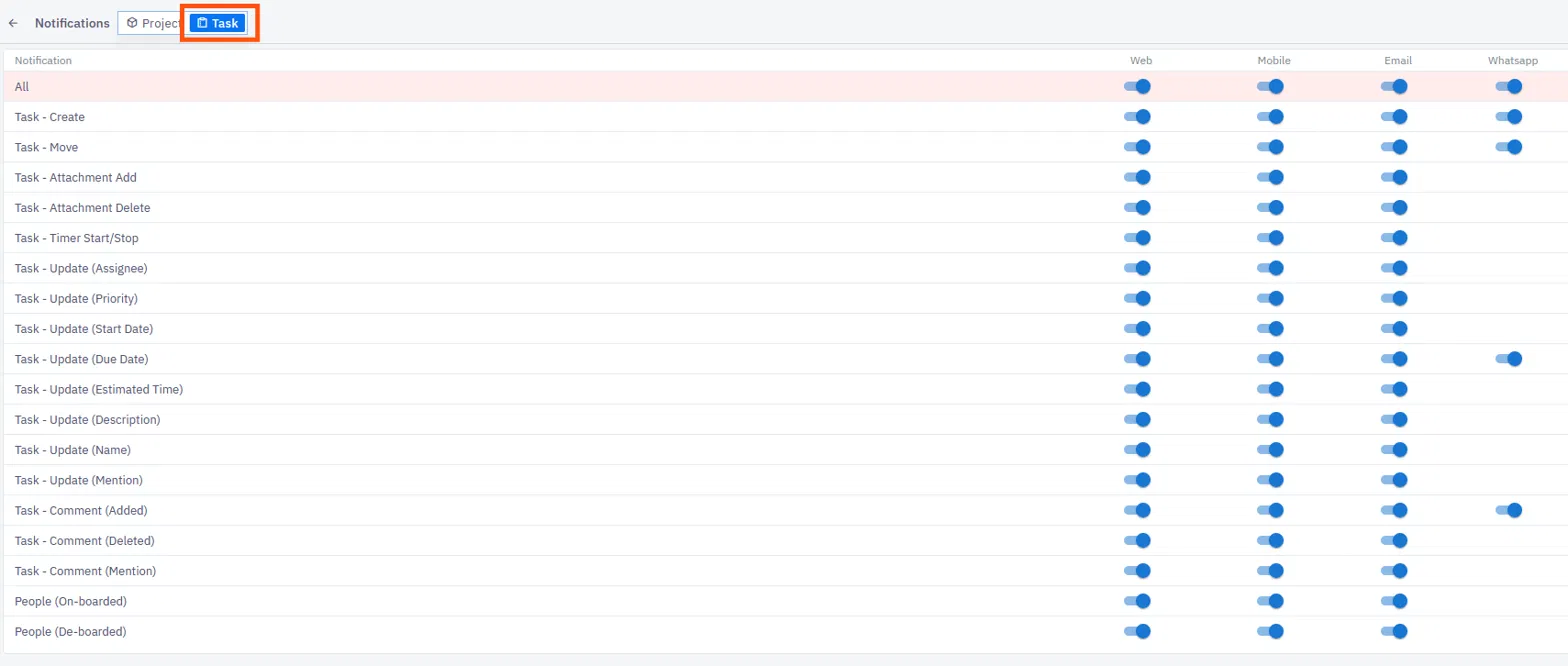
- At the top of the Notifications page, click the Task tab. (The Project tab next to it holds the project notifications.)
How the Notifications Table Works
The Task tab shows a table. Each row is an event, and each column is a channel. A toggle switched on means a notification for that event is sent on that channel. Switch it off to stop it.
| Channel | Where the notification appears |
| Web | In the TeamTrace web portal |
| Mobile | In the TeamTrace mobile app |
| By email | |
| By WhatsApp message |
The All row at the top is a master row. Use it to switch a whole channel on or off at once, instead of changing each row.
Task Notifications
| Notification | Sent when | Channels available |
| Task - Create | A new task is created. | Web, Mobile, Email, WhatsApp |
| Task - Move | A task is moved, for example to another task list. | Web, Mobile, Email, WhatsApp |
| Task - Attachment Add | An attachment is added to a task. | Web, Mobile, Email |
| Task - Attachment Delete | An attachment is removed from a task. | Web, Mobile, Email |
| Task - Timer Start/Stop | A timer is started or stopped on a task. | Web, Mobile, Email |
| Task - Update (Assignee) | A task's assignee changes. | Web, Mobile, Email |
| Task - Update (Priority) | A task's priority changes. | Web, Mobile, Email |
| Task - Update (Start Date) | A task's start date changes. | Web, Mobile, Email |
| Task - Update (Due Date) | A task's due date changes. | Web, Mobile, Email, WhatsApp |
| Task - Update (Estimated Time) | A task's estimated time changes. | Web, Mobile, Email |
| Task - Update (Description) | A task's description changes. | Web, Mobile, Email |
| Task - Update (Name) | A task is renamed. | Web, Mobile, Email |
| Task - Update (Mention) | Someone is mentioned in a task update. | Web, Mobile, Email |
| Task - Comment (Added) | A comment is added to a task. | Web, Mobile, Email, WhatsApp |
| Task - Comment (Deleted) | A comment is deleted from a task. | Web, Mobile, Email |
| Task - Comment (Mention) | Someone is tagged in a comment. | Web, Mobile, Email |
| People (On-boarded) | A person is onboarded. | Web, Mobile, Email |
| People (De-boarded) | A person is deboarded. | Web, Mobile, Email |
Note: WhatsApp is available only for four events: Task - Create, Task - Move, Task - Update (Due Date) and Task - Comment (Added), plus the master All row. The other rows don't have a WhatsApp toggle.
How to Change a Notification
- Go to Settings > Notifications and open the Task tab.
- Find the notification you want to change.
- Click the toggle under the channel (Web, Mobile, Email or WhatsApp) to switch it on or off.
Notifications for a Single Task List
Inside a task list, the notifications icon also lets you turn notifications on or off across the same four channels (Web, Mobile, Email and WhatsApp) for that task list. See Tasks Overview in TeamTrace.
Notes
- Tagging a user in a task comment sends them an email reminder automatically.
- Project notifications are managed on the Project tab of the same page.
Troubleshooting
| Problem | What to check |
| I'm not getting a notification | Check that the toggle for that event and channel is on in Settings > Notifications. |
| I can't find the Notifications card | Look under Organization Setup on the Settings page, and check with your administrator that you have access to Settings. |
| There is no WhatsApp toggle for an event | WhatsApp is available only for Task - Create, Task - Move, Task - Update (Due Date) and Task - Comment (Added). |
| I'm getting too many notifications | Switch off the events or channels you don't need. |
| Email notifications aren't arriving | Check the Email toggle, then check the spam or junk folder. |
Related Articles
- Tasks Overview in TeamTrace
- How to Create a Task in TeamTrace
- How to Assign a Task in TeamTrace
- Task Lifecycle in TeamTrace: From Creation to Completion
Was this article helpful?
That’s Great!
Thank you for your feedback
Sorry! We couldn't be helpful
Thank you for your feedback
Feedback sent
We appreciate your effort and will try to fix the article