Overview
If a task was marked as completed but more work is needed, you can reopen it by changing its status back to an active one, such as To Do or In Progress. This article explains how.
Before You Begin
- Sign in to the TeamTrace portal.
- You need access to the task list, with a role that allows you to update tasks.
- If the status you want is assigned to a specific role, you must have that role to apply it.
Steps to Reopen a Completed Task
- On the Dashboard, click Task in the left panel, then open the task list that contains the task.
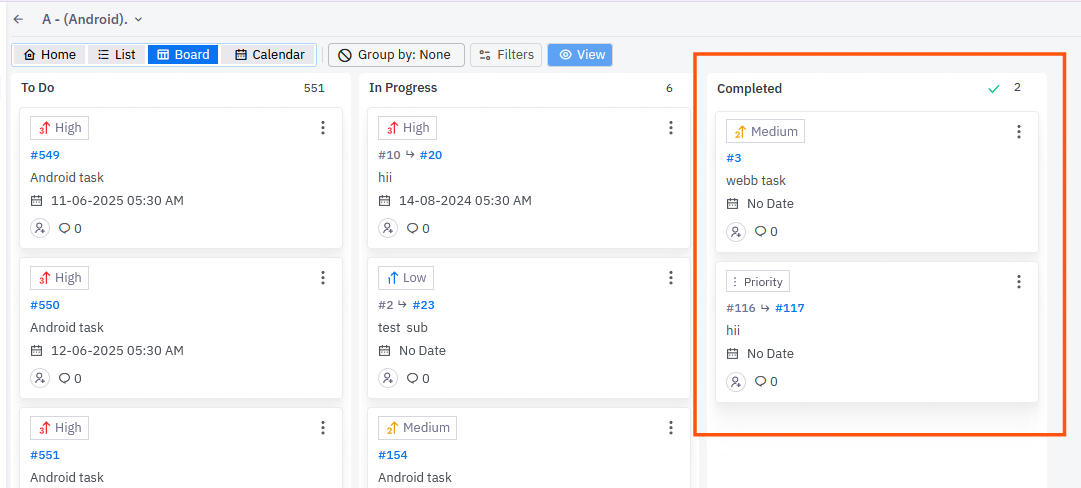
- Go to the Completed section. In the Board view, this is the column for completed tasks.
- Click the task you want to reopen. The task detail panel opens on the right.
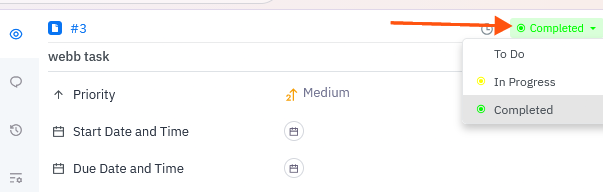
- At the top right of the panel, click the status drop-down. It currently shows the completed status.
- Select the appropriate status, such as To Do or In Progress.
The task moves out of the completed column and into the column for the status you chose.
Which Status Should I Choose?
| Status | Choose it when |
| To Do | The task needs to be picked up again and work hasn't restarted. |
| In Progress | Someone is going to start working on it again straight away. |
| Another status in your list | Your team has other statuses that fit the next step. The drop-down lists every status set up for the project or task list. |
Reopen a Task by Dragging It on the Board
In the Board view you can also drag and drop the task card from the completed column to another status column. You don't need to open the task.
Notes
- The status drop-down shows all the statuses available for the task list. You can choose any of them, not only To Do and In Progress.
- If the task is linked to other tasks with a dependency, reopening it may trigger a conflict warning until the tasks that depend on it have been reset. See Task Dependencies Explained in TeamTrace.
- The change is recorded in the task's History tab, which logs who did what and when.
Troubleshooting
| Problem | What to check |
| I can't find the completed task | Check the completed column in the Board view, or search for the task by name. Also check that you are in the right task list. |
| I can't change the status | Check your access role in the task list. Viewers can only view tasks and comments. |
| A status I need is missing or can't be selected | The status may be assigned to a specific role. Check that you have that role. |
| I get a conflict message when reopening | Other tasks depend on this one. Move those dependent tasks back first. |
| The whole task list is closed | Check the Closed Tasks view of the task list page. A closed task list may need to be reopened first. |
Related Articles
Was this article helpful?
That’s Great!
Thank you for your feedback
Sorry! We couldn't be helpful
Thank you for your feedback
Feedback sent
We appreciate your effort and will try to fix the article