Overview
Task dependencies let you link tasks to reflect real-world relationships between them. When one task depends on another, TeamTrace enforces blocking rules so work happens in the right order. If a rule isn't met, you see a conflict message, and actions such as moving a task to In Progress or Done are restricted.
Important: Task dependency is available only in Projects. It is not available for tasks in standalone task lists.
How Task Blocking Works
If a task is blocked by another task, you can't close the blocked task until the task blocking it is closed. The start date or completion date of the blocked task depends on the start date or completion date of the blocking task.
- Blocked task: the task that has to wait.
- Blocker task: the task that has to reach a certain state first.
You can't move a blocked task forward (for example, to In Progress or Done) if the blocking task hasn't reached its required state. Likewise, reverting a blocking task triggers a conflict warning if the dependent tasks haven't been reset first.
Types of Task Dependencies
| Type | Meaning | Rule |
| Finish to Start (FtS) | Start after completion | Task B can't start until Task A is complete. |
| Finish to Finish (FtF) | Complete together | Task B can't finish until Task A is finished. |
| Start to Start (StS) | Start in sync | Task B can't start before Task A starts. |
| Start to Finish (StF) | Can't finish until the next task starts | Task A can't finish until Task B has started. |
1. Finish to Start (FtS): "Start after completion"
Example: Deployment begins only after testing ends.
- Blocked task: Task B. Blocker task: Task A.
- Rule: Task B's start date can't be earlier than Task A's end date.
- What you'll see: Task B can move to In Progress only once Task A reaches the Done column. If you try to move Task A back while Task B is already in progress, you get a conflict warning until Task B is also moved back.
2. Finish to Finish (FtF): "Complete together"
Example: A bug fix task can't be closed until its code review ends.
- Blocked task: Task B. Blocker task: Task A.
- Rule: Task B's end date can't be earlier than Task A's end date.
- What you'll see: Task B can move to Done only when Task A is already in Done. If you try to mark Task A as not done while Task B is already done, you get a dependency error.
3. Start to Start (StS): "Start in sync"
Example: Launching a landing page and sending the announcement email need to begin at the same time.
- Blocked task: Task B. Blocker task: Task A.
- Rule: Task B's start date can't be earlier than Task A's start date.
- What you'll see: Task B can move to In Progress only if Task A is also In Progress. If Task A is moved back to To Do, Task B must be moved back too.
4. Start to Finish (StF): "Can't finish until the next task starts"
Example (field services): Technician A can't log off (end Task A) until Technician B has logged in (started Task B), so there is 24x7 coverage.
- Blocked task: Task A. Blocker task: Task B.
- Rule: Task A's end date can't be earlier than Task B's start date.
- What you'll see: Task A can be marked Done only if Task B has at least started (In Progress). You can't move Task B back to To Do unless Task A is also undone.
How to Link Tasks
- Open a Project and go to its Task tab.
- Click the task you want to link, in the list, board or calendar view. The task detail panel opens on the right.
- In the icon column at the left of the panel, click the Related Tasks tab. It is the second-to-last icon.
- Under Linked Tasks, open the first drop-down and choose the dependency type, for example Is blocked by (Finish to Start - FtS).
- In Search for issues, find and select the task you want to link to.
- Click Add.
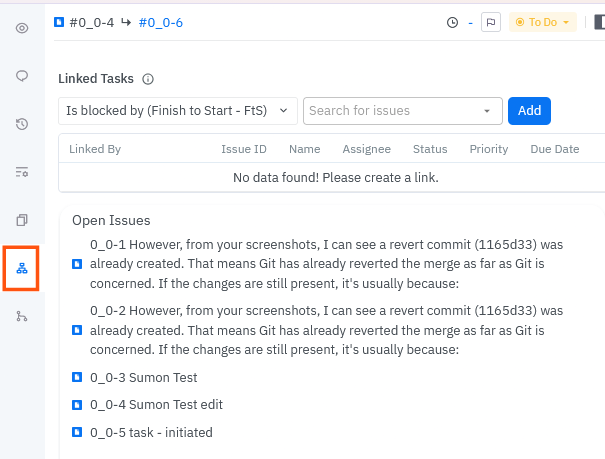
The Linked Tasks Table
Once tasks are linked, the Linked Tasks table lists them with these columns: Linked By, Issue ID, Name, Assignee, Status, Priority and Due Date. If a task has no links yet, the table shows "No data found! Please create a link."
A linked task also shows its link on the board card, with the task ID of the linked task next to its own ID.
Notes
- Task dependency works only inside Projects.
- If a dependency rule isn't met, TeamTrace shows a conflict message and restricts the move.
- To move a blocking task backward, first reset the tasks that depend on it.
Troubleshooting
| Problem | What to check |
| I can't find the Related Tasks tab | Dependencies work only in Projects. Check that you opened the task from a project, and look for the second-to-last icon in the detail panel. |
| I can't move a task to In Progress or Done | The task may be blocked. Check its Linked Tasks and bring the blocking task to the required state first. |
| I get a conflict message when moving a task back | Other tasks depend on it. Move those dependent tasks back first. |
| I can't find the task I want to link | Search by the task name or ID in the Search for issues field, and check that the task is in the same project. |
Related Articles
Was this article helpful?
That’s Great!
Thank you for your feedback
Sorry! We couldn't be helpful
Thank you for your feedback
Feedback sent
We appreciate your effort and will try to fix the article