Overview
The Notification Center keeps you up to date with activity happening across the TeamTrace portal. When a teammate creates a project, reassigns a task, changes a ticket, starts a sprint, or applies for leave, a notification appears so you can see what happened without checking each area yourself.
The Notification Center has two views:
- A quick-view menu that opens above your profile with your most recent notifications.
- A full Notifications window that opens as a pop-up and lists all of your notifications.
Opening the Notification Center
- Look at the bottom of the left navigation panel, just above your profile name and role.
- Find the row of small shortcut icons and select the bell icon. Hovering over it displays the label Notification.
- The Notifications menu opens above your profile.
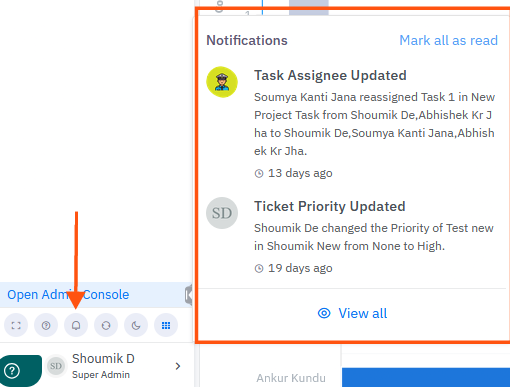
The quick-view menu
The quick-view menu shows your most recent activity at a glance.
Element | Description |
|---|---|
Notifications heading | Identifies the menu. |
Mark all as read | Marks every notification as read in one click. Found at the top right of the menu. |
Notification entries | The latest notifications, each with an avatar, a title, a short description, and a time stamp. |
View all | Opens the full Notifications window. Found at the bottom of the menu. |
Anatomy of a notification
Every notification follows the same layout:
- Avatar or initials: shows who performed the action. If the person has no profile picture, their initials are shown.
- Title: a short label describing the type of activity, for example Task Assignee Updated.
- Description: a one- or two-sentence summary of what changed, including who made the change and where.
- Time stamp: how long ago the activity happened, such as 13 days ago or a month ago.
Viewing all notifications
- Open the Notifications menu using the bell icon.
- Select View all at the bottom of the menu.
- The full Notifications window opens as a pop-up over the page.
- Scroll down to browse older notifications. The list continues beyond what fits on screen.
- Select the X in the top right corner to close the window.
The full window shows the same information as the quick-view menu, but with a longer list so you can look back through your activity history.
Opening the related project
Select any notification to go straight to the dashboard of the project it relates to. This lets you move from reading about a change to seeing it in context in a single click.
Types of notifications
The portal generates notifications for activity such as the following.
Notification title | What it tells you |
|---|---|
New Project Created | A new project was created and assigned to a user, along with the role they hold on it. |
New Ticket Assigned | A new ticket was created in a project. The description states whether an assignee was set. |
Ticket Priority Updated | The priority of a ticket was changed, including the old and new values. |
Task Assignee Updated | A task was reassigned, listing the previous and new assignees. |
Sprint Started | A sprint was started in a project. |
Leave | A team member applied for leave. |
Note: The notifications you see depend on your role and the projects you belong to. Not every notification type will appear for every user.
Common tasks
Check what's new. Click the bell icon and review the entries at the top of the menu. The most recent activity appears first.
Clear your unread notifications. Open the menu and select Mark all as read.
Look back at older activity. Select View all and scroll through the full list.
Jump to the project behind an update. Click the notification to open that project's dashboard.
Troubleshooting and FAQs
I can't find the Notification option. It is the bell icon in the row of small icons just above your name and role at the bottom of the left navigation panel. If the panel is collapsed, expand it first.
The quick-view menu only shows a couple of notifications. Where are the rest? The menu displays only your latest activity. Select View all to see the complete list.
A notification mentions a project I can't open. You may not have access to that project. Contact your administrator or the project owner to request access.
Why do I see several identical notifications? Some activities, such as multiple leave applications, generate a separate notification each time they occur.
The time stamps look vague, like "a month ago". Time stamps are shown in relative terms. Older notifications use broader time ranges.
How do I close the full Notifications window? Select the X in the top right corner of the window.
Was this article helpful?
That’s Great!
Thank you for your feedback
Sorry! We couldn't be helpful
Thank you for your feedback
Feedback sent
We appreciate your effort and will try to fix the article