Overview
After creating your TeamTrace organization, the next step is to add your employees or team members. As an administrator, you can invite users to your TeamTrace organization by sending them an email invitation.
The user can then open the invitation, create or activate their account, and join your organization.
Note: You must have the appropriate administrator permissions to invite users.
Step 1: Log in to TeamTrace
Open TeamTrace and sign in using your administrator account.
Enter your:
Email address
Password
Then click Login or Sign In.
Step 2: Open the User/Employee Section
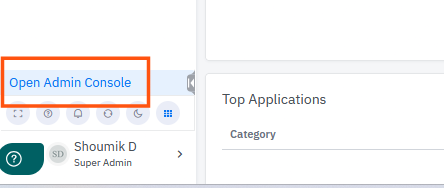
After logging in, go to the Open Admin Console on the left hand panel.
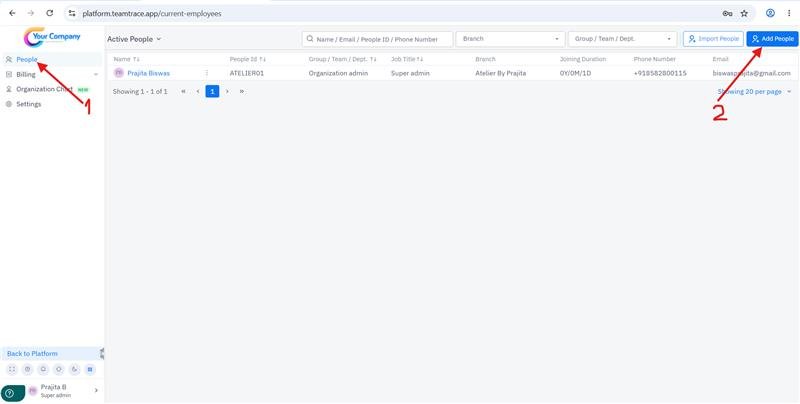
From the left hand panel click on People and from right hand side click on Add People
Step 3: Click Add User
On the Add People management page, fill the required information.
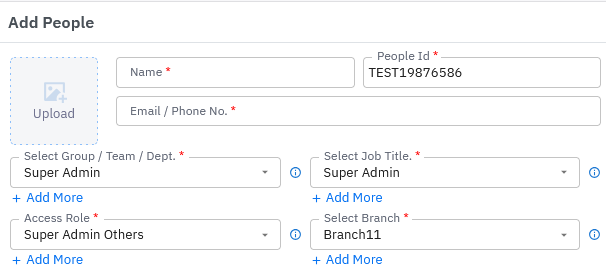
After filling all the required information click on save |  |
Step 4: User Receives the Invitation
After the invitation is sent, the employee should receive an email invitation.
TeamTrace's onboarding flow allows employees to accept the email invitation and begin using the platform.
Ask the employee to:
Open the TeamTrace invitation email.
Click the invitation link.
Follow the instructions on the screen.
Complete their account setup.
Sign in to TeamTrace.
Step 5: Ask the User to Check Their Email
If the employee does not see the invitation:
Ask them to check:
Inbox
Spam/Junk folder
Promotions folder, if applicable
They should also search their mailbox for TeamTrace.
If the invitation still cannot be found, verify that the email address entered in TeamTrace is correct.
Step 6: Ask the User to download the TeamTrace application
Ask the employee the download the application from:
https://platform.teamtrace.app/download
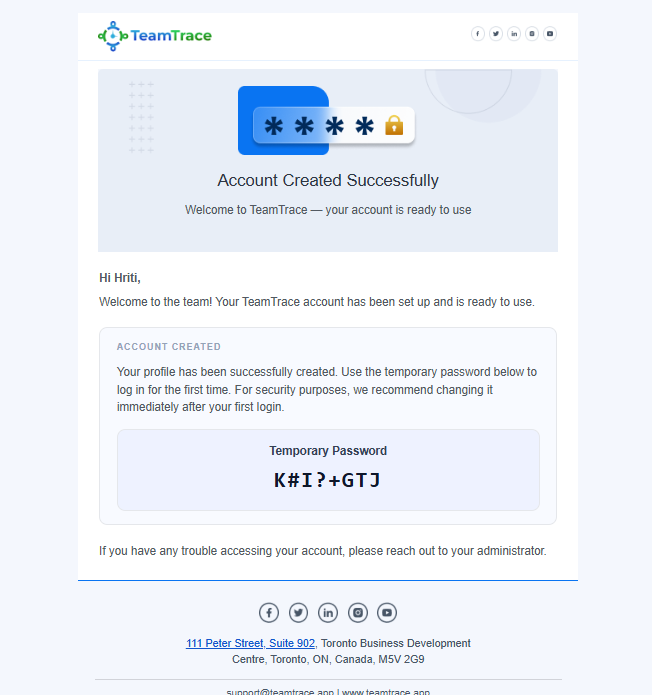
Install the app and login with the email id and temporary password provided in the email.
How to Check Whether a User Has Joined
After the user has installed the application and logged in the user will appear under Live People under Productivity in the TeamTrace portal.
If the User Does Not Receive the Invitation
Follow these steps:
1. Check the Email Address
Make sure the email address entered for the user is correct.
2. Ask the User to Check Spam/Junk
The invitation may have been filtered by the user's email provider.
3. Check the User's Status
Open the user list and check whether the invitation has already been sent.
4. Resend the Invitation
If the TeamTrace interface provides a Resend Invitation option, use it to send the invitation again.
5. Reset Password Manually
If the user haven't received the email then the admin can manually change the password from TeamTrace portal and provide it to the user securely.
Common Problems
| Problem | What to Check |
|---|---|
| User did not receive the email | Check the email address and Spam/Junk folder. |
| Wrong email address was entered | Correct the user's email address and resend the invitation. |
| User cannot open the invitation | Ask the user to open the latest invitation email. |
| User already has a TeamTrace account | Ask the user to sign in instead of creating another account. |
| User cannot access the organization | Verify that the user was invited to the correct organization. |
| User can log in but cannot access a feature | Check the user's role and permissions. |
| Invitation has expired or no longer works | Resend the invitation if the option is available. |
| User still cannot join | Contact TeamTrace Support with the user's email address and organization name. |
How to add External User in TeamTrace
Click on the link - How to add External User in TeamTrace
Was this article helpful?
That’s Great!
Thank you for your feedback
Sorry! We couldn't be helpful
Thank you for your feedback
Feedback sent
We appreciate your effort and will try to fix the article