Overview
TeamTrace allows you to add external users to a specific project when you want to give a client or other external person visibility into that project.
External users are added from within the Project settings. Once added, the user receives an email invitation.
Important: When entering the external user's email address, you must press Enter on your keyboard before assigning the access role. This is a required step.
When Should You Add an External User?
You can add an external user when you want a client or external stakeholder to have access to a particular project.
The user is added to the project rather than being added as a regular internal user.
Steps to Add an External User
Step 1: Open the Project
Log in to TeamTrace.
Go to Projects.
Open the project where you want to add the external user.
Step 2: Open Project Settings
Inside the project, go to Settings.
Click the People tab.
Step 3: Click Add People
In the People section, click Add People.
The Add People window will open.
Step 4: Enter the External User's Email Address
Enter the email address of the external user.
Press Enter on your keyboard.
⚠️ Important: Pressing Enter after entering the email address is mandatory. Make sure you press Enter before proceeding to assign the access role.
Step 5: Select the Access Role
After pressing Enter:
Provide the required access role for the external user.
Review the selected access.
Step 6: Click Add
Click the Add button next to the user.
The user will be added to the list.
Step 7: Finish Adding the User
After the user has been added to the list:
Click the final Add button to complete the process.
The external user is now added to the project.
What Happens After the User Is Added?
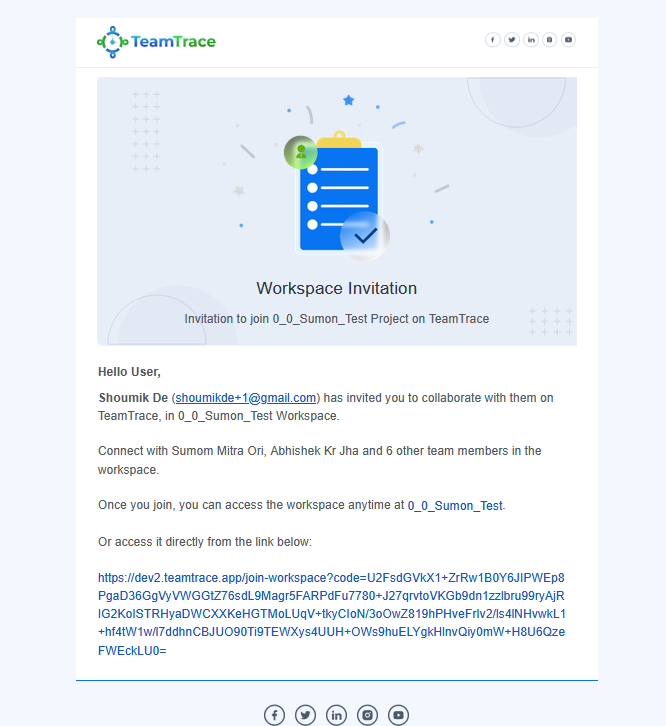
Once the external user is successfully added to the project, the user will receive an email.
The email allows the user to proceed with accessing the project according to the access role assigned to them.
Quick Steps
Projects → Open Project → Settings → People → Add People → Enter Email → Press Enter → Select Access Role → Add → Add
Important Reminder
The most commonly missed step is pressing Enter after entering the email address.
Always press Enter after typing the email address before selecting the access role.
Troubleshooting
| Issue | What to Check |
|---|---|
| User cannot be added after entering the email | Make sure you pressed Enter after entering the email address. |
| Access role cannot be assigned | Press Enter after entering the email address, then assign the role. |
| User has been added but has not received an email | Ask the user to check their inbox and spam/junk folder. |
| Wrong access was provided | Review the user's assigned access role in the project's People section. |
Was this article helpful?
That’s Great!
Thank you for your feedback
Sorry! We couldn't be helpful
Thank you for your feedback
Feedback sent
We appreciate your effort and will try to fix the article