Download the file, Silent App, according to the Operating system you are using.
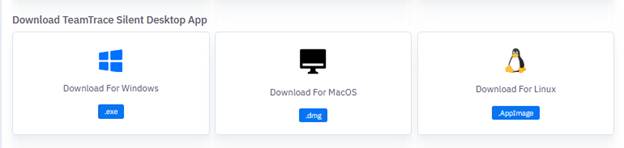
After installing the App, you will need employee code of the user and an installation key to login to the Silent App.
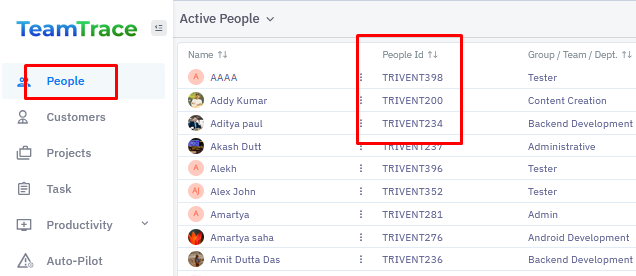
To get the employee ID of the user, go to the Dashboard and click on People. From the list of people in your organization, you would find the People ID column. You can find the people ID or employee ID from that column.
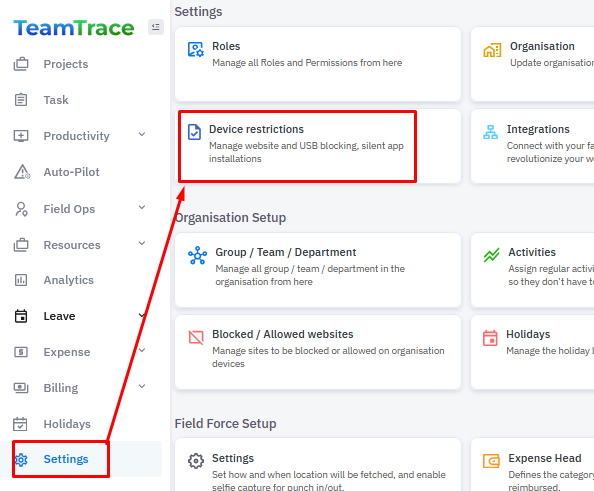
To get the Installation Key, click on Settings from the left menu and go to Device Restrictions.
From the left menu, click on Silent Tracking and copy the Installation Key.

To enable webcam access for an app on a Mac:
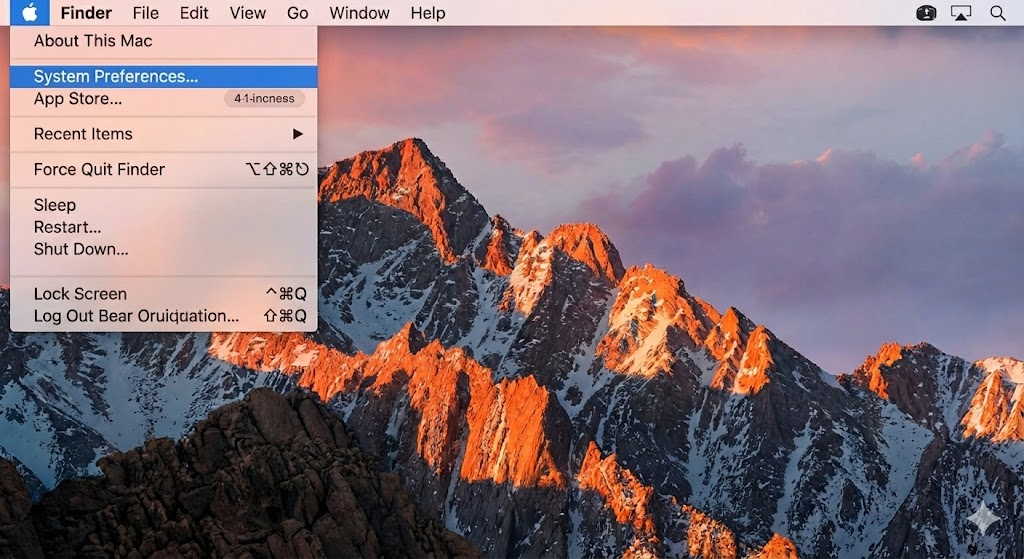
Step 1: Click the Apple menu
The first step is to open the main system menu. This is located in the top-left corner of your screen.
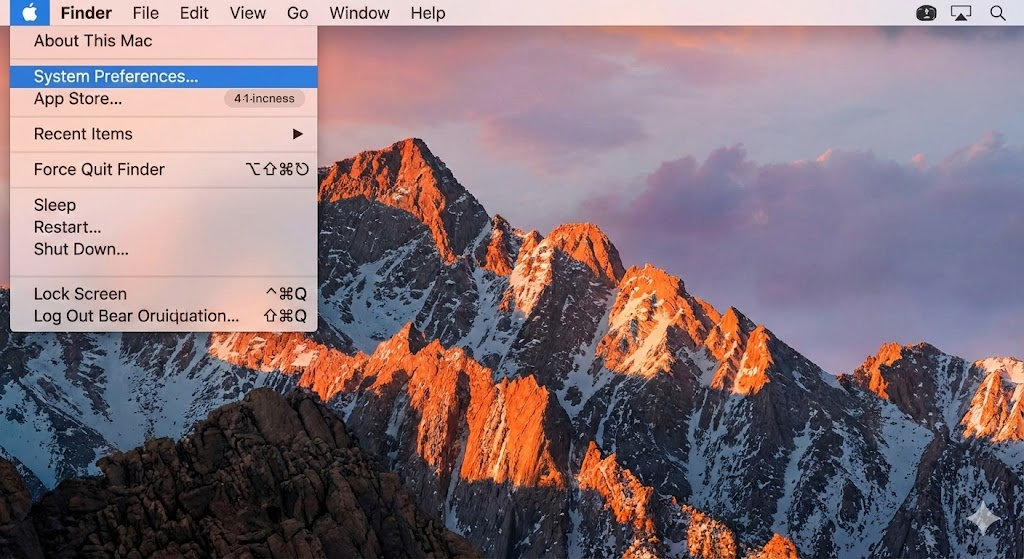
Step 2: Select System Settings
From the dropdown menu that appears, select "System Preferences..." (or "System Settings..." on newer macOS versions) to open the main control panel.
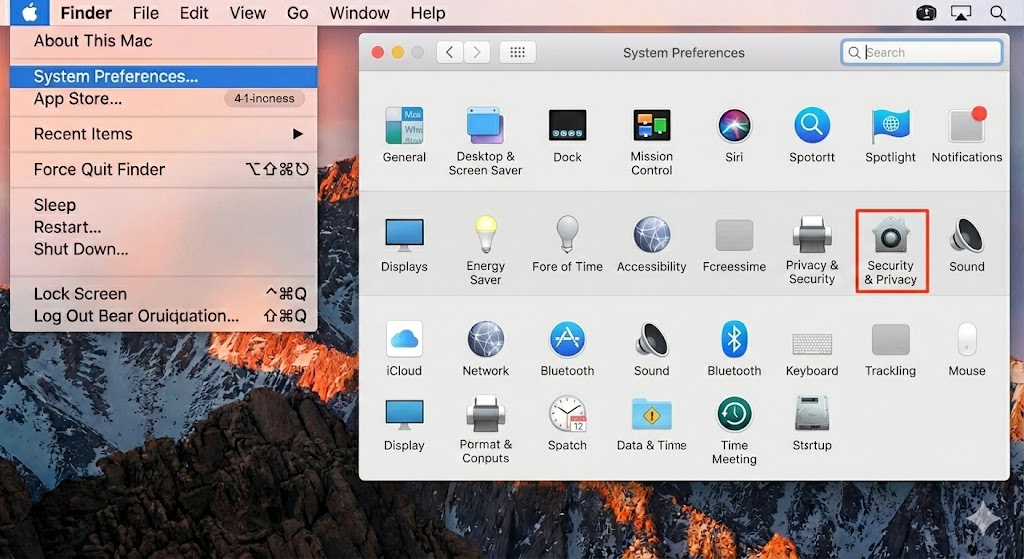
Step 3: Go to Privacy & Security
In the System Preferences window, locate and click on the "Security & Privacy" icon. This section manages permissions for your apps and data.
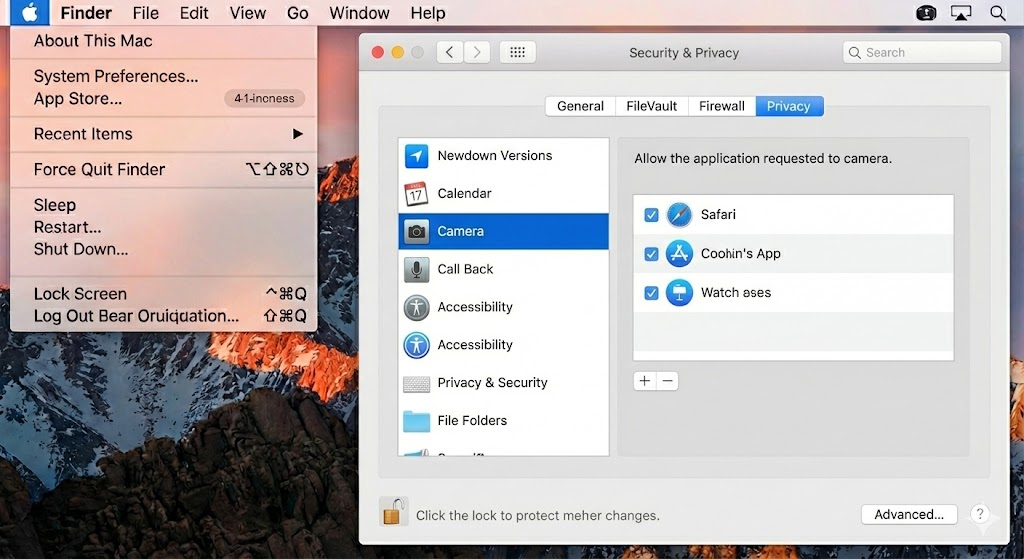
Step 4: Click Camera
Finally, within the Security & Privacy settings, select the "Privacy" tab and then click on "Camera" in the left-hand list. Here, you can manage which applications have access to your computer's camera.
Turn on access for the app (Look for "System Utility" or "ttsl".)
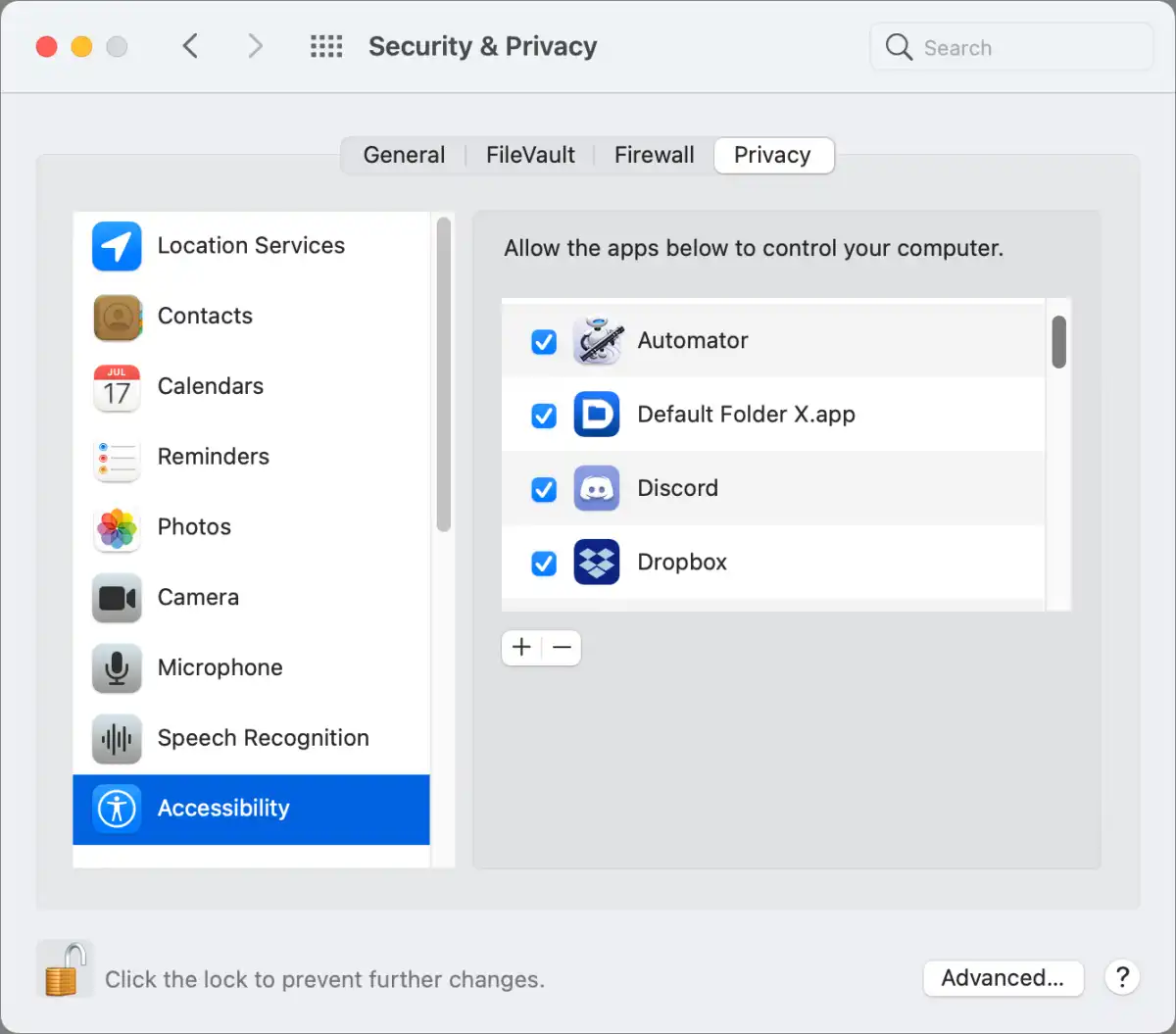
Repeat the above steps for accessibility as well.
Turn on access for the app (Look for "System Utility" or "ttsl".)
Was this article helpful?
That’s Great!
Thank you for your feedback
Sorry! We couldn't be helpful
Thank you for your feedback
Feedback sent
We appreciate your effort and will try to fix the article