Overview
This document is applicable for macOS only.
To ensure TeamTrace Desktop App functions correctly and all tracking features work properly, certainmacOS permissions and system settings must be enabled during installation and first launch.
Required Permissions & Settings (Standard + SilentApp)
1. Screen Recording Permission (Required)
Required for:
- Screenshot capture
- Web URL tracking
- Application/App URL tracking
- Live Screen visibility
macOS Setting Name
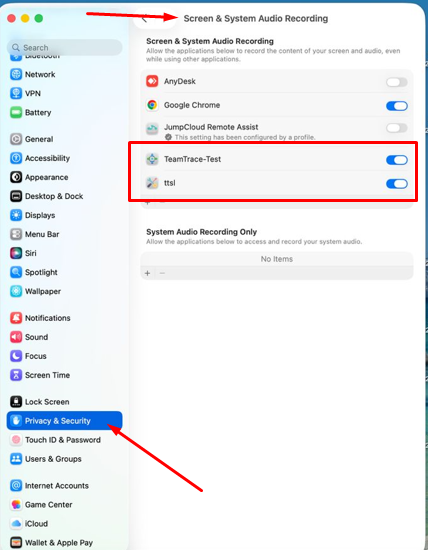
Screen & System Audio Recording
Path
System Settings → Privacy & Security → Screen Recording
Action Required
Enable TeamTrace in the Screen Recording permissions list.
⚠️ Without Screen Recording permission, macOS will only capture a black screen or desktop Action Required wallpaper/background. Actual user screen content, windows, browsers, and applications will not be visible in screenshots.
Without this permission:
- Screenshots may appear black
- Only wallpaper/background may capture
- Live Screen may not work properly
- Web/App URL tracking may fail
2. Accessibility Permission (Most Important)
Required for:
- Activity tracking
- Mouse tracking
- Keyboard/keystroke tracking
- Active application detection
- App usage tracking
macOS Setting Name
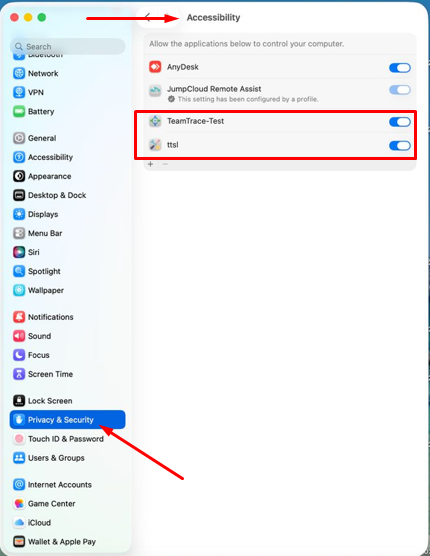
Accessibility
Path
System Settings → Privacy & Security → Accessibility
Action Required
Enable TeamTrace in the Accessibility permissions list.
⚠️ This is the most critical permission required for proper activity tracking.

Action Required

Without this permission:
Activity may remain 0%
App tracking may not work
Keyboard/mouse activity may not detect properly
3. Location Permission
Required for:
- Location tracking features
- Accurate location-based logs/events
macOS Setting Name
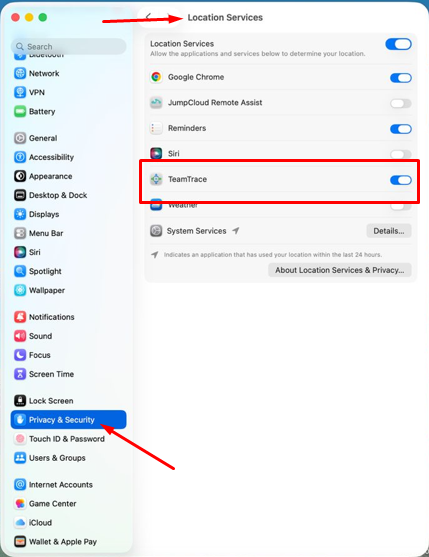
Location Services
Path
System Settings → Privacy & Security → Location Services
Action Required
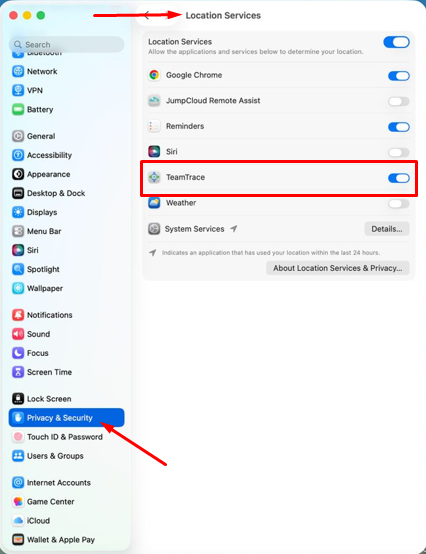
Enable Location Services and allow TeamTrace access.
4. Login Item / Startup Permission
Required to:
- Automatically launch TeamTrace after system restart/login
- Ensure continuous background tracking
Path
System Settings → General → Login Items
Action Required
Verify TeamTrace is added under Login Items during installation.4
Additional Instructions for Silent App Installation
Important: Do Not Keep Standard & Silent Apps TogetherBefore installing the TeamTrace Silent App, ensure:
- Any previously installed TeamTrace Standard App is completely removed
- TeamTrace Standard App is removed from:
System Settings → General → Login Items
Old TeamTrace application is removed from:
- Applications folder
- Login Items
- Trash (recommended)
- Completely quit the old TeamTrace app before installing Silent App
Only the Silent App version should remain installed
Reason
Running both Standard and Silent versions together may cause:
- Tracking conflicts
- Duplicate processes
- Incorrect activity reporting
- Startup/login item issues
Important Startup Verification
After installation:
- Wait approximately 1–2 minutes for TeamTrace services to initialize
- Verify the user appears in:
- Live Screen
- Web dashboard/activity panel
If TeamTrace Does Not Start Properly
If after installation:
- TeamTrace is not visible in Live Screen
- Tracking is not starting
- Screenshots are not appearing
- App seems inactive after waiting 1–2 minutes
Recommended Action
- Restart the macOS system
- Wait another 1–2 minutes after login
- Recheck Live Screen and tracking status
macOS sometimes delays newly granted permissions or startup services until after a fullsystem restart.Common Symptoms if Permission is Missing
Missing Permission | Possible Issue |
Screen Recording | Black screenshots / only wallpaper visible / Live Screen not working |
Accessibility | Activity tracking not working / Activity always 0% |
Location Services | Location unavailable |
Login Items | TeamTrace not auto-starting after restart |
Was this article helpful?
That’s Great!
Thank you for your feedback
Sorry! We couldn't be helpful
Thank you for your feedback
Feedback sent
We appreciate your effort and will try to fix the article