Provides controls to safeguard organizational data and regulate employee device usage within TeamTrace.
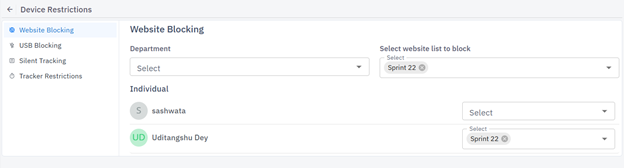
Website Blocking
Restricts access to unauthorized or non-work-related websites. You need to filter users based on their department and select the website list from the dropdown menu.
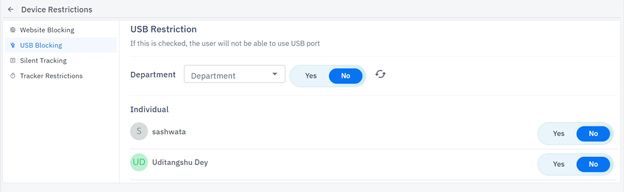
USB Blocking
Prevents the use of external USB devices to secure data from unauthorized transfer. You can also filter users based on their department.
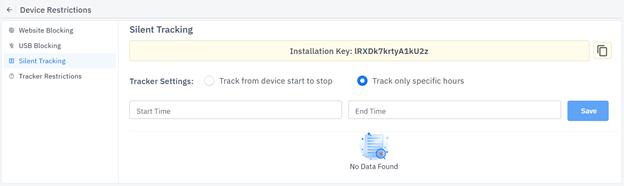
Silent Tracking
Monitors user activity in the background without visible prompts or notifications.

- There are two options available:
Track from Device Start to Stop: Monitors user activity continuously from system startup until shutdown.
Track Only Specific Hours: Records user activity exclusively within the predefined working hours.
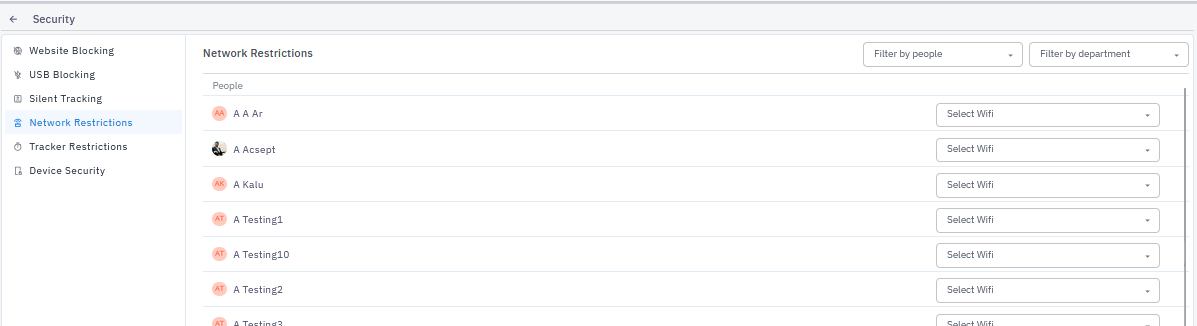
- Network Restrictions
If this settings is on then the admin can track the Wi-Fi or Network details of the user that they are connected with.
Tracker Restrictions
Defines rules and limitations on how the activity tracker operates for specific users or departments.
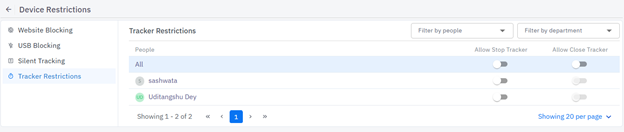
- Filter by People – Restrict tracker rules to selected individual users only.
- Filter by Department – Apply tracker rules across all users within a specific department.
Toggle Options:
- Allow Stop Tracker – Grants users permission to manually stop the tracker during their session.
- Allow Close Tracker – Grants users permission to completely close the tracker application on their device.
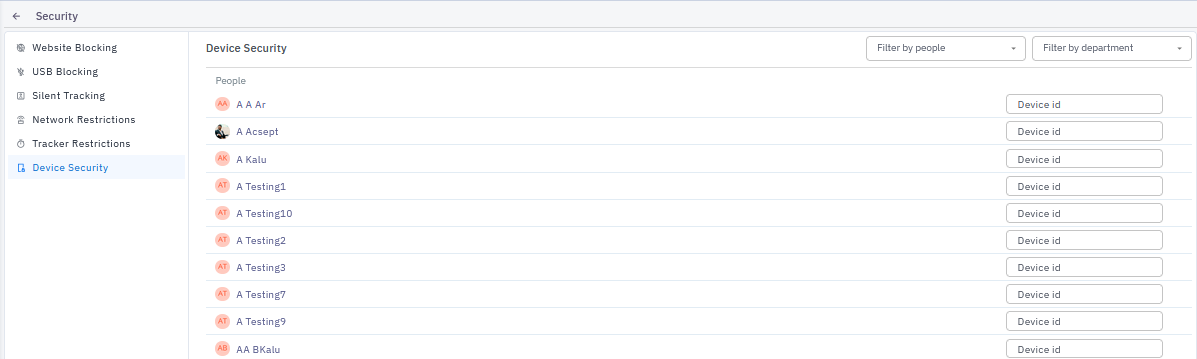
Device Security
To ensure a user only runs the tracker on a specific authorized machine, you can bind their account to a unique hardware identifier. Enter the user's MAC id into the field.
Was this article helpful?
That’s Great!
Thank you for your feedback
Sorry! We couldn't be helpful
Thank you for your feedback
Feedback sent
We appreciate your effort and will try to fix the article