Overview
As an administrator, you may need to disable or remove a user from TeamTrace when an employee leaves the organization, no longer needs access, or should no longer be able to use TeamTrace.
TeamTrace provides options to manage users from the user management section.
Important: Disabling and removing a user are different actions. Use the appropriate option based on whether you want to temporarily stop the user's access or permanently remove the user from the organization.
When Should You Disable a User?
Disable a user when you want to stop the user's access without permanently removing the user.
For example:
An employee is temporarily inactive.
The employee is on extended leave.
The user should no longer have access but their account information needs to be retained.
You may need to restore the user's access later.
When Should You Remove a User?
Remove a user when the user no longer needs to be associated with the organization.
For example:
An employee has left the organization.
A user was added by mistake.
A user is no longer required in TeamTrace.
Note: Before removing a user, make sure you understand the impact on their projects, tasks, timesheets, attendance, and historical records.
How to Disable a User
Step 1: Open User Management
Log in to TeamTrace using an administrator account.
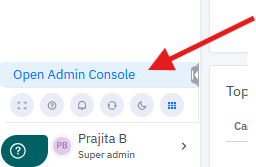
Click on Open Admin Console from menu on the left
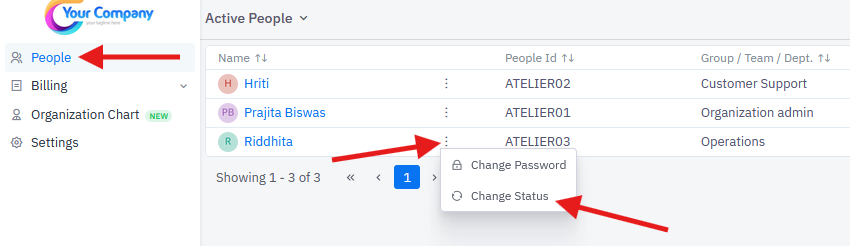
Step 2: Click on People
- Go to the required user and click on 3 dots (ellipsis) in front of the name.
- And then click on Change Status
Step 3: Once you click on Change Status
You will get a Pop up asking you to confirm the last working day of the employee.
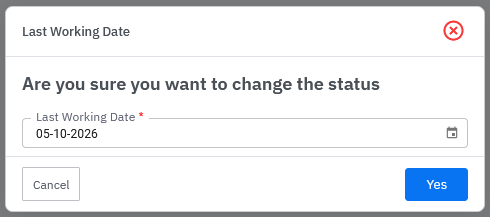
Select the appropriate date and click on Yes.
The user will no longer be able to use TeamTrace as an active user.
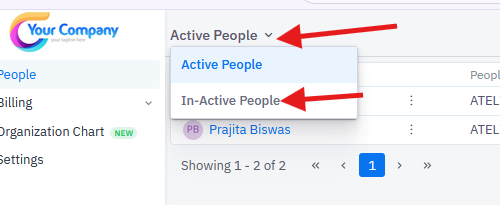
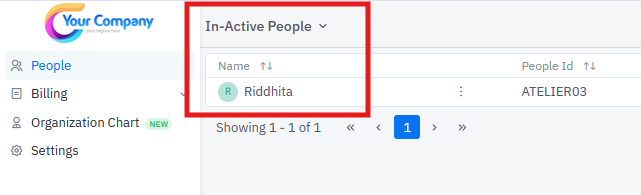
Step 4: Click on the drop down arrow next to Active People and click on In-Active People to verify that the user is disabled.
How to Remove a User
Please send an email to support team at support@teamtrace.app to permanently remove the user from the database.
Important Points
Make sure you select the correct user before disabling or removing them.
Please note that when the user is disabled the credit associated with the user will be lost.
Was this article helpful?
That’s Great!
Thank you for your feedback
Sorry! We couldn't be helpful
Thank you for your feedback
Feedback sent
We appreciate your effort and will try to fix the article