Overview
An Organization in TeamTrace is the workspace where you manage your employees, teams, projects, tasks, time tracking, attendance, and other TeamTrace activities.
If you are setting up TeamTrace for your company for the first time, you need to create an organization before you can start adding employees and managing your work.
Who can create an organization?
The person setting up TeamTrace for the company should create the organization and become the administrator responsible for managing the account.
Before You Begin
Before creating your organization, make sure you have:
A valid email address.
Access to your email account.
Your company's name.
Internet access.
Permission to set up TeamTrace for your organization.
If you already received an invitation to join an existing TeamTrace organization, you do not need to create a new organization. Instead, accept the invitation from your administrator.
Step 1: Open TeamTrace
Open the TeamTrace platform in your web browser.
Go to the TeamTrace login page and select Create an account.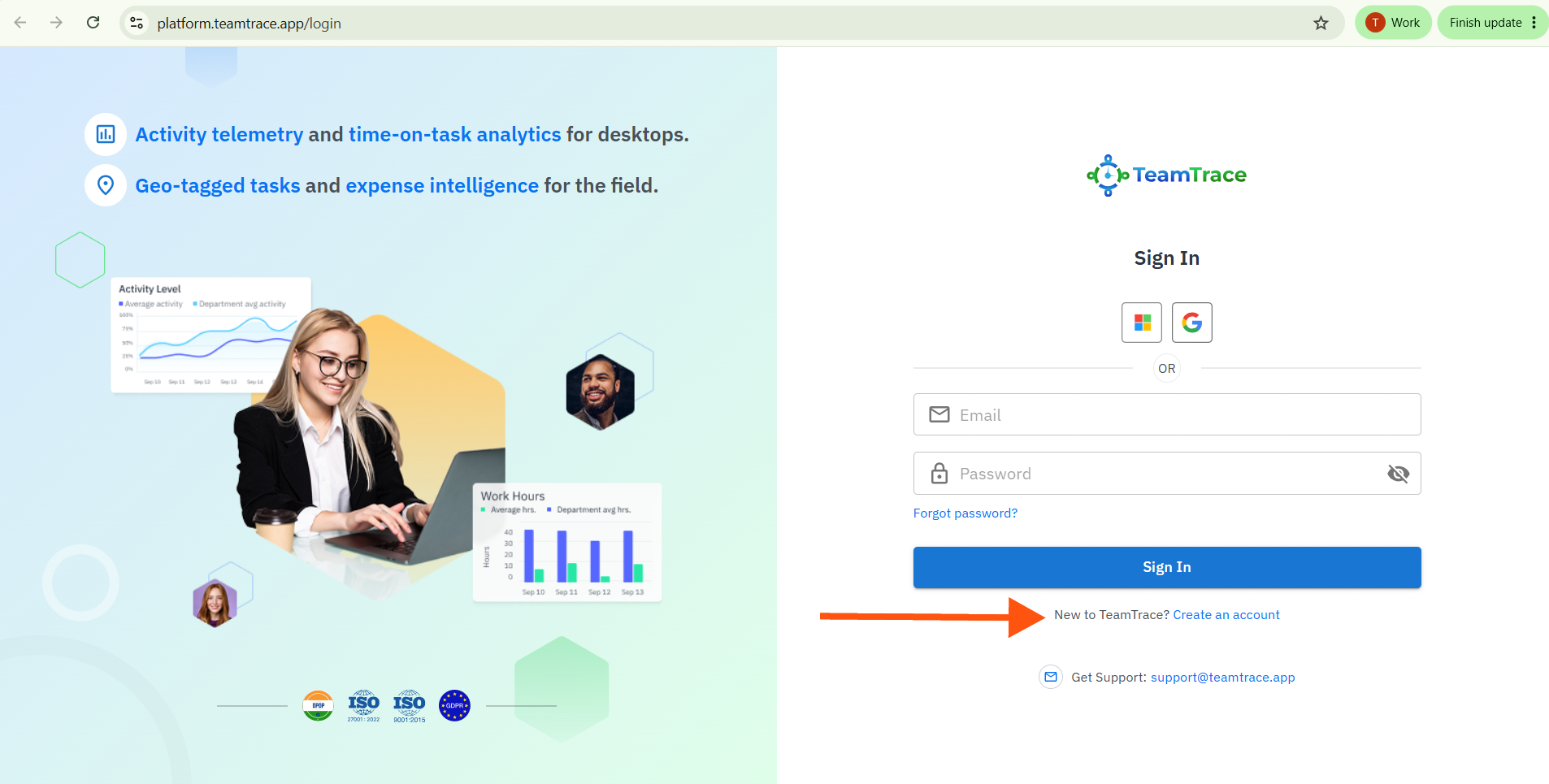
The TeamTrace login page currently provides a Create an account option for new users.
Step 2: Create Your TeamTrace Account
Enter the information requested during registration.
Use an email address that you regularly access because TeamTrace may use it for account verification and other account-related communication.
Complete the registration process and sign in to TeamTrace.
Note: If you are creating the account for your company, use your official work email address whenever possible.
Step 3: Start Organization Setup
After creating your account, proceed with the organization setup.
If TeamTrace displays an organization setup screen, enter the required organization information.
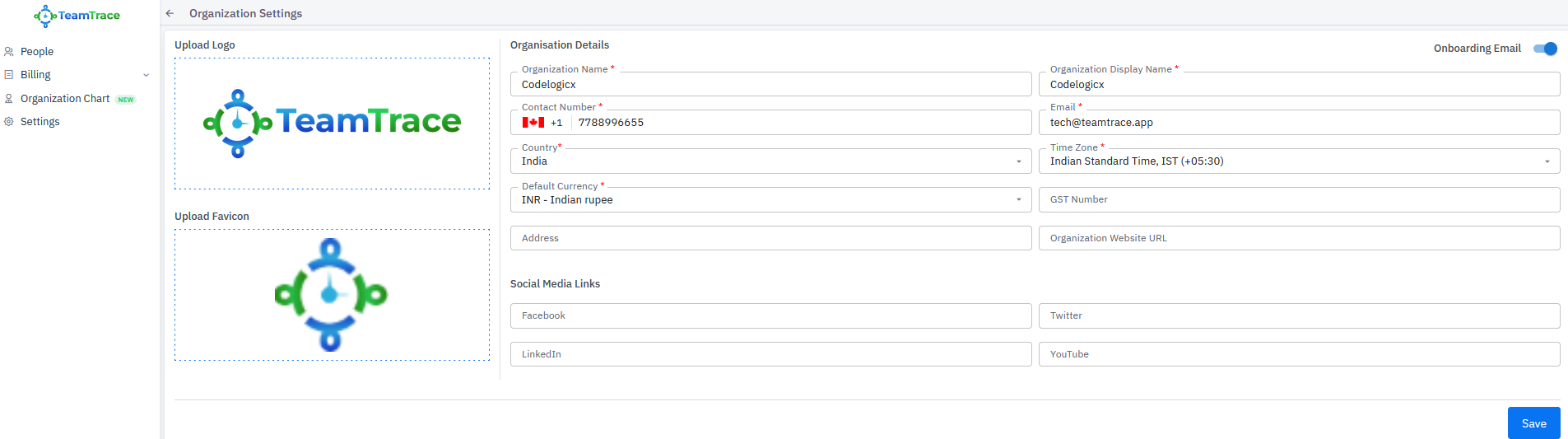
Organization Name
Enter the name of your company or organization.
For example:
ABC Technologies Pvt. Ltd.
Use a name that your employees and administrators will easily recognize.
Step 4: Complete the Organization Details
Enter the other information requested by TeamTrace.
The exact fields displayed may depend on your TeamTrace account configuration.
For each field:
Read the field name.
Enter the correct information.
Check the information before continuing.
Complete all mandatory fields.
Important: Do not enter random or placeholder information in organization details. These details may be used later when managing your TeamTrace account.
Step 5: Create the Organization
After entering the required information, click the button used to create or save the organization.
Depending on the current TeamTrace interface, this may be labelled Create, Create Organization, Save, or a similar option.
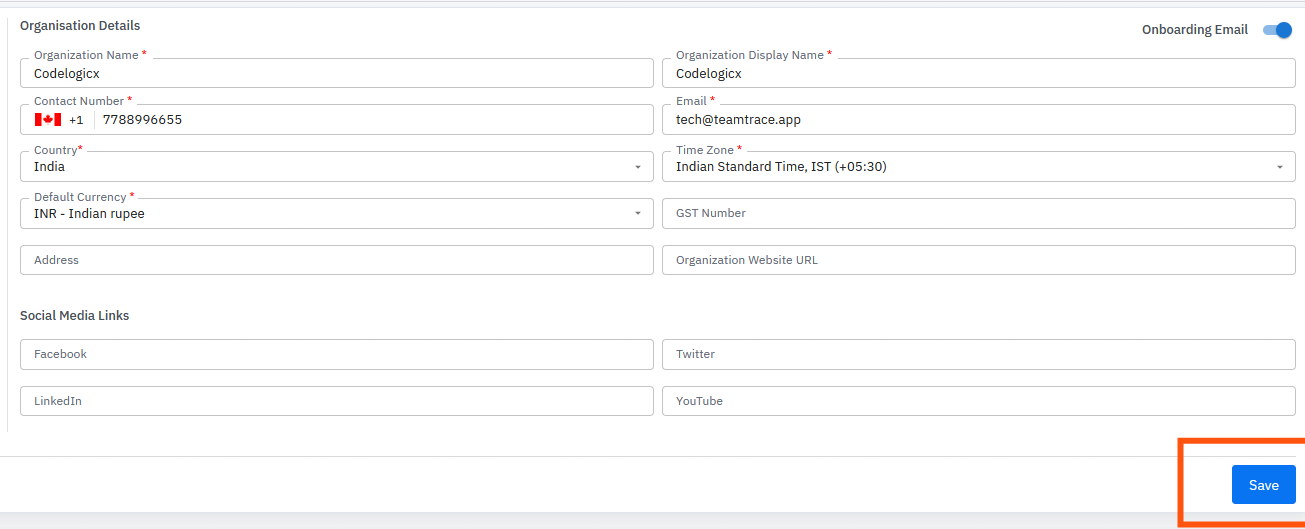
Wait for TeamTrace to complete the setup.
Once the organization is created, you can begin configuring your TeamTrace workspace.
Step 6: Check Your Organization
After creating the organization, check that the organization name is displayed correctly.
You should now be able to access your organization's TeamTrace workspace.
Your organization becomes the central workspace for managing your TeamTrace users and activities.
Step 7: Create Department
Once the organization has been created, the next step is to add your employees or team members.
You can create employee profiles and invite team members to join your organization.
TeamTrace's setup flow includes adding employees and team members after creating the account.
Typical setup order
Create Organization → Create Department → Add Job Title → Add Roles → Add People
Step 8: Set Up Your Organization
After creating the organization, you can continue configuring TeamTrace according to your company's requirements.
Depending on your TeamTrace plan and configuration, this can include:
Employees
Teams
Departments
Groups
Job titles
Skills
Projects
Tasks
Time tracking
Attendance
Productivity settings
Notifications
Security settings
Reports
Integrations
The features available to your organization depend on your TeamTrace plan and configuration.
Common Issues
| Problem | What to Do |
|---|---|
| I cannot find "Create an account" | Make sure you are on the TeamTrace login page and not already signed in. |
| I already have a TeamTrace account | Sign in and check whether you have already been added to an organization. |
| I received an invitation from my company | Do not create a new organization. Accept the invitation and join the existing organization. |
| I cannot create the organization | Check that all required fields have been completed. If the problem continues, contact TeamTrace Support. |
| My organization name is incorrect | Contact your TeamTrace administrator or Support before adding a large number of employees. |
| I created an organization by mistake | Contact TeamTrace Support for assistance. |
| My employees cannot join | Check that their invitations were sent to the correct email addresses. |
Frequently Asked Questions
Do I need to create an organization if I was invited by my company?
No.
If your company already has a TeamTrace organization, accept the invitation from your administrator instead of creating another organization.
Can one person create the organization for the entire company?
Yes. The person responsible for setting up TeamTrace can create the organization and then add or invite the other employees.
What should I use as the organization name?
Use your official company or organization name so that employees can easily identify the correct TeamTrace workspace.
What should I do after creating the organization?
The recommended next step is to add employees and configure your organization structure. You can then create projects, assign tasks, and configure the required TeamTrace settings.
Do employees need to create their own organization?
No.
Employees who are joining an existing company organization should normally be invited to that organization rather than creating a separate one.
Was this article helpful?
That’s Great!
Thank you for your feedback
Sorry! We couldn't be helpful
Thank you for your feedback
Feedback sent
We appreciate your effort and will try to fix the article