Teamtrace is a work and workforce management tool. Track your employees, manage your project, and allocate your resources, some parts of HRMs - Attendance and Leave management.
Started in Oct 2023, presence all over the globe, south and North America, London.
After you sign up for Teamtrace you will be taken to the dashboard.
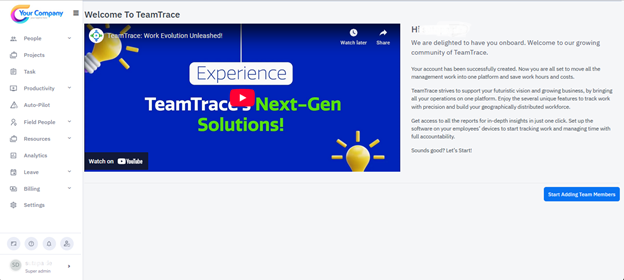
After signing up you would need to set up the organizational structure. To do that you would need to follow the steps below:
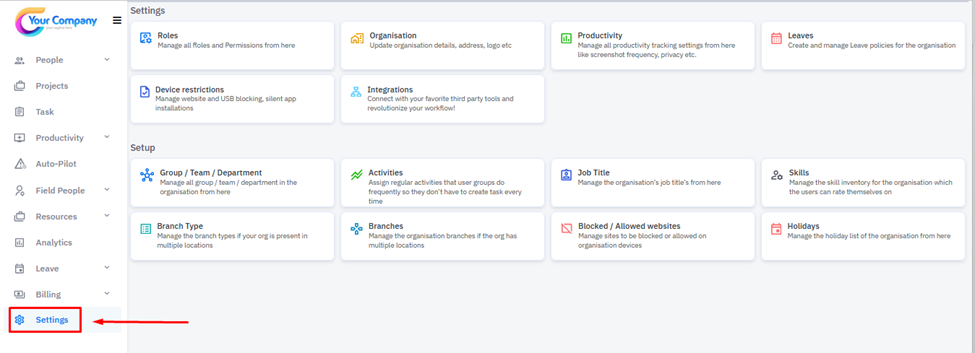
- Settings
After signing up you need to click on the settings.
2. Add Department
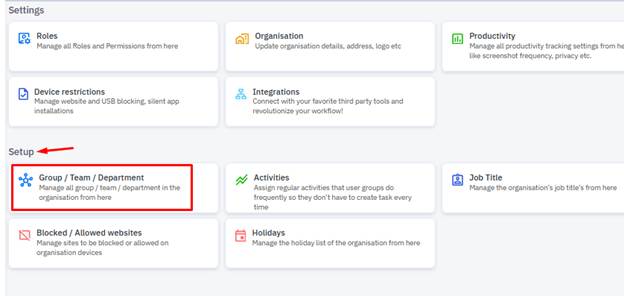
On the settings page click on the Group/Team/Department under Setup.
Once inside Group/Team/Department click on Add. |
|
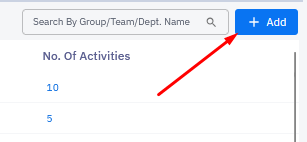
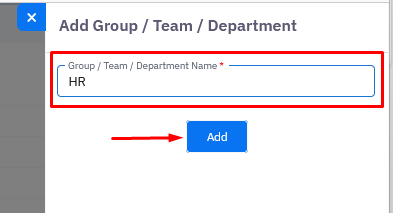
Once you click on Add a pop-up window will open up and you will need to name your Group/Team/Department and click on Add.
3. Add Job Title
After adding a department go back to the settings and click on Job Title
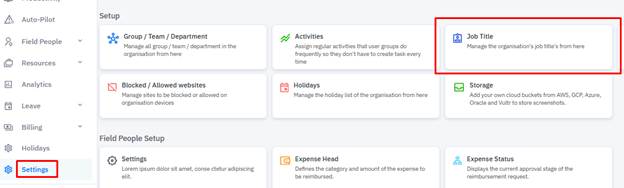
Just like in the previous window click on the Add button on the top right and Job Title.
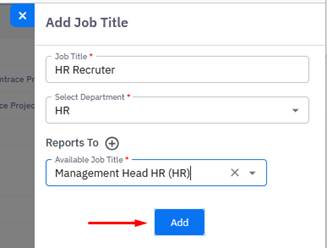
Enter Job Title, enter select Department and select Reports To |
|
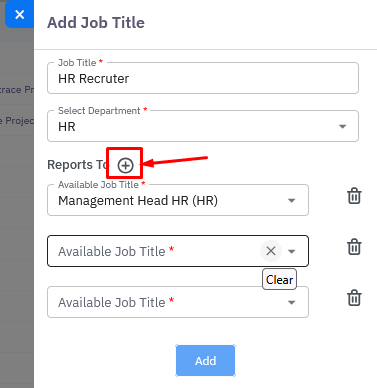
If the employee reports to more than one person, then you can click on the plus button and add multiple Roles the employee would report to.
|
|
4. Add Roles
After you create the Job Titles go back to the Settings page and click on Roles.
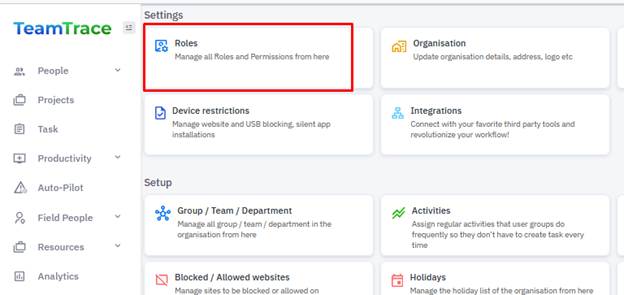
Click the Add button on the top right and from the pop-up window enter the name and job description.
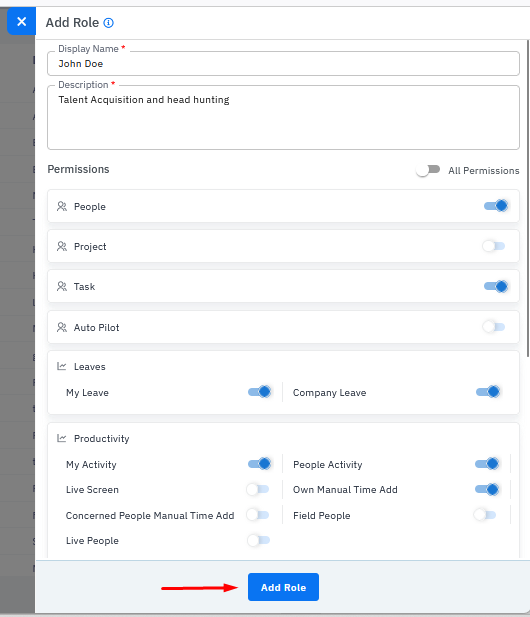
You can click on the toggle button to assign permission to the user.
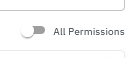
You can click on the All Permission toggle button to assign all the permissions listed on the page or you can choose the permissions you want to give one by one. |
|
After you are done click on Add Role button at the bottom of the page to save the settings. |
|

5. Add People
From the menu on the left-hand side click on People, and from the drop-down option click on Active.
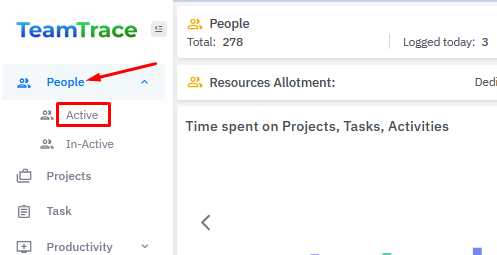
On the top right corner click on Add People button. |
|
On the Add People pop-up page fill in the required details.
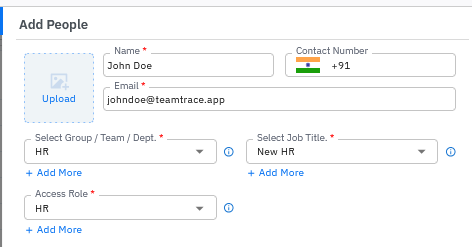
After filling in all the details don’t forget to click on Save at the bottom of the page. |
|

6. Screenshot Policy
Go back to the settings page and click on Productivity.
|
|
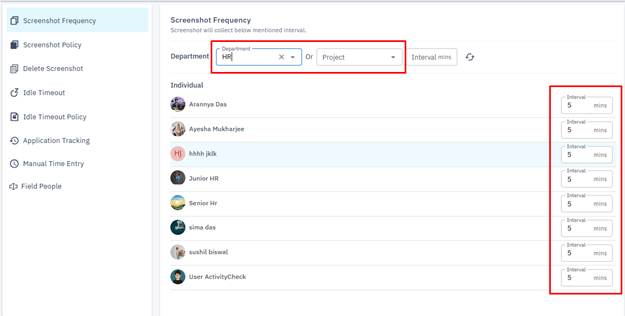
You can select either by Department or Project and assign screenshot frequency. Whatever time you assign to a particular employee the time tracker will keep taking screenshots in that time frequency. You can set the time to a minimum of 5 minutes to 30 minutes.
Was this article helpful?
That’s Great!
Thank you for your feedback
Sorry! We couldn't be helpful
Thank you for your feedback
Feedback sent
We appreciate your effort and will try to fix the article