Overview
This guide explains how to find your way around the TeamTrace web application. It covers the left-hand navigation menu, the shortcut icons at the bottom of the menu, your profile area, and the main workspace where pages open.
Note: The menu items you see depend on your role and permissions. Admins and Super Admins see more options than standard users.
The screen at a glance
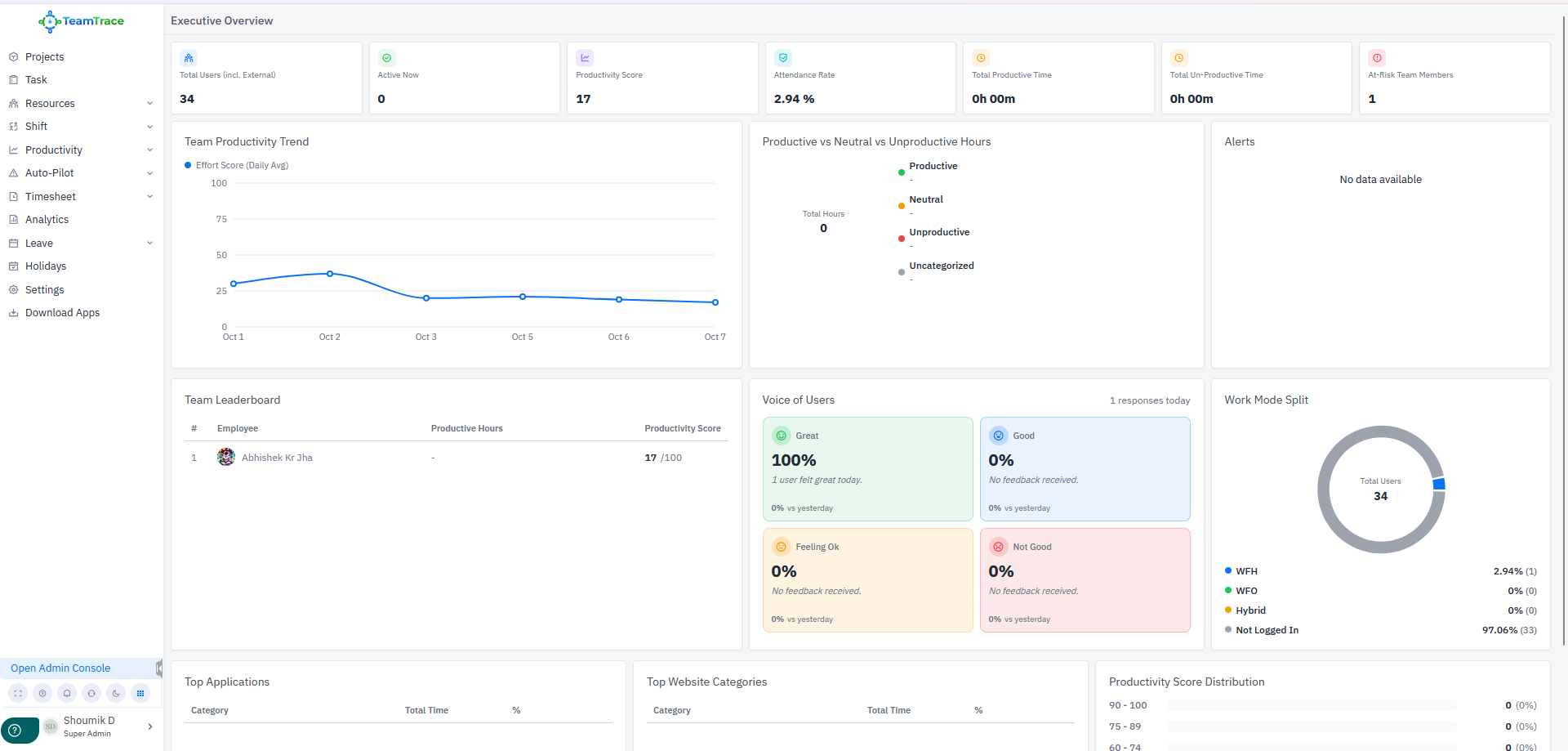
The TeamTrace web app has two main areas:
- Left navigation panel: the main menu, shortcut icons, and your profile.
- Main workspace: the page you selected. After you sign in, this opens on the Executive Overview dashboard.
The left navigation menu
The TeamTrace logo sits at the top of the panel, followed by the main menu. Items with a small arrow (˅) to their right expand to show sub-options. Items without an arrow open directly.
Menu item | Expands? | What it's for |
|---|---|---|
Projects | No | Create and manage projects and view project progress. |
Task | No | View and manage tasks assigned to you or your team. |
Resources | Yes | Manage people and resources in your workspace. |
Shift | Yes | View and manage work shifts and schedules. |
Productivity | Yes | Review productivity and activity data for individuals and teams. |
Auto-Pilot | Yes | Automated tracking and productivity-related features. |
Timesheet | Yes | Record, review, and approve time entries. |
Analytics | No | Explore reports and insights across your workspace. |
Leave | Yes | Apply for leave, check balances, and manage leave requests. |
Holidays | No | View the holiday calendar. |
Settings | No | Configure workspace and personal preferences. |
Download Apps | No | Get the TeamTrace apps for your devices. |
Expanding and collapsing menu items
- Click a menu item that has an arrow (for example, Productivity) to reveal its sub-options.
- Click a sub-option to open that page in the main workspace.
- Click the item again to collapse it.
Collapsing the whole panel
Use the small arrow handle on the right edge of the left panel to collapse or expand the navigation panel. Collapsing it gives the main workspace more room, which is useful on smaller screens.
Bottom of the navigation panel
Open Admin Console
Admins see an Open Admin Console link near the bottom of the panel. Select it to switch to the administrative area, where you can manage organization-level settings. Standard users do not see this link.
Shortcut icons
A row of small icons sits below the Admin Console link. These give quick access to common actions such as notifications, display options (including light and dark appearance), and other utilities. Hover over an icon to see its label.
Profile area
At the very bottom, your name and role (for example, Super Admin) are shown with a small arrow. Select it to open the profile menu, where you can access your account options and sign out.
Help button
The round ? button in the bottom-left corner opens help and support options.
The main workspace
The main workspace shows whichever page you selected. A title at the top (for example, Executive Overview) tells you where you are.
The Executive Overview dashboard
The dashboard is the default landing page. It includes:
- Summary cards across the top: Total Users, Active Now, Productivity Score, Attendance Rate, Total Productive Time, Total Un-Productive Time, and At-Risk Team Members.
- Charts and panels below: Team Productivity Trend, Productive vs Neutral vs Unproductive Hours, and Alerts.
- Team views: Team Leaderboard, Voice of Users, and Work Mode Split.
- Breakdowns at the bottom: Top Applications, Top Website Categories, and Productivity Score Distribution.
Scroll down within the workspace to reach the lower panels. For a full explanation of each panel, see Understanding the Executive Overview Dashboard.
Reading the charts
- Hover over a point on a chart to see its exact value (for example, the score for a specific date).
- Panels with no data to show display a short message, such as No data available.
Common navigation tasks
Return to the dashboard. Click the TeamTrace logo at the top of the left panel.
Find a page quickly. Expand the relevant menu group, then choose the sub-option. If you are unsure where a feature lives, check Settings or Productivity first.
Switch to admin tools. Click Open Admin Console at the bottom of the left panel (admins only).
Get the desktop or mobile app. Click Download Apps in the menu.
Get help. Click the ? button in the bottom-left corner.
Troubleshooting and FAQs
I can't see a menu item mentioned in this guide. Menu items are shown based on your role and permissions. Contact your administrator if you need access.
I don't see the Open Admin Console link. This link is available to admins only.
The navigation panel disappeared. The panel may be collapsed. Use the arrow handle on the panel's edge to expand it again.
The page looks cramped or content is cut off. Collapse the left panel, or zoom out slightly in your browser, to give the workspace more room.
A menu item has an arrow but nothing opened. Click the item once to expand it. If it still doesn't expand, refresh the page.
Was this article helpful?
That’s Great!
Thank you for your feedback
Sorry! We couldn't be helpful
Thank you for your feedback
Feedback sent
We appreciate your effort and will try to fix the article