Overview
When you create a project in TeamTrace, you can start from a predefined template instead of configuring everything yourself. This article explains how to browse the available templates, preview one, and apply it to your new project.
Before You Begin
- Sign in to the TeamTrace portal with an account that has permission to create projects.
- Templates are chosen while creating a new project. If you want to configure the options yourself, use Create Custom instead. See How to Create a Custom Template for a Project in TeamTrace.
Available Workflow
The predefined workflow available are:
- Scrum
- Kanban
Steps to Use a Template
- Open the Projects page and click + Add (or Add Project).
- On the project creation form, select the Browse Templates radio button. The list of predefined templates appears.
- (Optional) Click View Template under a template. A new window opens and gives you a visual idea of how the template looks.
- Click Use Template under the template you want. It is selected for the project you are creating.
- Complete the rest of the project setup, including the people and their access roles.
- Click Save and Next, then Add Project to finish.
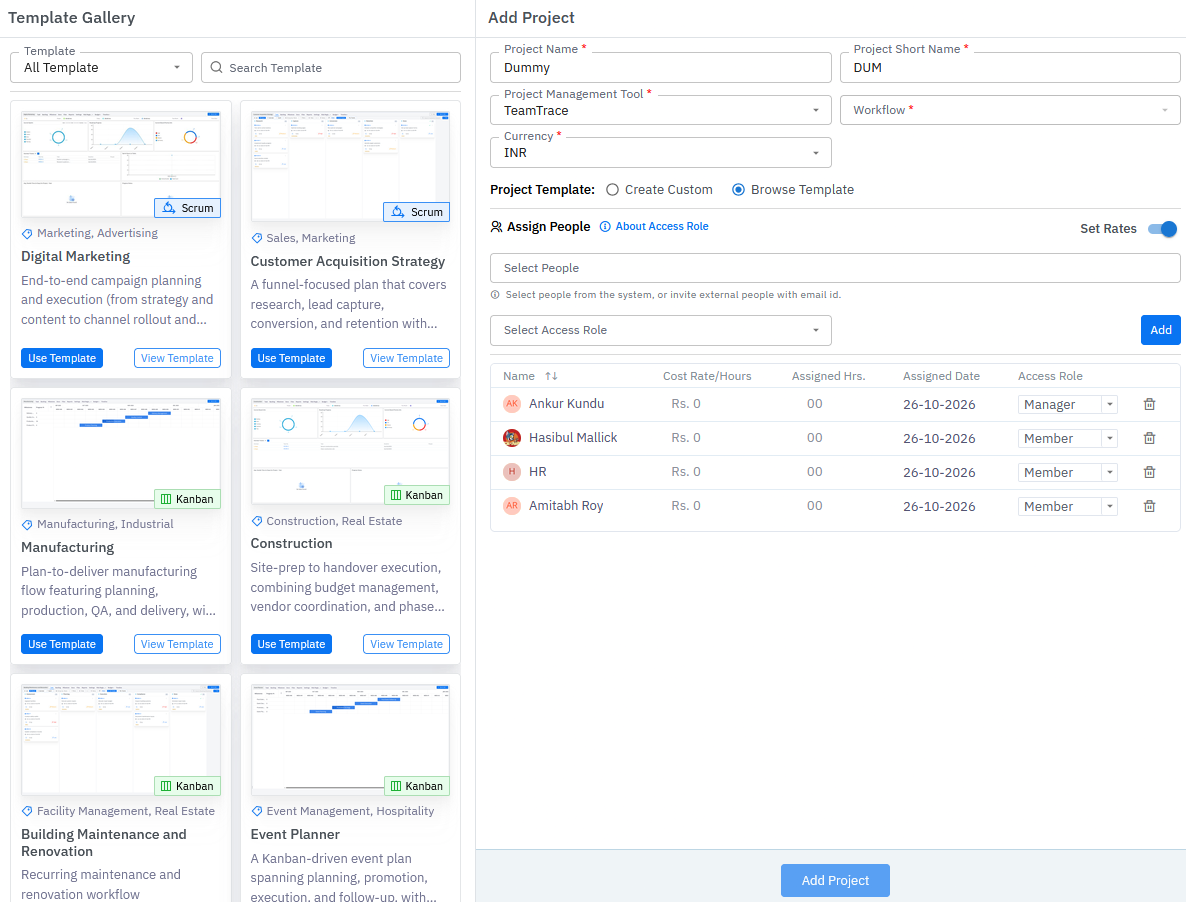
The Two Buttons on Each Template
| Button | What it does |
| View Template | Opens a new window with a visual idea of the template, so you can preview it before choosing. |
| Use Template | Selects the template for the project you are creating. |
Which Workflow Should I Choose?
| Workflow | Choose it when |
| Scrum | Your team works in time-boxed sprints and builds deliverables step by step. |
| Kanban | You want to see work move through workflow stages and spot bottlenecks. |
After You Create the Project
- Click the project name in the project list to open its dashboard.
- Use Settings to arrange tabs, manage people and add custom fields. See Project Settings Explained in TeamTrace.
Notes
- Preview a template with View Template before you choose it.
- Clicking Use Template selects the template, but you still need to complete and save the project setup.
- [Add: whether the template can be changed after the project is created.]
Troubleshooting
| Problem | What to check |
| The template list isn't shown | Make sure the Browse Templates radio button is selected. |
| The View Template window doesn't open | Check that your browser isn't blocking pop-up windows. |
| The template isn't applied to the project | Confirm you clicked Use Template and then completed the project setup. |
| I want to configure the options myself | Select Create Custom instead of Browse Templates. |
Related Articles
Was this article helpful?
That’s Great!
Thank you for your feedback
Sorry! We couldn't be helpful
Thank you for your feedback
Feedback sent
We appreciate your effort and will try to fix the article