Category: Project Management
Applies to: TeamTrace web platform
Audience: Administrators, project managers, team leads and team members
Overview
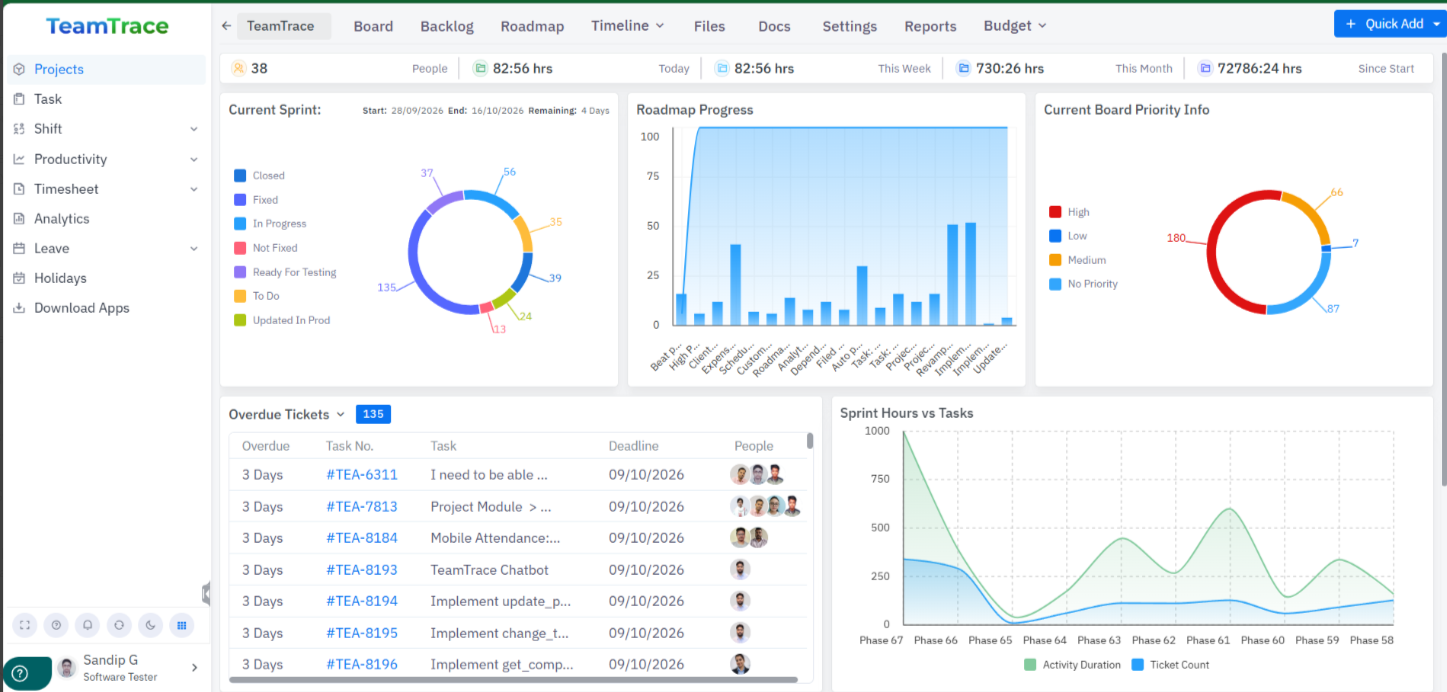
TeamTrace Project Management helps organizations plan projects, organize tasks, allocate resources, monitor progress, manage budgets and collaborate from one platform. Teams can use Kanban boards, Scrum, milestones, epics, Agile workflows, time tracking, project reporting and collaboration tools to manage work from start to finish. It also connects with resource management, time tracking, timesheets and workforce insights.
Note: Which features you see depends on your organization’s configuration and your access permissions.
Key Features
- Project and task management
- Kanban boards
- Scrum and sprint management
- Milestones and epics
- Agile workflows
- Resource allocation and capacity planning
- Budget monitoring and cost control
- Project timesheets and billing
- Project reports and analytics
- File Manager
- Project Wiki and documentation
- Workflow automation
- Risk management
- Standups and retrospectives
- Dashboards and integrations
Getting Started
Before managing a project, make sure your organization is registered and you have the right permissions.
- Log in: open TeamTrace, enter your credentials, complete authentication if prompted, and open the main dashboard.
- Verify your access: open the relevant settings or user management section and confirm your role. Check that you can view, create or manage projects. If a feature is missing, contact your administrator.
- Prepare your team: make sure the people who will work on the project are added to TeamTrace. Confirm their teams, departments, roles and project access permissions, and identify the project manager and task owners.
1. Project and Task Management
This is the foundation of the TeamTrace project workflow. It organizes deliverables, assigns responsibilities, prioritizes work and tracks progress.
Create a project
- Go to the Project or Project Management section and review the projects available to you.
- Choose the option to create a new project.
- Enter the details the form asks for. Depending on your configuration, these may include:
- Project name and description
- Project manager or owner
- Project members
- Start date and target completion date
- Project type or workflow
- Other project settings
- Review and save.
Best practice: Use a clear project name and description so the team understands the project’s purpose and expected outcome.
Create tasks
- Open the project and go to its task list, backlog or board.
- Select the option to create a task.
- Enter a descriptive title, details and the expected outcome.
- Assign the task to a team member.
- Set the priority and due date, where available.
- Add any relevant files, links or supporting information, then save.
Organize, prioritize and track
- Review all project tasks and identify urgent work and key deliverables.
- Order work by when it should be completed, and note dependencies and blockers.
- Assign owners so every task is accountable.
- Update task status as work progresses, add comments when needed, and mark a task complete only after the work has been verified.
Expected outcome: Tasks are organized, ownership is clear, and the team can follow progress.
2. Kanban Board Management
Kanban shows work visually as it moves through the stages of a workflow. TeamTrace supports customizable boards to help teams see task distribution, spot bottlenecks and manage work in progress.
- Open the board: go to the Project section, open the Kanban project and review the workflow columns.
- Configure the workflow:where customization is available, set columns to match your team’s process. Examples:
- To Do
- In Progress
- In Review
- Blocked
- Done
- These are examples. Use the stages configured for your organization.
- Add tasks: create or open a task, enter its details, assign an owner and priority, and place it in the right stage.
- Move tasks through the workflow: update status as work progresses, move completed work to the next stage, and record blockers and delays.
- Monitor performance:use board views and reports to spot:
- Tasks piling up in one stage
- Work in progress for too long
- Blocked tasks
- Too much work in progress
- Ways to shorten delivery time
Best practice: Finish existing high-priority work before starting too many new tasks.
3. Scrum and Sprint Management
Scrum organizes work into time-boxed iterations called sprints. It suits projects where requirements evolve and deliverables are built incrementally.
- Open the Scrum project and review the backlog and sprint options.
- Build the product backlog:
- List the work needed to reach project goals.
- Create a task or work item for each requirement, with descriptions and acceptance criteria where applicable.
- Prioritize by business value and urgency, and review the backlog with the team.
- Plan a sprint:
- Review the highest-priority backlog items and estimate effort.
- Check team availability and capacity.
- Select work that can reasonably be finished in the sprint.
- Define the sprint goal and create the sprint.
- Execute the sprint: assign tasks, update status, record time where required, resolve blockers quickly and review progress against the sprint goal.
- Review results: identify completed and incomplete tasks, review the sprint summary and charts, compare planned and completed work, move unfinished items to the backlog or a future sprint, and record lessons learned.
Expected outcome: A repeatable process for prioritizing work, running sprints and improving delivery.
4. Milestones and Epics
These help break large projects into meaningful phases and groups of related work.
- Milestone: an important checkpoint or deliverable. Examples: requirements approved, design completed, development completed, testing approved, product launched.
- Epic: a larger body of related work divided into smaller tasks. For example, a “Customer Portal Development” epic might contain tasks for login, profile management, reporting and testing.
To set them up:
- Open the project and go to the milestones or epics feature, where available.
- Create a milestone or epic with a descriptive title, details and target dates.
- Link related work items, where supported.
- Assign owners and review dependencies.
- Monitor progress as related tasks are completed, and verify the milestone’s deliverables were achieved.
Best practice: Use milestones to communicate major delivery checkpoints, and epics to group related work.
5. Agile Workflows
Agile workflows let teams adapt as priorities, requirements and feedback change.
- Define the workflow: identify the stages work passes through, such as planning, development, review, testing and completion.
- Organize work: group tasks by feature, sprint, priority or another suitable method.
- Execute iteratively: select the highest-priority work, complete a manageable set of tasks, review the results, gather feedback, and update the backlog and priorities.
- Improve the process: review recurring delays, unnecessary handoffs and blocked work, and adjust the workflow where it will improve delivery.
Expected outcome: Teams can respond to changing requirements while keeping visibility of progress.
6. Resource Allocation and Capacity Planning
Resource management shows who is available, which skills are needed and whether workloads are balanced. Related TeamTrace capabilities include talent mapping, bandwidth monitoring, resource allocation, utilization insights and activity reporting.
- Identify requirements: review planned tasks and deliverables, the skills needed, the effort required and the number of people.
- Check availability: review resource or workforce views, existing workloads, scheduled leave and other constraints, and look for conflicts.
- Allocate resources: choose team members by skills and availability, assign task ownership or request resources through the available workflow, then review the workload distribution and adjust if needed.
- Monitor utilization: identify overloaded or underused people, reallocate where appropriate, and reassess capacity when scope or timelines change.
Best practice: Confirm availability before committing to delivery dates. Don’t assign work by job title alone. Consider skills, workload and project requirements.
7. Budget Monitoring and Cost Control
Budget management lets project managers compare planned spending with actual expenditure and spot potential overruns. It includes budget monitoring, cost control, budget tracking and financial reporting.
- Open the budget: go to the project’s Budget section, if enabled, and review the budget records.
- Configure the budget (where permitted): add or configure a budget, choose the budget type, enter the financial details and period, and save. Available fields and budget types depend on the configured module.
- Monitor costs: review the allocated budget and recorded expenditure, compare actual with planned costs, look for unusual spending or overruns, and update forecasts when scope, effort or costs change.
- Review alerts and reports: check budget notifications, investigate spending that exceeds or approaches configured thresholds, find the cause of the variance, agree corrective action with stakeholders, and document approved budget changes.
Expected outcome: Project managers can make informed spending decisions before financial issues affect delivery.
8. Project Timesheets and Billing
Timesheets record work hours. Depending on configuration, billing features can support client invoicing, expense tracking and review of billable work.
- Record time:
- Open the project or task.
- Start the timer or enter time manually, if permitted.
- Link the time to the correct task or project.
- Add a work description where required, then save.
- Review timesheets: open the timesheet view, select the period or employee, and check for missing, duplicate or misallocated entries. Correct discrepancies according to your organization’s process.
- Submit and approve: submit the timesheet for review. The designated reviewer checks the hours, resolves questions, and approves if authorized.
- Manage billing and expenses (where enabled): review project or client billing configuration, check billable hours and expenses, verify rates and billing details, prepare or review invoices, and monitor invoice status and outstanding amounts.
Best practice: Record and review time regularly so project costs and client billing rest on accurate data.
9. Project Reports and Analytics
Reports give visibility into task progress, team contributions, time consumption, sprint performance and workflow efficiency.
| Report | What it shows |
|---|---|
| Sprint Summary | Sprint activity and performance |
| People Summary | Individual contributions and activity |
| Time Report – Tasks | Time recorded against tasks or work items |
| Time Report – Person | Time recorded by team members |
| Issue Transition Time | How long work items stay in each status |
| Cumulative Flow Diagram | How work items are distributed across stages over time |
| Burnup Chart | Completed work against total scope, including scope changes |
To use reports:
- Open the project, go to Reports or Project Reports, and select a report.
- Choose the date range, sprint or other filters, and the project, task or team member where supported. Apply the filters.
- Interpret the results: identify overdue tasks and delays, work piling up in stages, planned versus completed work, time consumption and utilization, and recurring issues.
- Share findings using the sharing or export options, if enabled.
Best practice: Use reports to improve decisions and workflows. Don’t judge performance on a single metric.
10. File Manager and Project Documents
The File Manager keeps project files in one accessible, organized location.
- Open the project and go to File Manager or the file section.
- Select the option to upload or add a file and choose the document.
- Add a descriptive filename or supporting information, if available.
- Save or upload, then verify that authorized project members can access it.
Examples of documents to keep here: requirements, specifications, meeting notes, design files, test results and delivery documents.
Was this article helpful?
That’s Great!
Thank you for your feedback
Sorry! We couldn't be helpful
Thank you for your feedback
Feedback sent
We appreciate your effort and will try to fix the article