Overview
Each project in TeamTrace has its own Settings area where you configure how the project works. This article explains each tab in Project Settings and what you can do in it.
How to Open Project Settings
- Open the Projects page and click the project you want to configure.
- Click Settings.
The Settings page has these tabs:
- Integration
- Configuration
- Tab Management
- People
- Risk & Incident Management
- Custom Fields

1. Integration
Use the Integration tab to connect the project with other tools. The available integrations are:
- GitHub
- Bitbucket
- Slack

2. Configuration
Use the Configuration tab to set project-wide ticket rules:
| Setting | What it does | Options |
| Select who can view only own tickets | Limits the selected roles so they can see only the tickets that belong to them. | Member, Viewer, Editor |
| Set default priority for tickets | Sets the priority that new tickets start with. | Low, Medium, High |
Choose the option from the drop-down for each setting.

3. Tab Management
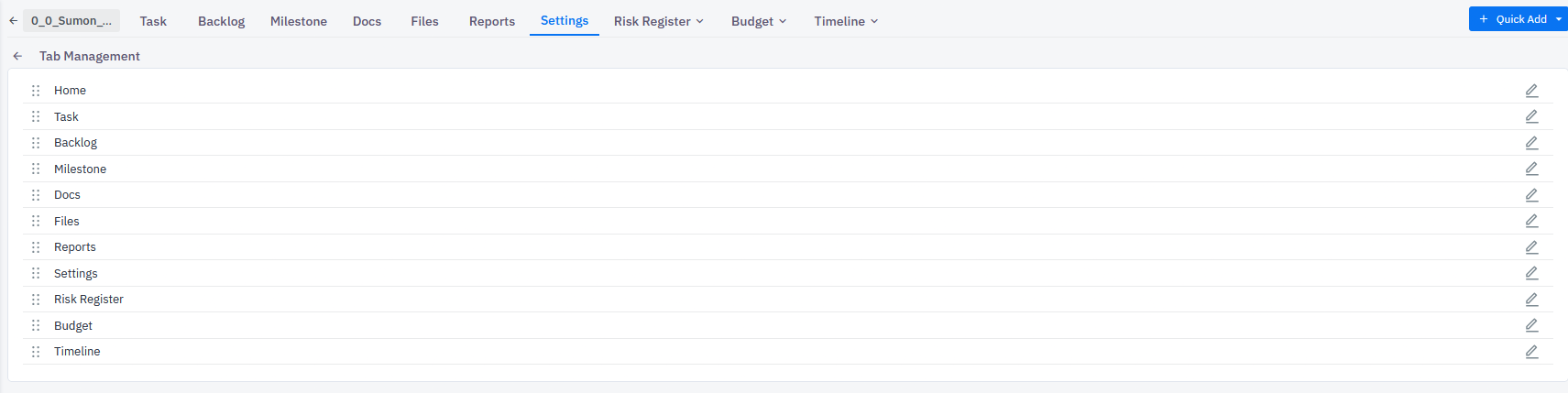
Use Tab Management to rearrange and organize the tabs shown in the project. The tabs you can organize are:
- Home
- Task
- Backlog
- Milestone
- Docs
- Files
- Reports
- Settings
- Risk Register
- Budget
- Timeline
4. People
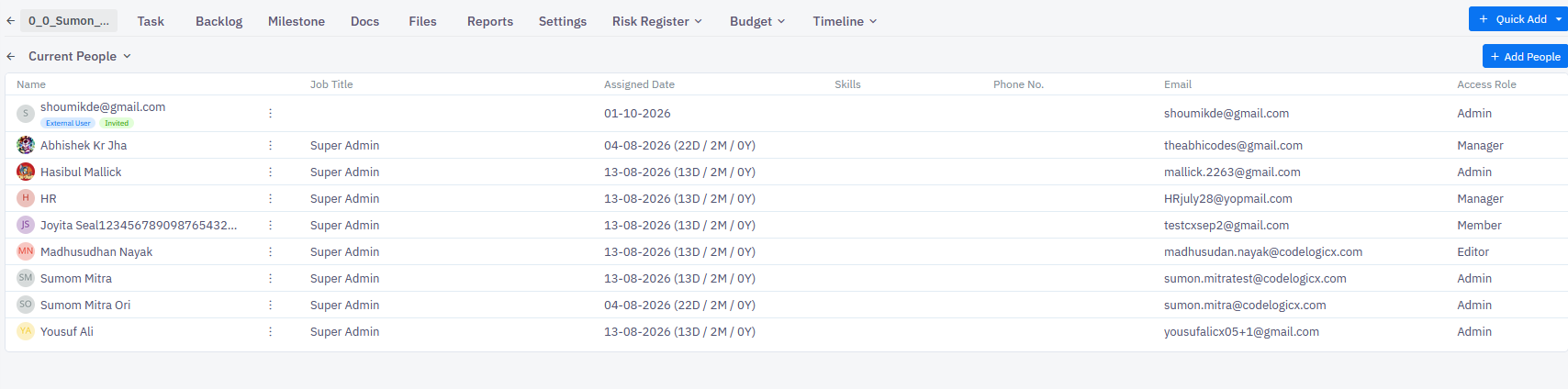
The People tab shows the list of people in the project. From here you can add, edit or remove people.
5. Risk & Incident Management
This tab has two sub-tabs:
| Sub-tab | What you can do |
| Service | Add services. |
| Risk Response | Add responses. |
6. Custom Fields
Use the Custom Fields tab to add custom fields to the project.

Notes
- Project Settings apply to the project you opened, not to other projects.
- If you don't see the Settings tab, your role may not include access to it. Contact your administrator.
Troubleshooting
| Problem | What to check |
| The Settings tab isn't visible in the project | Check your access role in the project, and whether the tab has been moved or hidden in Tab Management. |
| A person can't be found when adding to the project | Check that the person has been added to TeamTrace. |
| A setting change doesn't seem to apply | Confirm you saved the change, then refresh the page. |
Related Articles
Was this article helpful?
That’s Great!
Thank you for your feedback
Sorry! We couldn't be helpful
Thank you for your feedback
Feedback sent
We appreciate your effort and will try to fix the article