Overview
When a project is no longer active, you can close it by changing its status. This article explains how to close an active project, and why a project that has tickets can be closed but not deleted.
Before You Begin
- Sign in to the TeamTrace portal with an account that has permission to update projects.
- The project you want to close should be an active project.
Steps to Close a Project
- Open the Projects page to see the list of projects.
- Find the project you want to close.
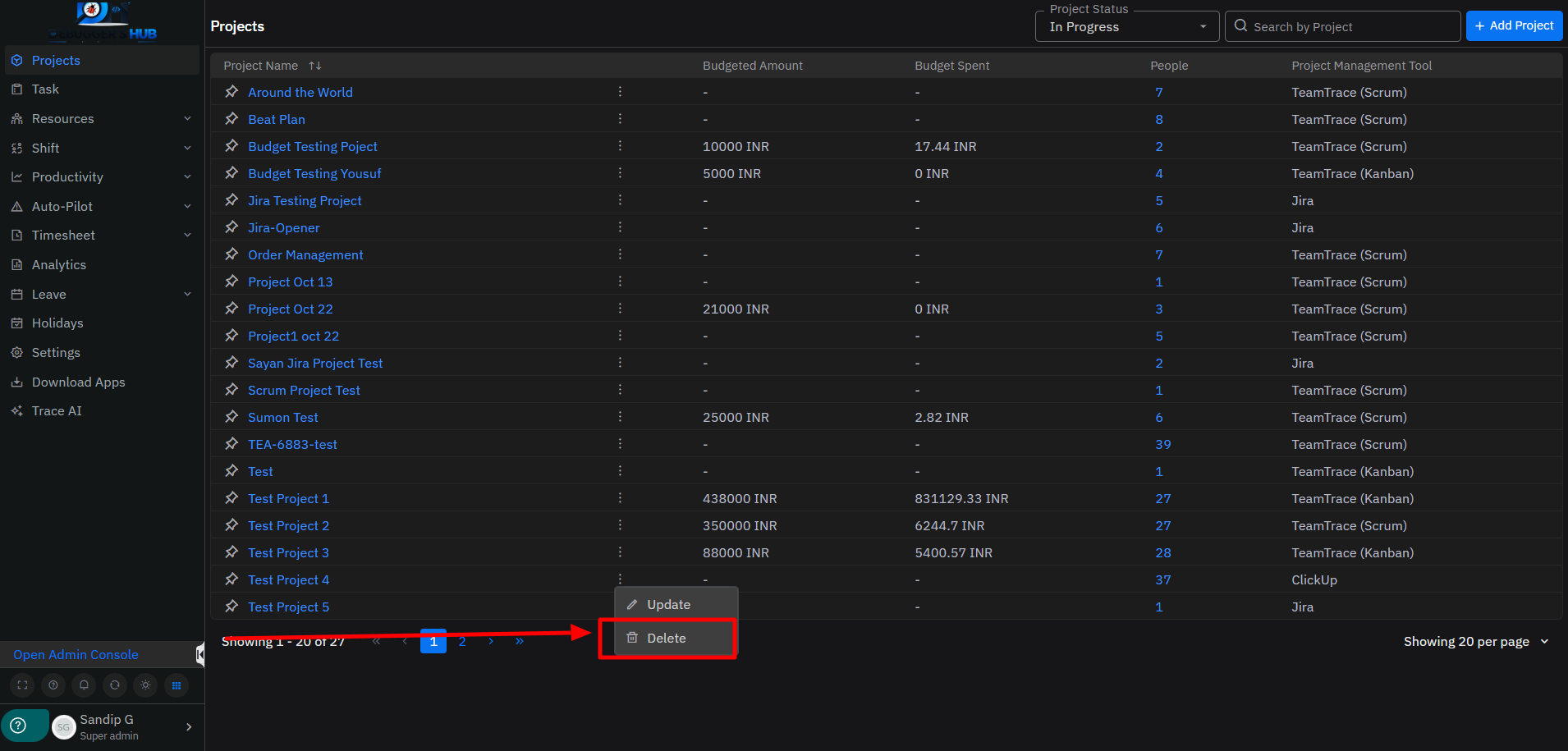
- Click the ellipsis (three dots) next to the project.
- Select Update. The project edit screen opens.
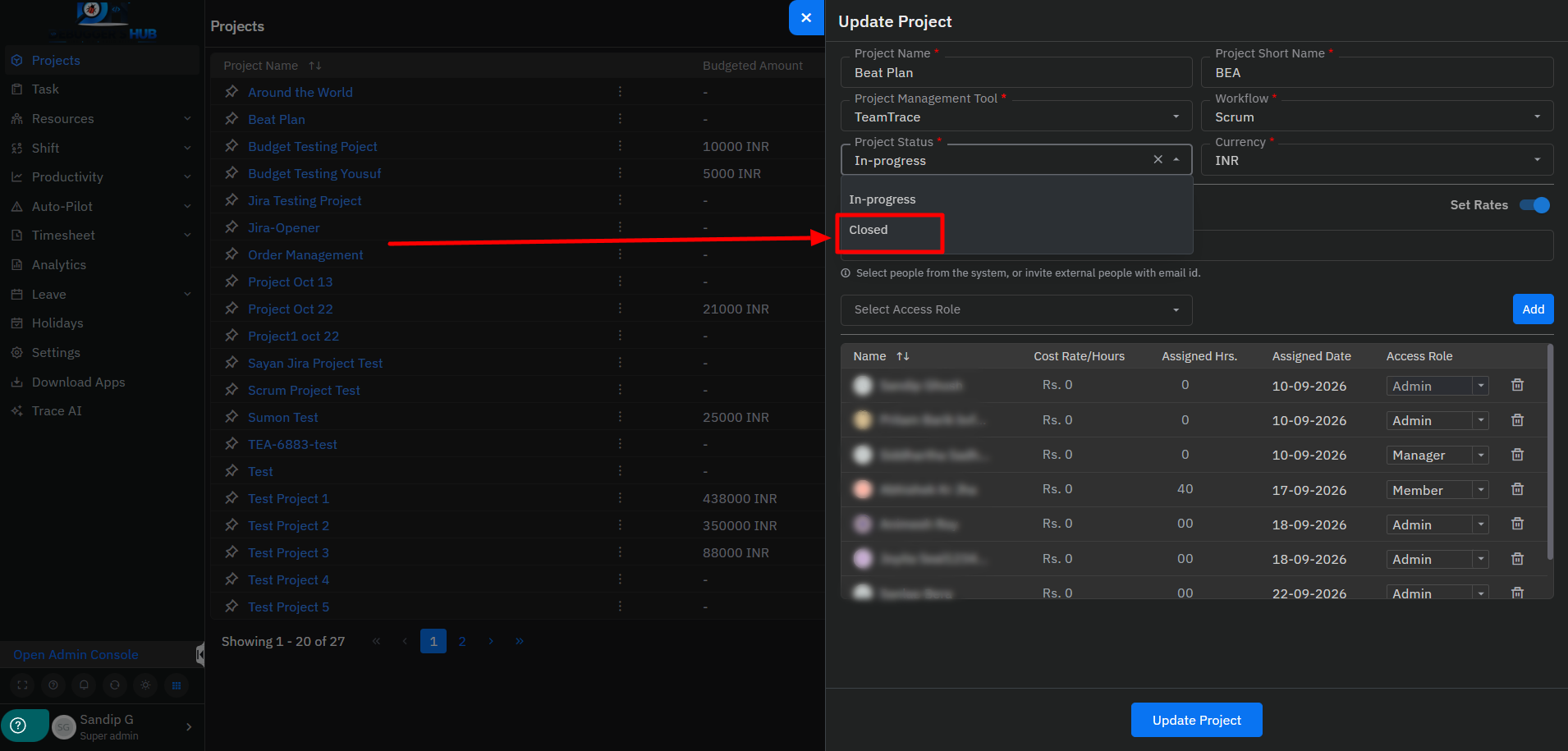
- From the status drop-down, select Closed.
- Save your changes.
Project Status Categories
Projects are grouped by status for easier tracking. Closing a project changes its status to Closed.
| Status | Description |
| In-Progress | Projects that are active and currently being worked on |
| Upcoming | Confirmed projects whose execution phase has not yet begun |
| Under-Discussion | Projects whose requirements or objectives are still being refined |
| Completed | Projects that have been successfully delivered |
| Closed / Canceled | Projects that were abandoned or left incomplete for particular reasons |
Closing vs. Deleting a Project
| Action | When it is available |
| Close | An active project can be closed from Update by selecting Closed from the drop-down. |
| Delete | A project can be deleted only when no tickets have been created. Once tickets are created, the project can't be deleted. |
Important: If your project already has tickets and you no longer need it, close it instead of deleting it.
Notes
- A project with tickets can't be deleted, so closing is the way to retire it.
- Delete is only for projects with no tickets, such as a project created by mistake.
Troubleshooting
| Problem | What to check |
| The project can't be deleted | Tickets have been created in the project. Close the project instead. |
| The Update option isn't visible | Check with your administrator that your account has permission to update projects. |
| The project still shows as active | Confirm you saved your changes after selecting Closed. |
Related Articles
Was this article helpful?
That’s Great!
Thank you for your feedback
Sorry! We couldn't be helpful
Thank you for your feedback
Feedback sent
We appreciate your effort and will try to fix the article