Applies to: TeamTrace web platform and desktop apps
Audience: Administrators, managers and end users
Overview
TeamTrace is a unified work and workforce management solution that integrates project management, time tracking, employee monitoring and more in a single platform. This article gives a high-level view of what the platform does, how its components fit together, and where to go next.
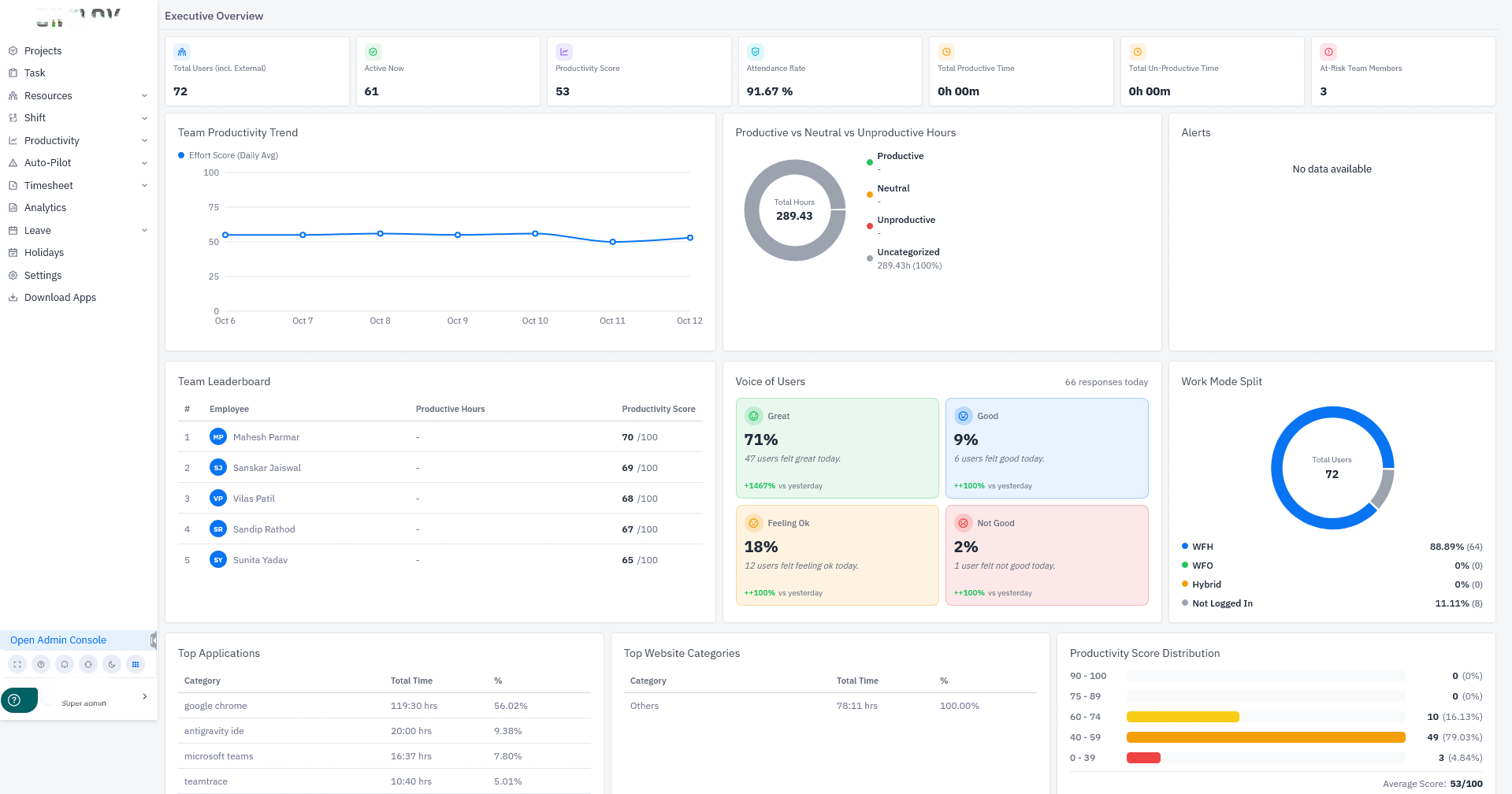
What TeamTrace Covers
Time tracking
- Users track time against projects, tasks or activities using a timer in the desktop app.
- Time can be tracked by project, and timesheet management is part of the feature set.
Project and work management
- Project tracking and timesheets help keep projects on schedule.
- Budget monitoring helps control costs, and resource allocation supports productivity.
- Task management, milestone tracking and workflow management are also included.
Employee and productivity monitoring
- Activity tracking and screenshots show how time is spent. Optional stealth mode screenshots are available.
- Live views let administrators check who is active and what they are working on, through Live People and Live Screens under Productivity.
- Users can review their own recorded activity in My Screenshots.
Attendance, scheduling and HR
- Shift scheduling, leave tracking and GPS check-ins for field staff are available.
- Attendance tracking, availability management, HR management and user management are part of the feature set.
Security and compliance
- Insider threat detection and compliance monitoring tools alert you to suspicious activity, helping prevent data leaks or time theft.
Platform Components
| Component | Purpose | Who uses it |
|---|---|---|
| Web platform | Manage users, projects, settings and reports; view live activity | Administrators, managers |
| Standard desktop app | Sign-in and timer; users choose a task or project and track their time | End users |
| Silent desktop app | Tracks in the background and is installed by an administrator | Administrators (install) |
Desktop apps are available for Windows, macOS and Linux.
Key Areas of the Web Platform
- People: users and their People IDs (also used as the employee code for the Silent app)
- Settings > Productivity > Global Settings: the installation key for Silent app setup
- Productivity: Live People, Live Screens and People Screenshots
- Profile > Download Apps: desktop app downloads
Getting Started
- Review the system requirements and pre-deployment checklist.
- Create the projects, tasks or activities users will track time against.
- Add users under People.
- Install the standard or Silent app on each device.
- Confirm users appear in Live People.
Notes
- The Silent app can only be installed by an administrator. End users cannot install it themselves.
- On macOS, tracking permissions must be granted or the agent reports no productivity.
Was this article helpful?
That’s Great!
Thank you for your feedback
Sorry! We couldn't be helpful
Thank you for your feedback
Feedback sent
We appreciate your effort and will try to fix the article