Overview
When you create a project in TeamTrace, you can build your own template if you don't want to use a predefined one. With the Create Custom option you configure the project's options yourself, so the project is set up the way you want. This article explains how to use it.
Before You Begin
- Sign in to the TeamTrace portal with an account that has permission to create projects.
- If you would rather start from a ready-made structure, use Browse Templates instead. See Project Templates Overview in TeamTrace.
Steps to Create a Custom Template
- Open the Projects page and click + Add (or Add Project).
- Fill in the project information, including the mandatory fields.
- In the template options, select the Create Custom radio button.
- Configure the options of your choice for the project.
- Add the people for the project and their access roles.
- Click Save and Next, then Add Project to finish.
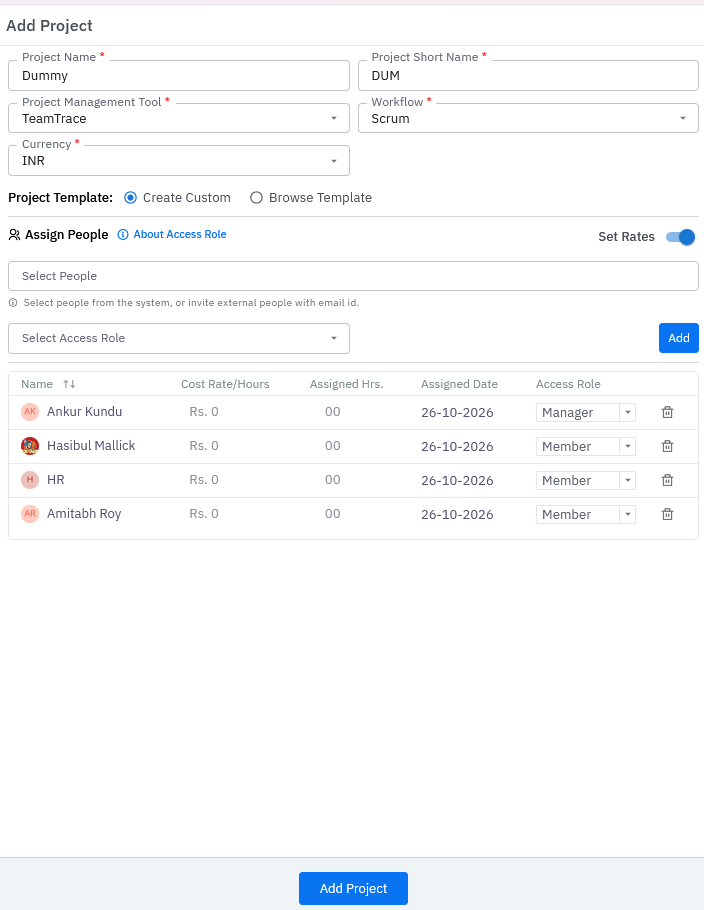
Create Custom or Browse Templates?
| Option | Choose it when |
| Create Custom | You want to configure the options yourself. |
| Browse Templates | You want to start from a predefined Scrum or Kanban template. |
Adjust the Project Later
After the project is created, you can change many of its settings from inside the project:
- Use Settings to arrange tabs, manage people and add custom fields. See Project Settings Explained in TeamTrace.
- Use Update on the project list to edit project details, people and access roles. See How to Edit a Project in TeamTrace.
Notes
- The Create Custom option sets up the project you are creating.
- [Add: whether the custom configuration can be reused for other projects.]
Troubleshooting
| Problem | What to check |
| The Create Custom option isn't visible | Check that you are on the project creation form and your account has permission to create projects. |
| The project can't be saved | Check that all mandatory fields are filled in. |
| I want a ready-made structure instead | Select Browse Templates and choose Scrum or Kanban. |
Related Articles
Was this article helpful?
That’s Great!
Thank you for your feedback
Sorry! We couldn't be helpful
Thank you for your feedback
Feedback sent
We appreciate your effort and will try to fix the article