Overview
After a project is created, you can edit it at any time. You can update the project details, add or remove people, and change their access roles. This article explains how to open a project for editing and what you can change.
Before You Begin
- Sign in to the TeamTrace portal with an account that has permission to update projects.
- To add people to a project, they must already be added to TeamTrace.
Steps to Edit a Project
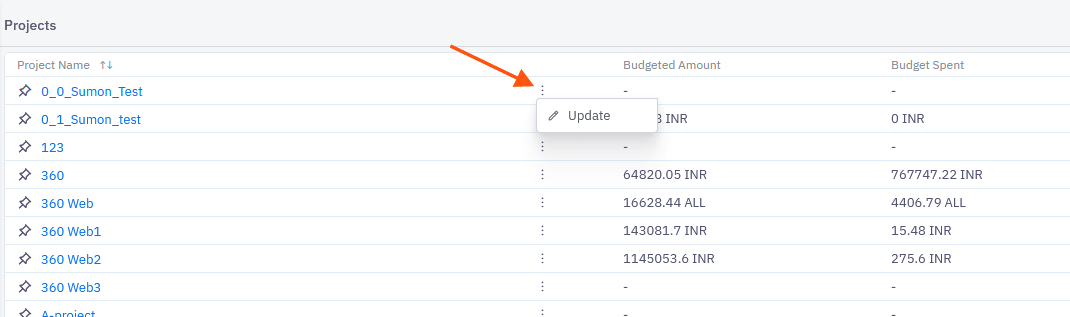
- Open the Projects page to see the list of projects.
- Find the project you want to edit.
- Click the ellipsis (three dots) next to the project.
- Select Update. The project edit screen opens.
- Make your changes (see below).
- Save your changes.
What You Can Edit
| What | How |
| Project details | Edit the details you entered when the project was created. |
| People on the project | Add people to the project, or remove people from it. |
| Access roles | Change the access role assigned to a person on the project. |
Add people or change roles
- On the Update screen, select the people for the project.
- Select the access role for them.
- Click Add.
- To add more people with different roles, repeat the steps.
To see how each access role is defined, click About Access Role. A pop-up opens on the left side of the screen.
Edit Project Settings from Inside a Project
You can also configure a project from within the project itself:
- In the project list, click the project name to open the Project Dashboard.
- Open Settings to configure project settings.
For example, you can create custom board fields under Settings > Custom Fields inside the project.
Notes
- The Update option is also where you delete the project, using the same ellipsis menu. Deleting a project is different from editing it, so check carefully before you choose Delete.
- Changes to people and access roles apply to the project you are editing.
Troubleshooting
| Problem | What to check |
| The ellipsis menu or Update option isn't visible | Check with your administrator that your account has permission to update projects. |
| A person isn't available to add | Check that the person has been added to TeamTrace. |
| Changes aren't showing in the project list | Confirm you saved your changes, then refresh the page. |
Related Articles
Was this article helpful?
That’s Great!
Thank you for your feedback
Sorry! We couldn't be helpful
Thank you for your feedback
Feedback sent
We appreciate your effort and will try to fix the article