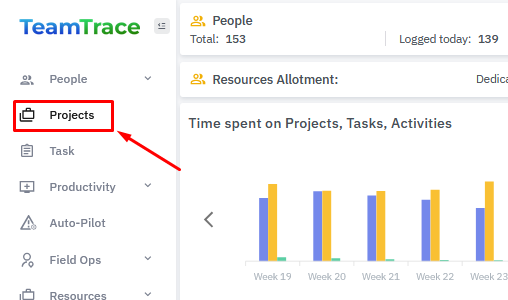
From the left panel on the Dashboard, click on Projects.
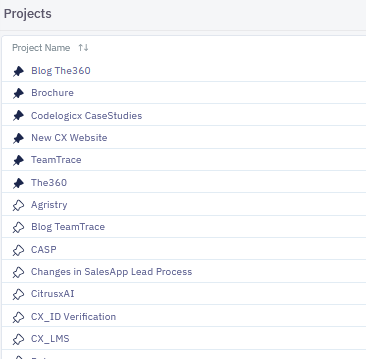
From the list of Projects, click on the Project name where you want to create the Task.
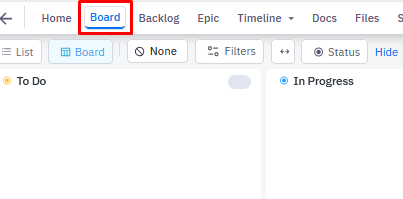
Once inside the Project, click on Board.
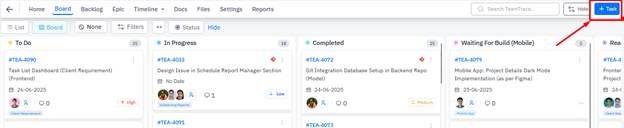
From the top right corner of the page, click on the + Task button.
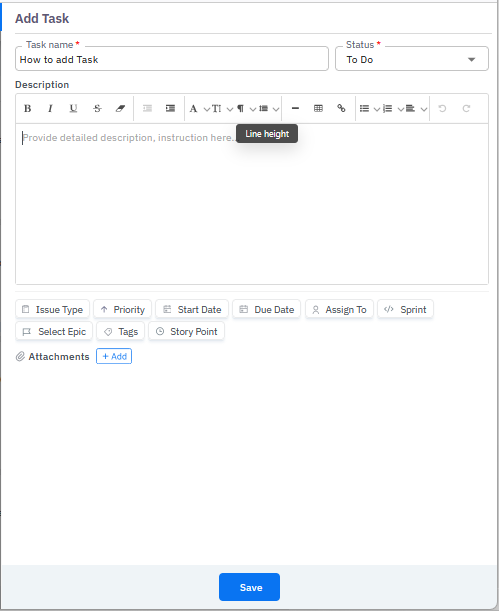
In the Add Task pop-up window, add Task Name, Status and Description (optional). Then select Issue Type, Priority, Start Date, Due Date, Assign To and then you can also select Sprint, Epic, add a Tag and Story Point. After adding all the details, click on Save.
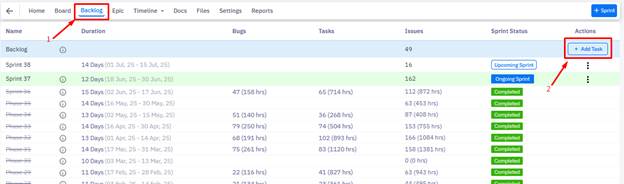
Users can also create a Task from the Backlog tab.
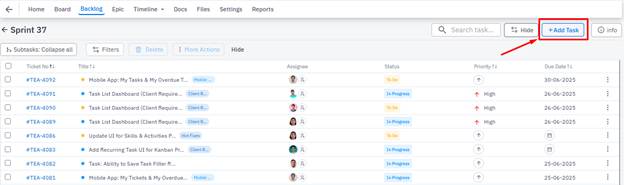
Also, if you want to create the Task inside a Sprint, then you need to to click on the particular Sprint click on the Add Task button.
Was this article helpful?
That’s Great!
Thank you for your feedback
Sorry! We couldn't be helpful
Thank you for your feedback
Feedback sent
We appreciate your effort and will try to fix the article