TeamTrace is a fully featured project management platform. You can manage tasks and workflows under Projects. Specifically, in IT projects, you can use the Scrum and Kanban frameworks.
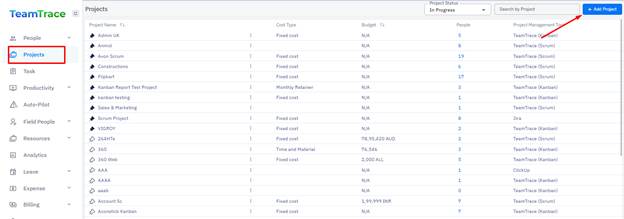
From the left-hand side of the dashboard, click on Projects. You will see the list of Projects. To create a new project, click on the Add Project button on the top right side of the page.
Project Status Categories
Projects are grouped by status for easier tracking:
Status | Description |
In-Progress | Projects that are active and currently being worked on. |
Upcoming | Confirmed projects whose execution phase has not yet begun. |
Under-Discussion | Projects whose requirements or objectives are still being refined. |
Completed | Projects that have been successfully delivered. |
Closed / Canceled | Projects that were abandoned or left incomplete for particular reasons. |
Add Project
Click on the Add Project button.
In the Add Project pop-up window, fill in the mandatory fields and select a Template Kanban or Scrum based on your requirements.
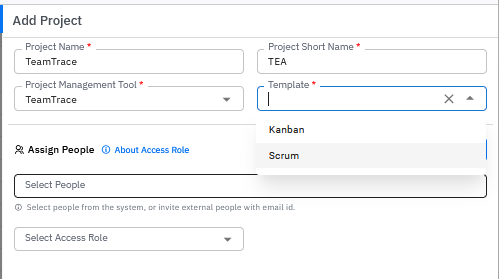
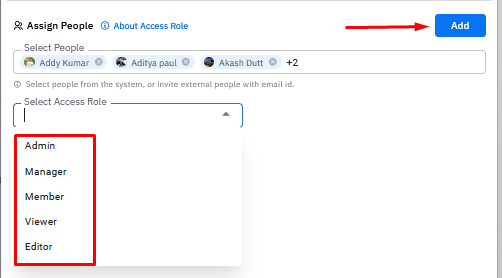
Select people for the Project and select the access role for them, and click on the Add button. You select more people and assign different roles, and click on Add. You can repeat the steps to add multiple people for multiple roles.
Don’t forget to click Add Project once you are done adding all the fields. |
|

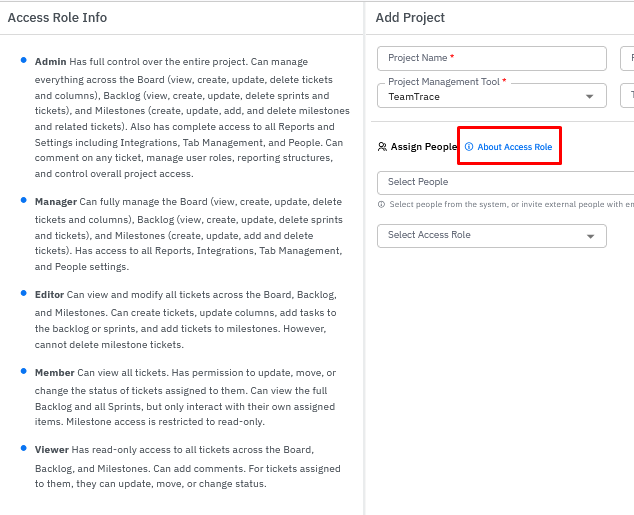
Click on About Access Role to open a new pop-up window on the left to define all the Access Roles.
Once the Project is created, it will appear on the list of Projects.
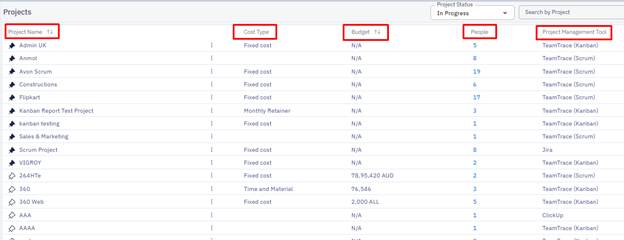
The Project table is divided into:
Project Name – Name of the Project given
Cost Type – Fixed cost or Monthly Retainer, or Time and Material
Budget – Budget assigned for the Project
People – Number of people in the Project
Project Management Tool – Kanban or Scrum
Click on the ellipses (3 dots) to Update or Delete the Project.
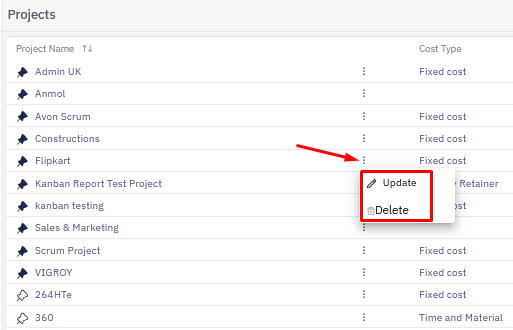
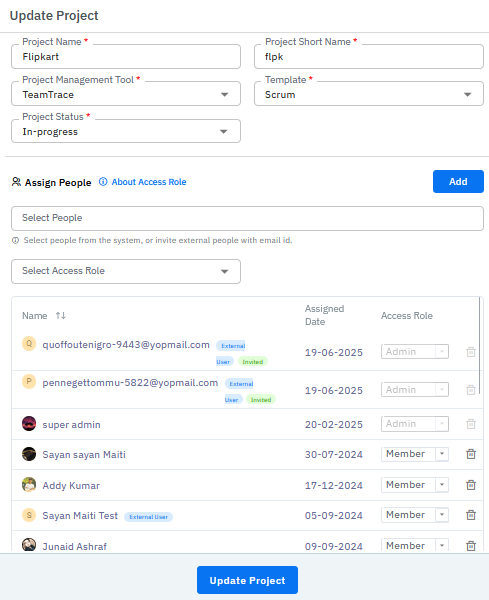
Click on the Update to edit Project details, add or delete people from the Project and edit access roles.
Click on Project Name to go to the Project Dashboard.
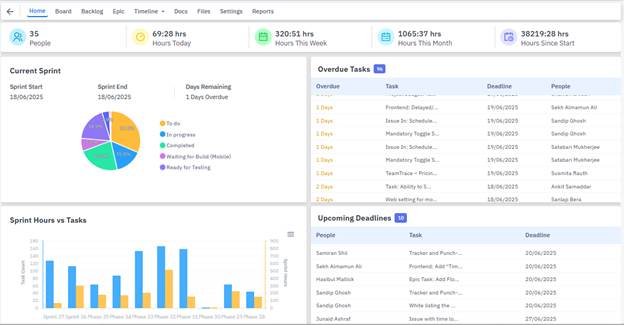
The Dashboard is divided into various sections. The top row shows the number of people in the Project, hours logged in the Project and is further subdivided into time logged today, this week, this month and number of hours spent since the start of the Project.

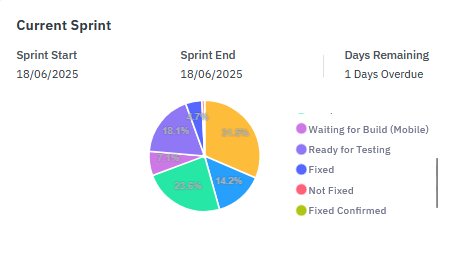
The current Sprint section gives you the overview of the team working on the Sprint, start date, end date and days remaining for the sprint. It further gives you a pie chart breakdown of the tasks/activities. You can click on each link to highlight the ratio on the pie chart.
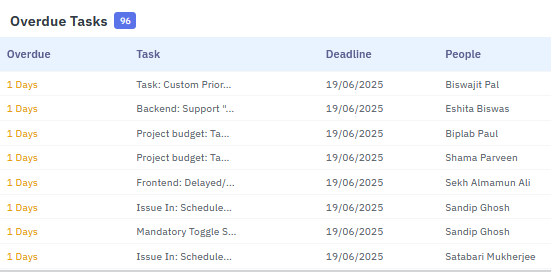
The Overdue Tasks section gives you a breakdown of the Task overdue by how many days, Task name, the deadline of the task, and whom the task is assigned to.
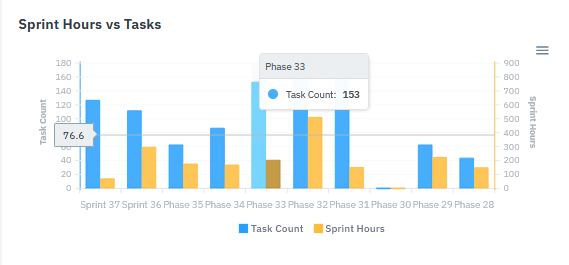
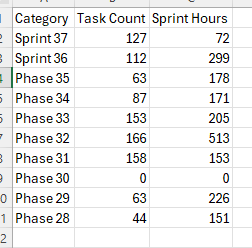
The Sprint Hours vs Tasks section gives you an overall view of how much time is spent on Task Count and Sprint Hours.
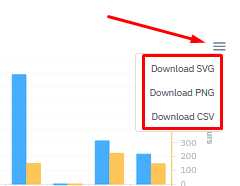
You can also click on the hamburger icon (three horizontal line menu icon) to download the report into SVG, PNG or CSV file format. |
|
The CSV file would appear like this.
|
|
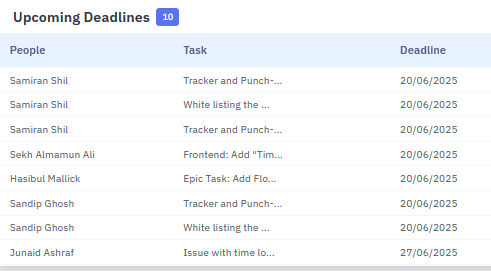
The Upcoming Deadline section will show you the task deadline approaching for the particular Agent who is working on the task with the deadline date.
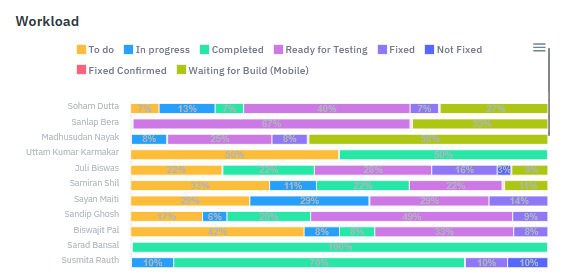
The Workload section provides an overview of the Scrum board in a graph format for each Agent.
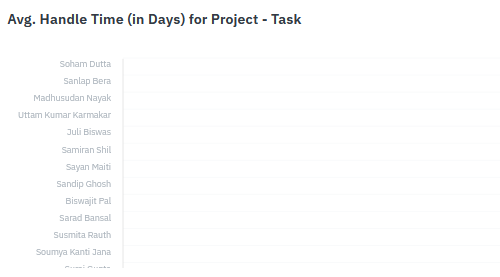
The Avg. Handle Time (in Days) for Project – Task shows you the average handling time of the Project by the Agent working on it.
Board
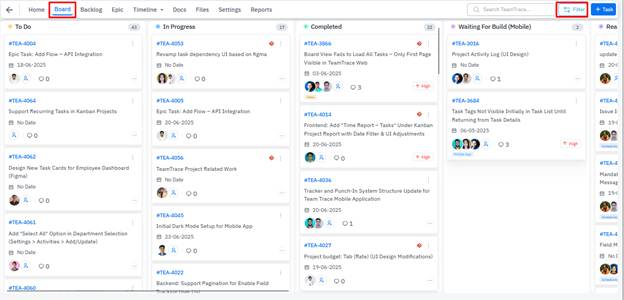
Board gives you a comprehensive view of all the tasks organised under the following fields:
To Do – When a ticket is created, it is put under the “To Do” list for the developers/testers to pick up.
In Progress – A ticket is moved to In Progress when a developer/tester assigns it to themselves and changes the ticket status to In Progress to show that they have started working on the ticket.
Completed – A ticket is dragged/moved to Completed when the ticket is resolved or work has been done.
To Do, In Progress and Completed are available as default fields; however, a user can create customised fields from the Settings > Custom Fields inside a Project.
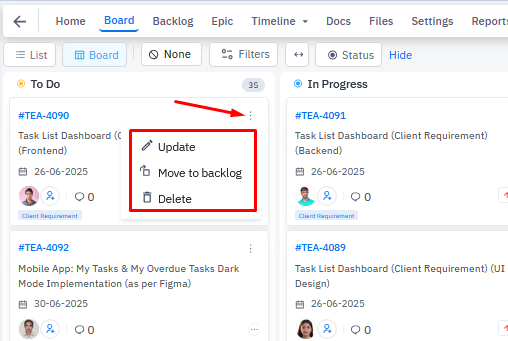
The listed tickets can be dragged, moved to any field based on the status of the ticket. A user can also click on ellipsys (3 dots) and update, move to backlog or delete the ticket. Or a user can click on the ticket to edit it.
Backlog
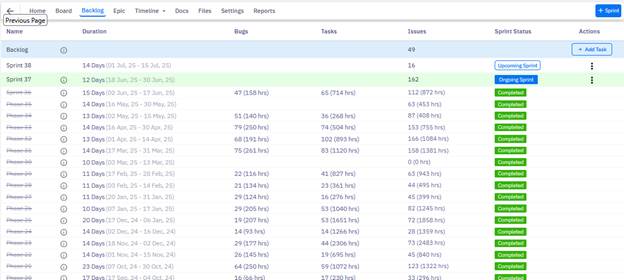
A Backlog is a dynamic, prioritised list of work items that your team plans to work on, but hasn't yet started. It’s most commonly used in Scrum and Kanban boards as part of Project Management.
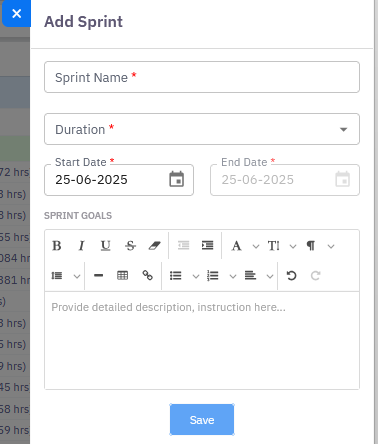
Backlog holds the list of Sprints in a Project. From the top right corner of the page, a user can create a Sprint. |
|
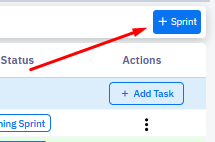
From the Add Sprint pop-up window, add Sprint Name, Duration, Start and End date and add a description and click on Save.
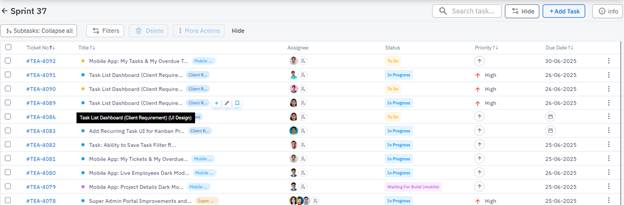
Click on the Sprint Name and you will find the list of tasks or tickets, and you will also be able to see past Sprints, Ongoing Sprint and Upcoming Sprints.
Epic
An Epic in project management is a large body of work that can be broken down into smaller, manageable units called Sprints, Stories or Tasks.
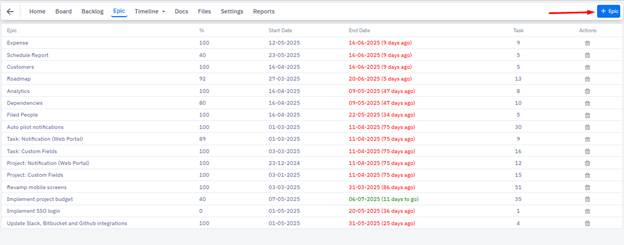
Epic holds the list of smaller tasks, Sprints under it. You can create a new Epic from the top right corner of the page by clicking on + Epic button.
Timeline
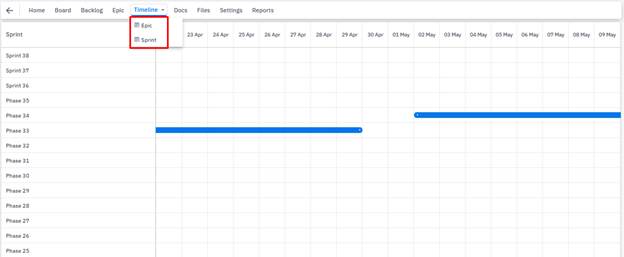
A Timeline gives you Epic and Sprint view options, where you can see the breakdown of the Epic or Sprint timeline. You can choose Today, Week, Months and Quarter views.
Docs
The Docs section is a documentation tool which is used to store, manage, and collaborate on project documentation. It bridges the gap between planning and execution by linking documents to your work.
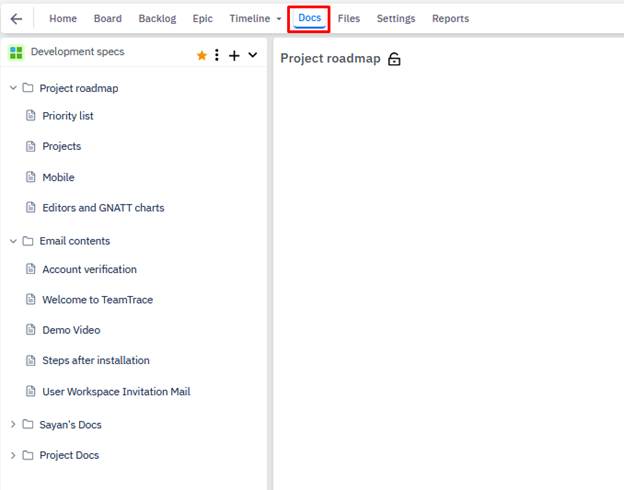
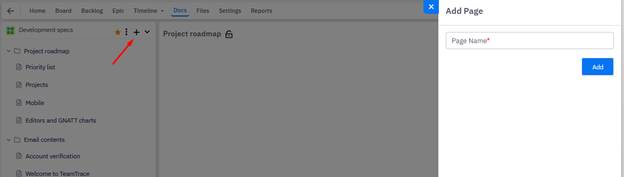
Click on the + sign to add a page where you can create your document.
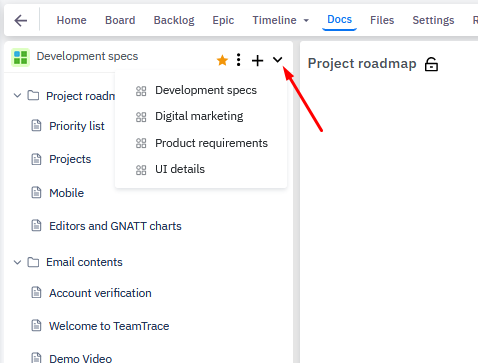
From the drop-down arrow, you can jump to any Topic or section.
Files
The Files section gives you an option to store/save your critical data related to the Project.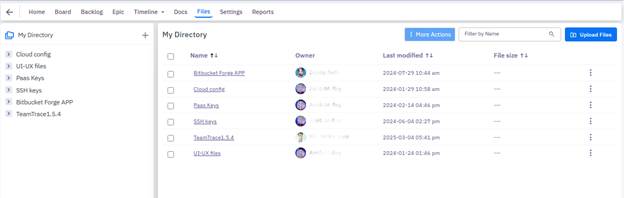
Settings
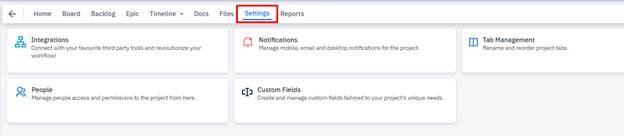
Under Settings, you can configure project settings.
Reports
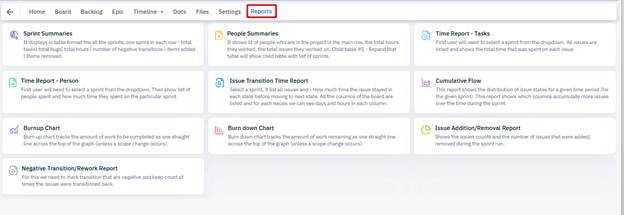
Under the Reports section, a user can find various reports and matrices of the Project.
Was this article helpful?
That’s Great!
Thank you for your feedback
Sorry! We couldn't be helpful
Thank you for your feedback
Feedback sent
We appreciate your effort and will try to fix the article