Overview
Kanban is a simple way to see and manage work. TeamTrace offers online Kanban boards for agile project management and visual workflow tracking. This guide explains the basic ideas in plain language, then shows you how to set up and use your first Kanban board in TeamTrace.
What Is Kanban?
Kanban is a visual way of managing work. You show your work on a board, where each task is a card and each stage of your process is a column. As work moves forward, you move the card from one column to the next, so anyone on the team can see at a glance what is waiting, what is being worked on and what is finished.
Kanban rests on three simple ideas:
- Make work visible: every task is on the board.
- Limit work in progress: the team works on only a few things at a time, and finishes them before starting new ones.
- Pull work, don't push it: people take on a new task when they have the capacity, instead of having work pushed onto them.
Kanban Terms for Beginners
| Term | What it means |
| Board | The visual workspace that shows all your work. |
| Column | A stage in your workflow, such as To Do, In Progress or Done. In TeamTrace, each column is a status. |
| Card | A single task on the board. It can show the task ID, title, date, priority, assignee and tags. |
| WIP limit | The most cards allowed in a column at one time. It stops the team from taking on too much and shows bottlenecks early. |
| Pull system | People pull a new task into progress when they have capacity, rather than being given work as soon as it appears. |
| Bottleneck | A stage where work builds up and slows the whole flow. |
| Lead time | The time from when a task is requested to when it is finished. |
| Cycle time | The time a task takes from when work starts on it to when it is finished. |
Kanban or Scrum?
| Kanban | Scrum | |
| How work is organized | A continuous flow of work across the board | Time-boxed sprints |
| When work is picked up | Whenever the team has capacity | At sprint planning, from the backlog |
| Limiting work in progress | Explicit WIP limits on each column | Indirectly, by fixing the scope of the sprint |
| Good for | Ongoing work and changing priorities, such as support or maintenance | Projects delivered step by step in fixed cycles |
You don't have to choose only one. TeamTrace lets you manage both Scrum sprints and Kanban flows in the same tool and on the same screen. To learn Scrum, see Scrum in TeamTrace: A Beginner's Guide.
Core Features of Kanban in TeamTrace
- Visual task tracking: move task cards across customizable columns to show the workflow from start to finish.
- Work in progress (WIP) limits: restrict the number of active tasks in a column to prevent team overload and spot bottlenecks early.
- Pull-based work distribution: teams pull work items through the stages to keep a smooth, continuous flow.
- Scrum and Kanban together: manage Scrum sprints and Kanban flows in the same tool and on the same screen.
- Work modes: real-time synchronization and tracking for remote, hybrid and in-office teams.
- Multiple boards: each team can create several Kanban boards to match its needs.
Getting Started: Your First Kanban Board
Step 1: Create a Kanban project
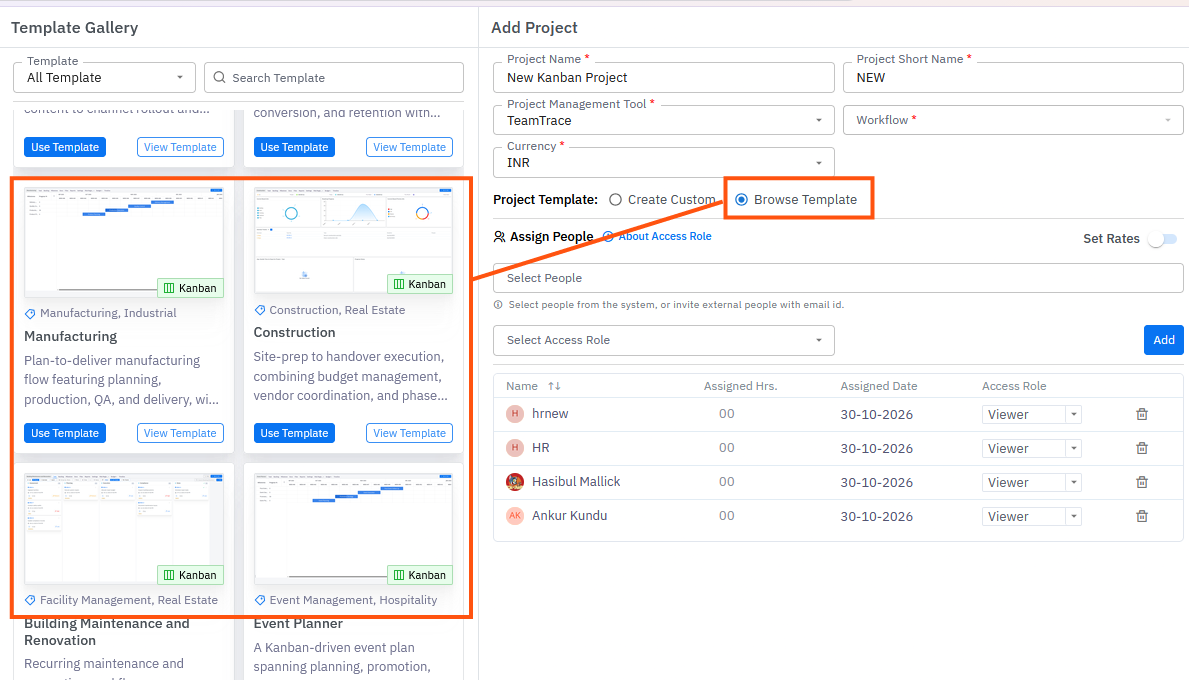
- Click Projects and then + Add (or Add Project).
- Fill in the project details.
- Select Browse Templates and click Use Template on the Kanban template. (Use View Template first to preview it.) You can also select Create Custom and set up your own columns.
- Add your team members and their access roles.
- Click Save and Next, then Add Project.
Step 2: Open the board
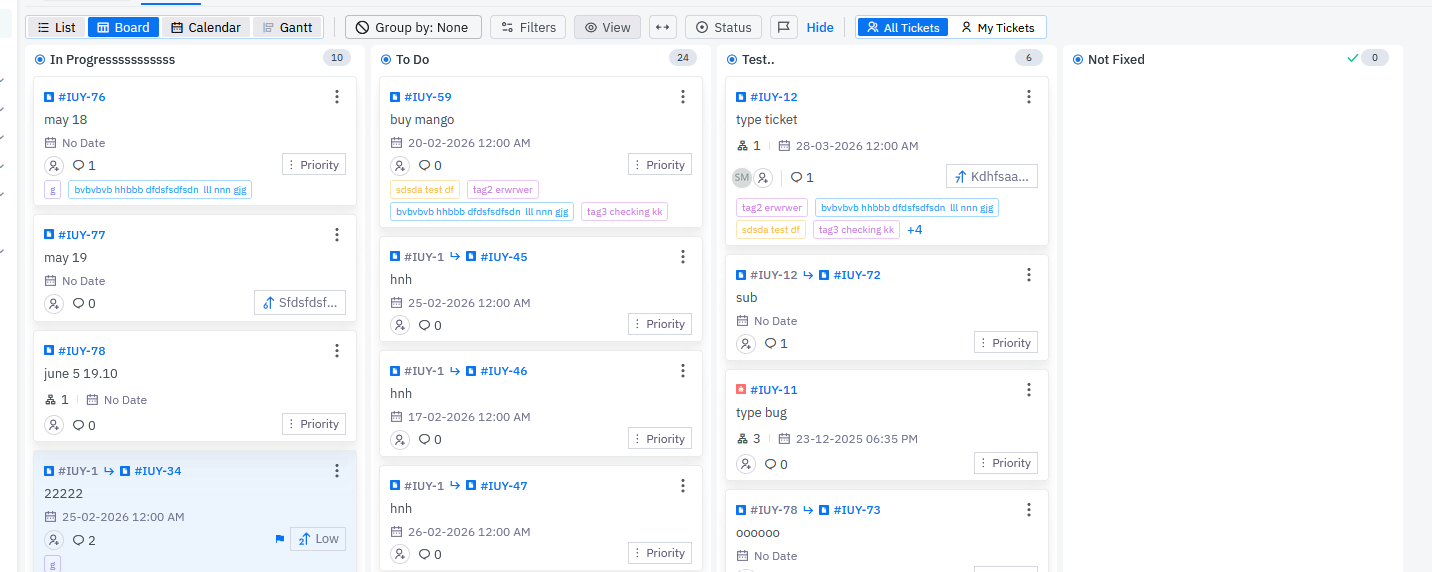
- Click the project name to open the project, then open the Task tab.
- Select the Board view. Tasks appear as cards in columns.
Step 3: Set up your columns
Each column on the board is a status. To change them, click the Status button in the toolbar. In the Project Status Column window you can edit a status, delete it, or add a new one with + Add Project Status Column. See Task Statuses Explained in TeamTrace.
Tip: Start simple, with three columns such as To Do, In Progress and Done. Add more only when your team needs them, for example In Review or Ready For Testing.
Step 4: Add cards
- Create a task for each piece of work. Enter the task name and status, and add other details as needed.
- Break large tasks into subtasks.
Step 5: Assign the work
Assign each card to a team member, while creating the task, from the Assignee column or by updating the task. In a pull system, team members can also pick up cards for themselves when they have capacity.
Step 6: Move cards across the board
- Drag and drop a card to the next column as work progresses.
- Or click the card, and change its status from the top right corner of the task detail panel.
- Move completed work to the final column. A status marked Final automatically moves its tasks to the end of the board, which keeps active work front and center.
Step 7: Set work in progress (WIP) limits
A WIP limit is the most cards allowed in a column at one time. If In Progress has a limit of 3, the team doesn't start a fourth task until one active task moves forward. A common starting point is a limit of one to one and a half times the number of people working in that stage.
Step 8: Review how work is flowing
Use the toolbar to look at the board in different ways:
- Filters: show only the tasks that match your criteria.
- Group by: group the cards on the board.
- My Tickets and All Tickets: switch between your own cards and the whole project.
Then use the reports below to see how long work takes and where it gets stuck.
Kanban Reports and Metrics
| Report | What it tells you |
| Cumulative Flow Diagram (CFD) | Shows how tasks flow through the stages, so you can spot bottlenecks and predict delivery timelines. |
| Cycle Time report | Shows when tasks are started and completed by your teams. |
| Lead Time report | Tracks tasks from the backlog onwards, to give insights into productivity. |
| WIP report | Shows all tasks in progress across the stages, so you can manage workload. |
| Blocked Work report | Lists the tasks that are currently blocked, with reasons, so you can prioritize unblocking them. |
| Task Aging report | Highlights tasks that have been in progress for too long. |
| Burndown chart | Compares time with the number of completed tasks, to track progress. |
Beginner Tips and Common Mistakes
| Mistake | Better approach |
| Too many columns | Start with 3 to 7 columns and add more only if you need them. |
| Ignoring WIP limits | Respect the limits and use them to find problems. |
| An out-of-date board | Move cards as soon as the work changes, so the board always shows the true picture. |
| Starting many tasks at once | Follow the "stop starting, start finishing" idea. Finish current high-priority tasks before starting new ones. |
| Never reviewing the process | Look at the board and reports regularly, and adjust columns and limits as you learn. |
Troubleshooting
| Problem | What to check |
| I can't see the Board view | Open the project's Task tab and select Board next to List, Calendar and Gantt. |
| I can't change a column or status | Editing statuses is available only in Projects, and may depend on your access role. |
| A card won't move to the next column | The task may be blocked by a linked task, or the status may be limited to a specific role. |
| I can't see all tasks on the board | Check that All Tickets is selected rather than My Tickets, and check your filters. |
Related Articles
Was this article helpful?
That’s Great!
Thank you for your feedback
Sorry! We couldn't be helpful
Thank you for your feedback
Feedback sent
We appreciate your effort and will try to fix the article