Overview
Sprint management in TeamTrace is a set of Agile and Scrum-based tools that help teams plan, track and deliver time-boxed cycles of work, called sprints. This article gives an overview of what you can do, how a sprint moves from planning to completion, and which reports are available to measure it.
Key Features
| Feature | What it does |
| Backlog and sprint planning | Teams use the backlog to prioritize tasks and select a focused set of work items for an upcoming sprint. The product backlog is kept separate from the sprint, so the sprint holds only the work the team has chosen. |
| Online Scrum boards | Visual boards where tasks move across stages such as To Do, In Progress and Done, so you can follow progress in real time. You can use views such as List and Board. |
| Capacity planning | Real-time visibility into team bandwidth and availability, so managers can balance workloads and avoid overloading people before assigning sprint tasks. |
| Multi-level time tracking | Logged hours are tracked at the task, bug and sprint level, so teams can compare their original estimates with the tracked time. |
| Sprint reports | Built-in reports measure sprint progress, time spent and workflow. See the report list below. |
The Sprint Lifecycle
A sprint moves through these stages. Each stage has its own article with the detailed steps.
| Stage | What happens | Learn more |
| 1. Set up the project | Create a project that uses the Scrum template. Sprints are part of Scrum projects. | How to Create a Project in TeamTrace |
| 2. Build the backlog | Create tasks. In a new project, tasks go to the Backlog until a sprint is started. | How to Create a Task in TeamTrace |
| 3. Create a sprint | Add a sprint with a name, goal, duration and dates. | How to Create a Sprint |
| 4. Plan the sprint | Choose the priority work for the sprint and check the team's capacity. | Scrum in TeamTrace: A Beginner's Guide |
| 5. Start the sprint | Use the sprint's three-dot menu and choose Start Sprint. The status changes from Upcoming Sprint to Ongoing Sprint. | How to Start and Complete a Sprint in TeamTrace |
| 6. Run the sprint | Assign tasks, move cards across the board and track time. | How to Assign a Task in TeamTrace |
| 7. Complete the sprint | Use the three-dot menu and choose Complete Sprint. | How to Start and Complete a Sprint in TeamTrace |
| 8. Review | Use the sprint reports to see how the sprint went and what to improve. | See the next section. |
Sprint Reports Available in TeamTrace
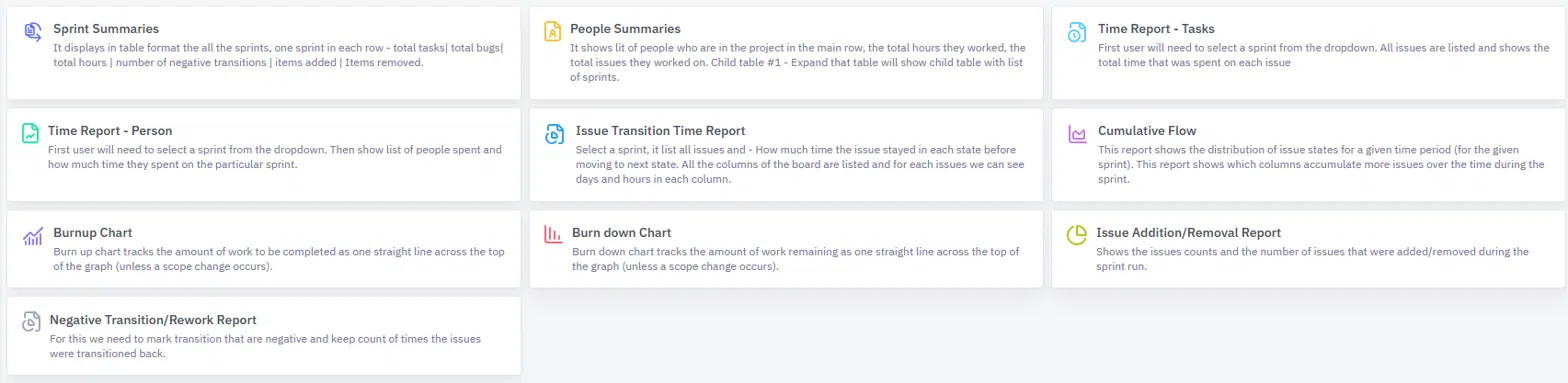
TeamTrace provides ten reports for a project's sprints:
| Report | What it shows |
| Sprint Summaries | A table with one sprint in each row. For each sprint it shows the total tasks, total bugs, total hours, the number of negative transitions, the items added and the items removed. |
| People Summaries | The people in the project, with the total hours each worked and the total issues they worked on. You can expand a person's row to see a child table listing the sprints. |
| Time Report – Tasks | First select a sprint from the drop-down. All issues in that sprint are listed, with the total time spent on each. |
| Time Report – Person | First select a sprint from the drop-down. The report lists the people and how much time each spent on that sprint. |
| Issue Transition Time Report | Select a sprint to see all its issues and how long each issue stayed in each state before moving to the next. Every column of the board is listed, with the days and hours spent in each column. |
| Cumulative Flow | Shows how issue states are distributed over a time period, such as the sprint. It shows which board columns collect more issues over time, which helps you spot bottlenecks. |
| Burnup Chart | Tracks the amount of work to be completed. The total work is one straight line across the top of the graph, unless the scope changes. |
| Burndown Chart | Tracks the amount of work remaining, so you can see whether the sprint is on schedule. |
| Issue Addition/Removal Report | Shows the issue counts and the number of issues added or removed while the sprint was running. |
| Negative Transition/Rework Report | Counts the negative transitions, which are moves backward, and shows how many times issues were transitioned back. This helps you see how much rework happened. |
Which Report Should I Use?
| I want to know... | Use |
| Whether the sprint is on schedule | Burndown Chart |
| How much work is done against the total, and how scope changed | Burnup Chart, Issue Addition/Removal Report |
| Where work is getting stuck | Cumulative Flow, Issue Transition Time Report |
| How much time was spent, and by whom | Time Report – Tasks, Time Report – Person, People Summaries |
| How the sprints compare | Sprint Summaries |
| How much work had to be redone | Negative Transition/Rework Report |
Tips for Managing Sprints
- Plan with capacity in mind. Check team availability before you commit to the sprint, so no one is overloaded.
- Keep the board up to date. Move cards as soon as the status changes, so the reports reflect the real picture.
- Track time on tasks. The time reports depend on logged hours.
- Watch scope changes. Use the Burnup Chart and the Issue Addition/Removal Report to see when work was added or removed mid-sprint.
- Review every sprint. Use the reports to decide what to improve in the next one.
Notes
- Sprint features are available in projects that use the Scrum template.
- Some reports, such as the Time Report – Tasks, Time Report – Person and Issue Transition Time Report, need you to select a sprint first.
Troubleshooting
| Problem | What to check |
| I can't find the sprint features | Check that the project was created with the Scrum template. |
| A report is empty | The sprint may not have been started or may have no tasks or tracked time yet. Select the right sprint from the drop-down where the report asks for one. |
| The Negative Transition/Rework Report shows no data | Negative transitions need to be marked first. Check how your workflow's transitions are set up. |
| Time Report shows less time than expected | Check that time was tracked against the sprint's tasks. |
Related Articles
Was this article helpful?
That’s Great!
Thank you for your feedback
Sorry! We couldn't be helpful
Thank you for your feedback
Feedback sent
We appreciate your effort and will try to fix the article