Overview
A Project Template is a pre-configured framework (or “blueprint”) that allows you to create new projects quickly without building everything from scratch.
Think of a project template as a reusable skeleton. It includes essential components such as tasks, workflows, schedules, and folder structures that are commonly used for a specific type of project. Using templates helps maintain consistency, saves time, and reduces setup effort.
Create a new Template
Create Custom
Create Custom Template
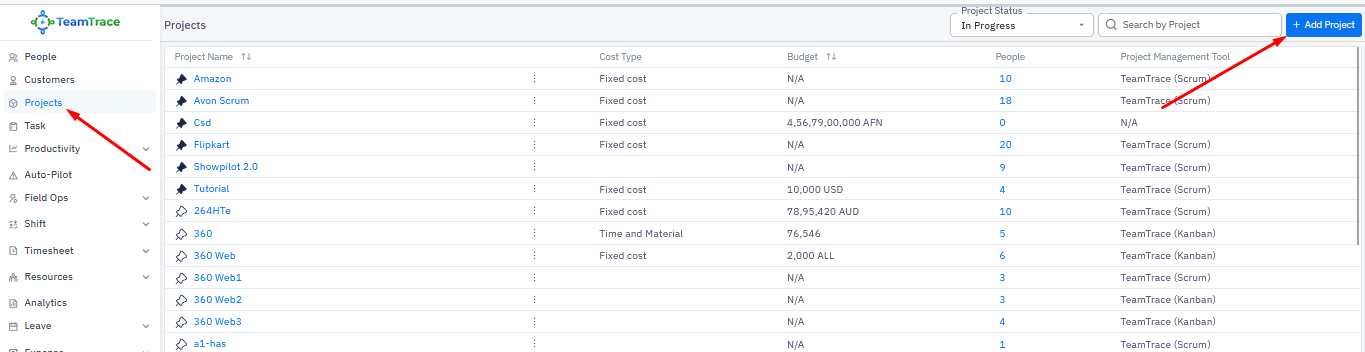
- From the left panel of the TeamTrace Dashboard, click Projects.
- Click the Add Project button in the top-right corner.
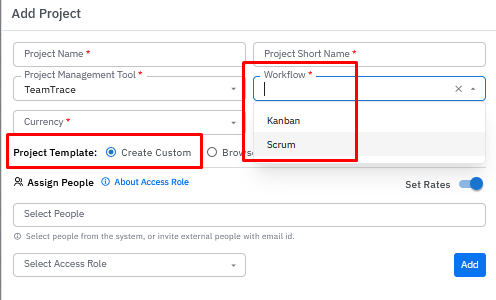
In the Add Project window, the Project Template option is set to Create Custom by default.
When Create Custom is selected, choose the workflow type for the project:
Kanban, or
Scrum
|  |
Once created, the custom project template is automatically saved in the Template Library for future use.
Browse Template
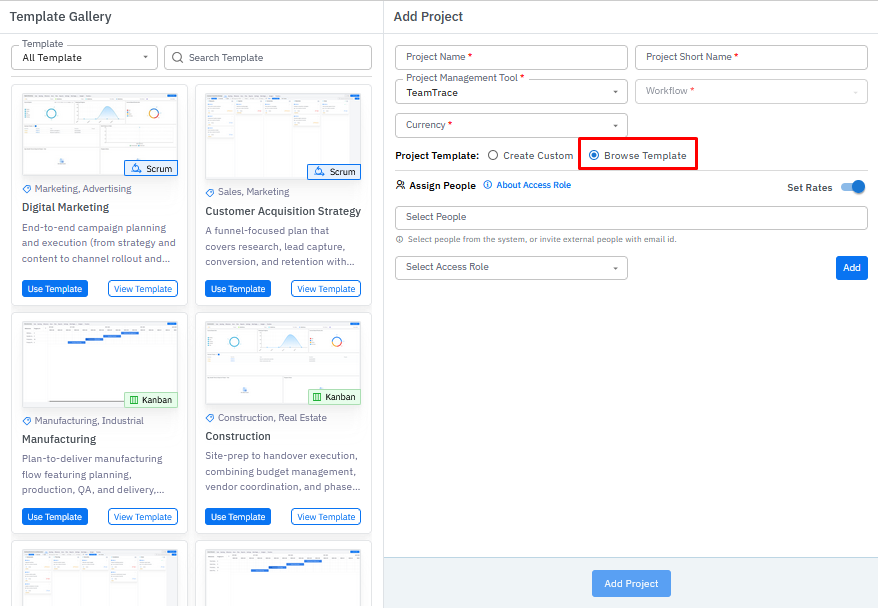
Click Browse Template.
The Template Gallery will open on the left side of the screen.
From here, you can:
Select a template from the drop-down menu
Search for a template by name
Scroll through the list to view and select existing templates
Template Behavior by Workflow Type
Scrum Templates
By default, all data is linked to the current sprint. Once the sprint is started, the related tickets and tasks will automatically appear on the board.Kanban Templates
All data is displayed directly on the board by default, with no sprint setup required
Was this article helpful?
That’s Great!
Thank you for your feedback
Sorry! We couldn't be helpful
Thank you for your feedback
Feedback sent
We appreciate your effort and will try to fix the article