Provides tools to monitor, record, and manage employee work efficiency, including features such as screenshot tracking, idle timeout, application usage, and manual time entry.
Global Settings
Configure system-wide productivity and tracking preferences to ensure consistent behavior across all users and devices.
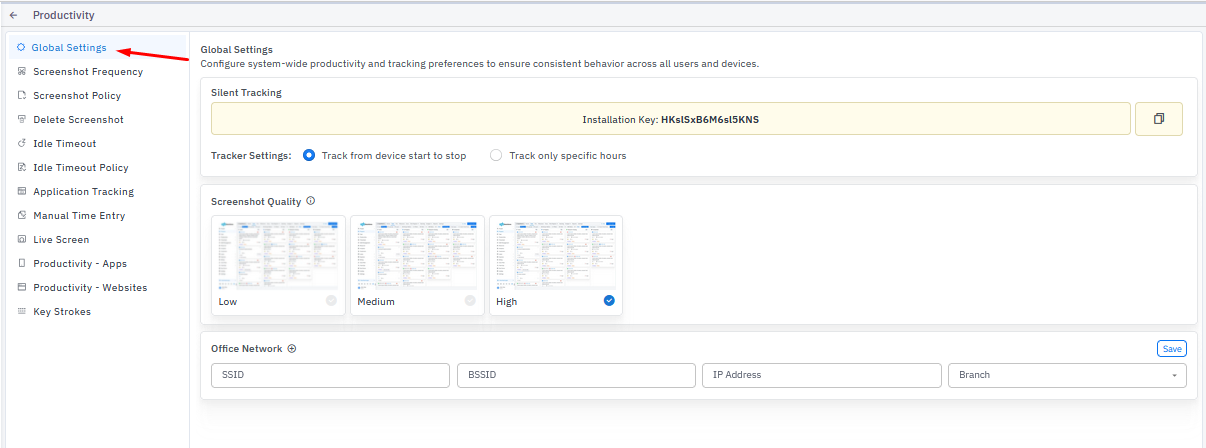
Screenshot Frequency
Defines how often the system captures automatic screenshots during active work sessions. You can filter this using either Department, Project, or both.
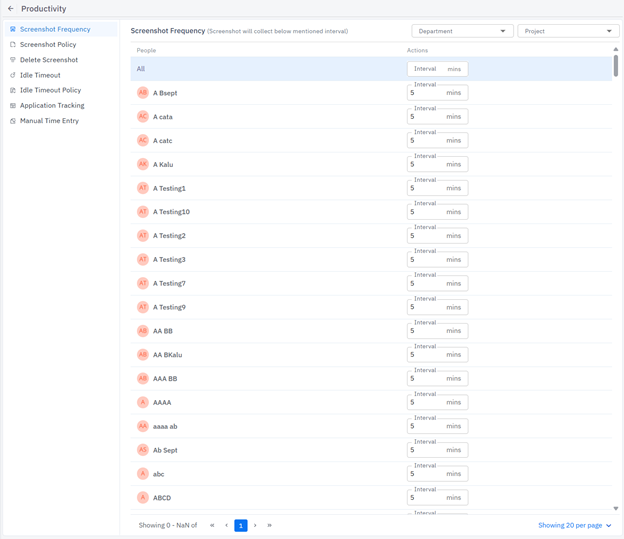
Screenshot Policy
Specifies organizational rules regarding when and how screenshots are taken, stored, and monitored. You can also filter users based on their department.
The Policy Types are as follows:
No Screenshot: Disables automatic screenshot capture during work sessions.
Blur Screenshot: Captures screenshots with content blurred for privacy.
Normal Screenshot: Captures standard and unaltered screenshots at defined intervals
Normal + Head shot: Captures both the active screen and a webcam snapshot of the user simultaneously.
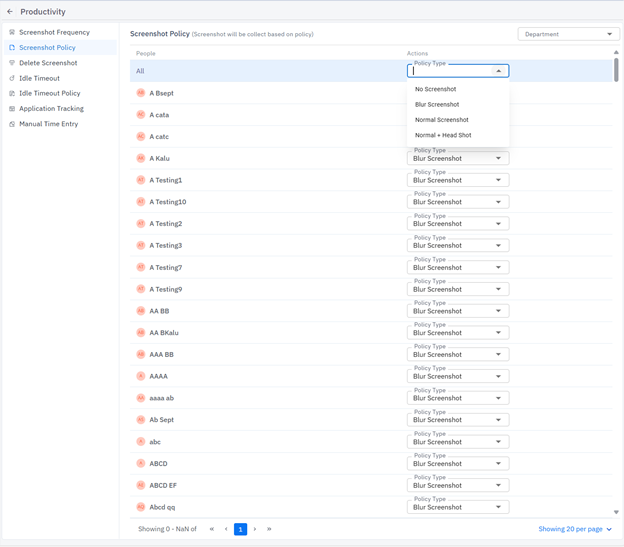
Delete Screenshot
Grants permission to remove captured screenshots from the system when required by the respective user. You can also filter users based on their department.
Note: If a screenshot is deleted, the corresponding timestamp or duration for that workday will also be excluded from the total working hours.
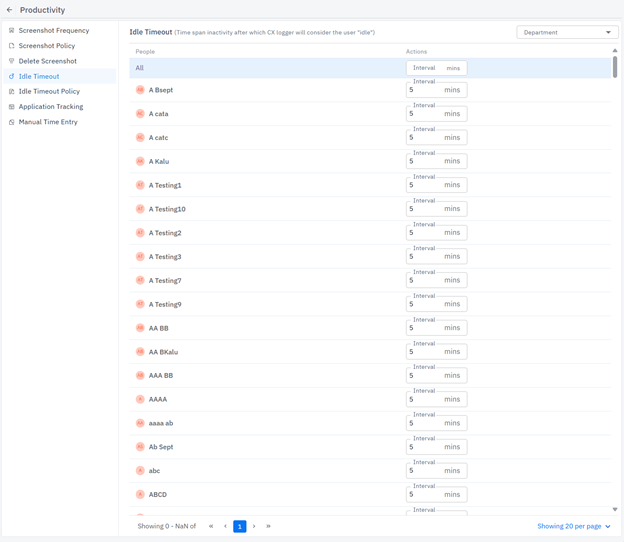
Idle Timeout
Automatically detects inactivity and marks the user idle after a defined duration. You can also filter users based on their department.
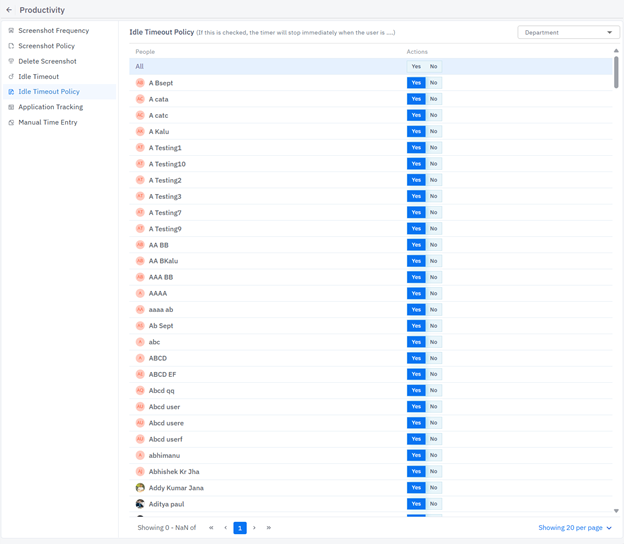
Idle Timeout Policy
If this toggle button is checked, the timer will stop immediately when the user is idle. It will not ask whether the user was working or was on a break.
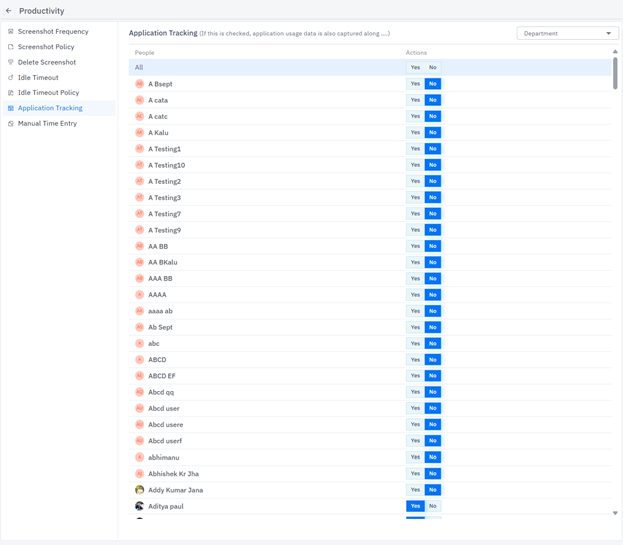
Application Tracking
Monitors applications used by employees to measure productivity and usage patterns, if the toggle button is checked.
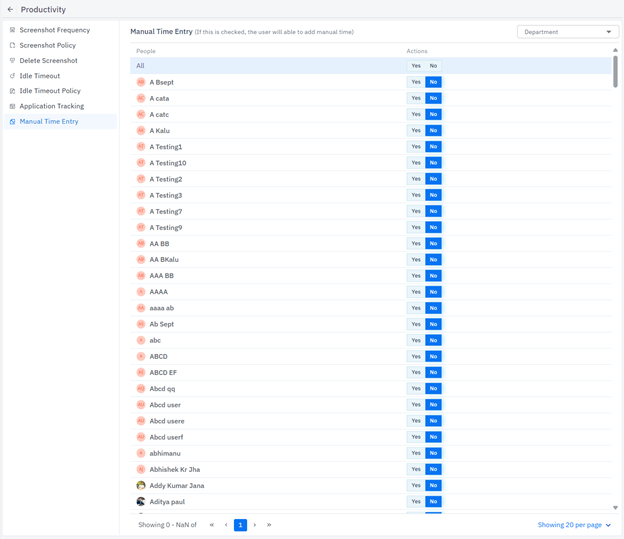
Manual Time Entry
Allows users to record working hours manually when automatic tracking is not feasible. Check the toggle button to turn the feature on or off.
Live Screen
Enable this option to allow admins to view users' live screens. Disable it to prevent live screen access.
Productivity - Apps
Classify applications as productive, unproductive, or neutral to align app usage with team goals and improve overall productivity.
Productivity - Websites
Categorize websites by productivity levels to control access, improve focus, and optimize team performance across departments.
Key Strokes
Control keystroke tracking permissions per user to manage tracking preferences and ensure compliance.
Was this article helpful?
That’s Great!
Thank you for your feedback
Sorry! We couldn't be helpful
Thank you for your feedback
Feedback sent
We appreciate your effort and will try to fix the article