Overview
Auditing user access in TeamTrace helps administrators verify who has access to employee information, projects, tasks, reports and administrative settings. A regular access review makes sure users have the right permissions for their responsibilities and that sensitive employee information is available only to authorized people.
TeamTrace provides role and permission management, user profile information, User Activities reports, and an Audit Logs feature for Enterprise plans. This article explains how to review user roles, check access permissions, review user activity and document your findings.
When to Audit User Access
- When a new employee or manager joins the organization
- When an employee changes roles or departments
- When a user receives additional permissions
- When an employee leaves the organization
- When investigating suspected unauthorized access
- As part of a regular security review
1. Review the List of Users
- Log in to the TeamTrace portal.
- Open People from the navigation bar.
- Review the list of users.
- Identify users who no longer need access or whose details need updating.
- Review each user's profile and assigned access role.
What to check:
- Is the user still part of the organization?
- Is the user's role appropriate for their responsibilities?
- Is the user's department, team or reporting relationship correct?
- Does the user still need access to TeamTrace?
Reference: TeamTrace User Setup Documentation
2. Review Roles and Permissions
Navigation: Settings > Roles
- Open Settings.
- Select Roles.
- Review the existing roles.
- Open the relevant role and examine its assigned permissions.
- Check whether the permissions match the user's responsibilities.
Administrators can create roles and customize their permissions. The All Permissions option enables all permissions displayed for a role, so review it carefully.
Reference: TeamTrace Roles and Permissions Documentation
Important permissions to review
| Permission | What to verify |
| All People | Whether the user needs visibility into all organization members or only their own profile. |
| All Projects | Whether organization-wide project access is necessary. |
| All Tasks | Whether access to all tasks is required. |
| People Activity | Whether the user should view activity records for assigned team members. |
| Live Screen | Whether the user needs real-time screen visibility for assigned team members. |
| Concerned People Manual Time Add | Whether the user should be able to add working hours on behalf of assigned team members. |
| Concerned People Screenshot Delete | Whether the user should be able to delete screenshots of assigned team members. |
| Analytics | Whether the user needs access to productivity and performance metrics. |
| Billing | Whether the user needs access to billing-related information. |
| Settings | Whether the user needs administrative configuration access. |
Check the exact options in your organization's current role configuration screen.
3. Verify Individual User Assignments
- Open People.
- Select the user you want to review.
- Check the user's profile and assigned access role.
- Verify that the role matches the user's responsibilities.
- If the role is not appropriate, follow your organization's approved process to update it.
For example, an employee who only needs access to their own work should not automatically receive the same permissions as an administrator.
Best practice: Review both the role's permissions and each user's assignment. Reviewing only the role doesn't show which users currently have it.
4. Review User Activities
The User Activities view lets users view and export activity logs. Activity reports can be downloaded for an individual user or for all direct reports, in PDF and Excel formats.
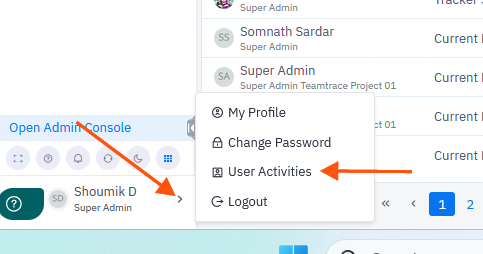
- Log in to TeamTrace and open your profile menu.
- Select User Activities.
- Review the available activity information.
- Choose the appropriate user or reporting scope.
- Export the activity report in PDF or Excel format, where available.
- Retain the report according to your organization's audit process.
What this helps you check:
- Activity associated with a particular user
- Activity of your direct reports, where permitted
- Information that may help investigate a reported issue
- Records that support an internal review
Important: User Activities reports are activity records. Don't treat them as a complete record of every permission change or every attempt to access employee data.
Reference: TeamTrace December Updates
5. Review Audit Logs
Audit Logs are an Enterprise plan feature. If your organization has it enabled:
- Confirm that Audit Logs are available in your TeamTrace subscription.
- Open the User Activities from Profile Menu at the bottom left panel of the portal.
- Identify the user, event or period relevant to your review.
- Review the available records.
- Record your findings and escalate any suspicious activity according to your internal security procedure.
6. Check Access to Sensitive Employee Information
Pay particular attention to information that may be sensitive:
- Employee activity records
- Screenshots and live screens
- Attendance and timesheets
- Employee profiles
- Project and task information
- Productivity and analytics reports
- Field employee location information, where enabled
- Administrative settings
Verify that each category of access is justified by the user's role. TeamTrace's Privacy Policy states that organizations are responsible for restricting access to workforce-monitoring data to authorized personnel and for using monitoring features transparently and appropriately.
7. Review Users Who Have Changed Roles or Left
When an employee changes roles
- Review the employee's existing role.
- Check whether the old permissions are still required.
- Assign an appropriate role for the new responsibilities.
- Verify that unnecessary access has been removed.
When an employee leaves
- Identify the user's account.
- Review project and task assignments.
- Decide whether the account should be disabled or removed, according to organizational policy.
- Verify that access is no longer available as intended.
- Keep required historical records according to your retention policy.
Don't assume that removing a user deletes historical data, or that disabling a user removes every existing assignment. Verify the actual behavior in your TeamTrace environment.
8. Document the Access Review
Keep an internal record so your organization can show that access has been reviewed. A simple audit register can include:
| Field | Information to record |
| User | Employee or account being reviewed |
| Assigned role | Role currently assigned |
| Access reviewed | Permissions and relevant data access checked |
| Findings | Any unnecessary or unexpected access identified |
| Action required | Role change, access removal, investigation or no action |
| Reviewer | Person who performed the audit |
| Review date | Date of the review |
| Status | Pending, in progress or completed |
Store the register and any exported reports in an appropriately restricted location.
9. Troubleshooting
| Issue | Recommended action |
| A user can see more employees than expected | Review the user's role and the All People permission. |
| A user can access unnecessary projects or tasks | Review All Projects, All Tasks and relevant assignments. |
| A manager can't view a direct report's activity | Check the role's permissions and the user's reporting or assignment relationship. |
| You can't find User Activities | Check the profile menu and confirm your account has the required access. |
| You can't find Audit Logs | Check your subscription, feature availability and permissions. |
| You can't export an activity report | Verify the available export options and your access to the relevant report. |
| You suspect unauthorized access | Preserve the relevant available records and follow your organization's security-incident process. |
10. Best Practices
- Apply the principle of least privilege.
- Avoid enabling All Permissions unless broad access is genuinely required.
- Review access when users change roles or leave the organization.
- Limit access to screenshots, live screens and employee activity information.
- Review direct-report relationships where they affect data visibility.
- Keep a record of each review and any corrective actions.
- Follow your organization's retention and incident-response procedures.
- Run access reviews periodically, according to your internal security policy.
Summary
To audit user access in TeamTrace, start with People to review users and their assigned roles, then use Settings > Roles to inspect permissions. Use Profile menu > User Activities to review and export activity reports where available. If your organization has the Enterprise Audit Logs feature, use it to investigate relevant events. A complete audit checks which users exist, what information they can access, whether that access is justified, and whether the findings have been documented.
Related Articles
Was this article helpful?
That’s Great!
Thank you for your feedback
Sorry! We couldn't be helpful
Thank you for your feedback
Feedback sent
We appreciate your effort and will try to fix the article